Odoo Configuration
After Keycloak is set up, each Odoo instance needs an OAuth Provider record and a system parameter to complete the SSO integration.
Step 1: Open the OAuth Providers list
Navigate to Settings > Users & Companies > OAuth Providers.
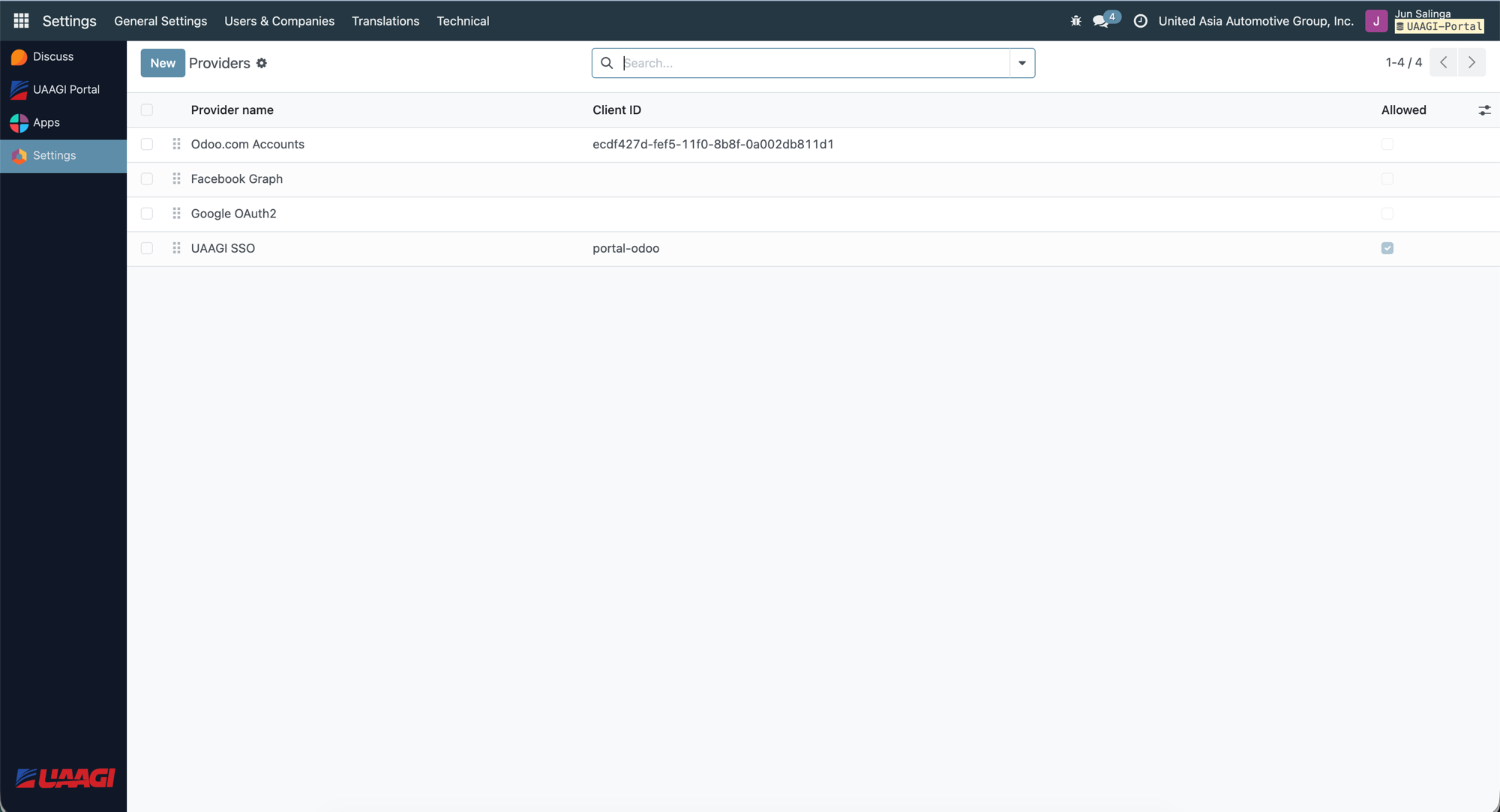
Odoo ships with three default providers (Odoo.com Accounts, Facebook Graph, Google OAuth2). You will add a new UAAGI SSO provider — the only one that should be Allowed (enabled).
Step 2: Create the OAuth Provider
Click New and fill in every field as shown below.
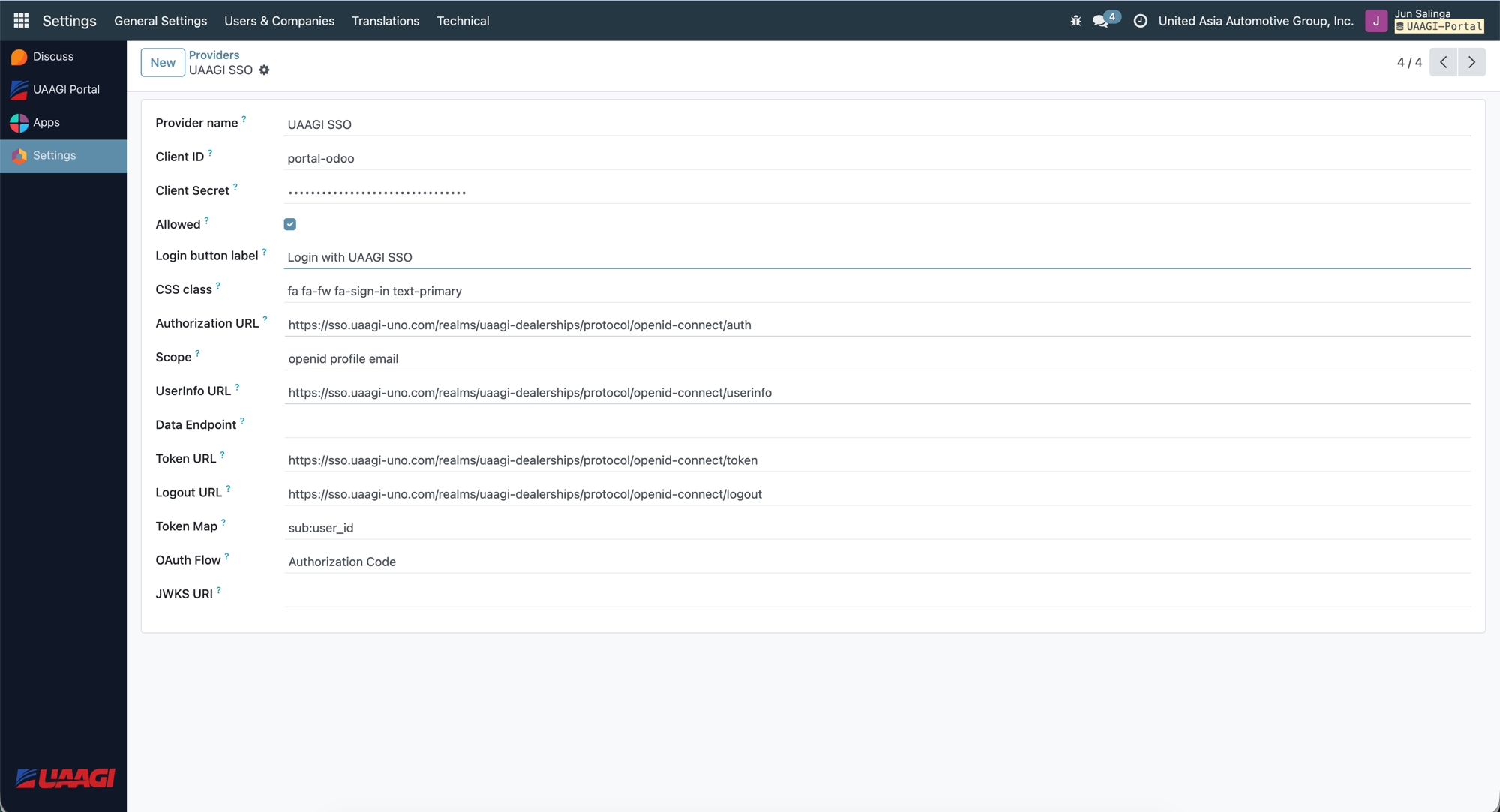
Portal instance (portal.uaagi-uno.com)
| Field | Value | Notes |
|---|---|---|
| Provider name | UAAGI SSO | Display name in the admin list |
| Client ID | portal-odoo | Must match the Keycloak client ID exactly |
| Client Secret | (from Keycloak Credentials tab) | Paste the secret from the portal-odoo client |
| Allowed | Checked | Enables this provider on the login page |
| Login button label | Login with UAAGI SSO | Text shown on the login button |
| CSS class | fa fa-fw fa-sign-in text-primary | Font Awesome icon for the button |
| Authorization URL | https://sso.uaagi-uno.com/realms/uaagi-dealerships/protocol/openid-connect/auth | Keycloak's authorization endpoint |
| Scope | openid profile email | Standard OIDC scopes |
| UserInfo URL | https://sso.uaagi-uno.com/realms/uaagi-dealerships/protocol/openid-connect/userinfo | Keycloak's userinfo endpoint |
| Data Endpoint | (empty) | Not used — userinfo is sufficient |
| Token URL | https://sso.uaagi-uno.com/realms/uaagi-dealerships/protocol/openid-connect/token | For Authorization Code exchange |
| Logout URL | https://sso.uaagi-uno.com/realms/uaagi-dealerships/protocol/openid-connect/logout | For SSO logout |
| Token Map | sub:user_id | Maps Keycloak's sub claim to Odoo's OAuth user ID |
| OAuth Flow | Authorization Code | Required for PKCE (S256) |
| JWKS URI | (empty) | Optional — for local token validation |
Click Save.
Dealership instance (e.g. makati.uaagi-uno.com)
Create the same record on each dealership instance, changing only:
| Field | Portal value | Dealership value |
|---|---|---|
| Client ID | portal-odoo | makati-dealership (matches Keycloak client) |
| Client Secret | Portal client secret | Dealership client secret |
All endpoint URLs remain the same — they always point to the shared uaagi-dealerships realm.
:::caution One provider per instance Each Odoo instance should have exactly one enabled UAAGI SSO provider. Disable the default providers (Odoo.com, Facebook, Google) unless you need them. :::
Step 3: Verify the OAuth link on a user
After a user logs in via SSO, their Odoo user record will show the OAuth link. Navigate to Settings > Users & Companies > Users, open a user, and click the Oauth tab.
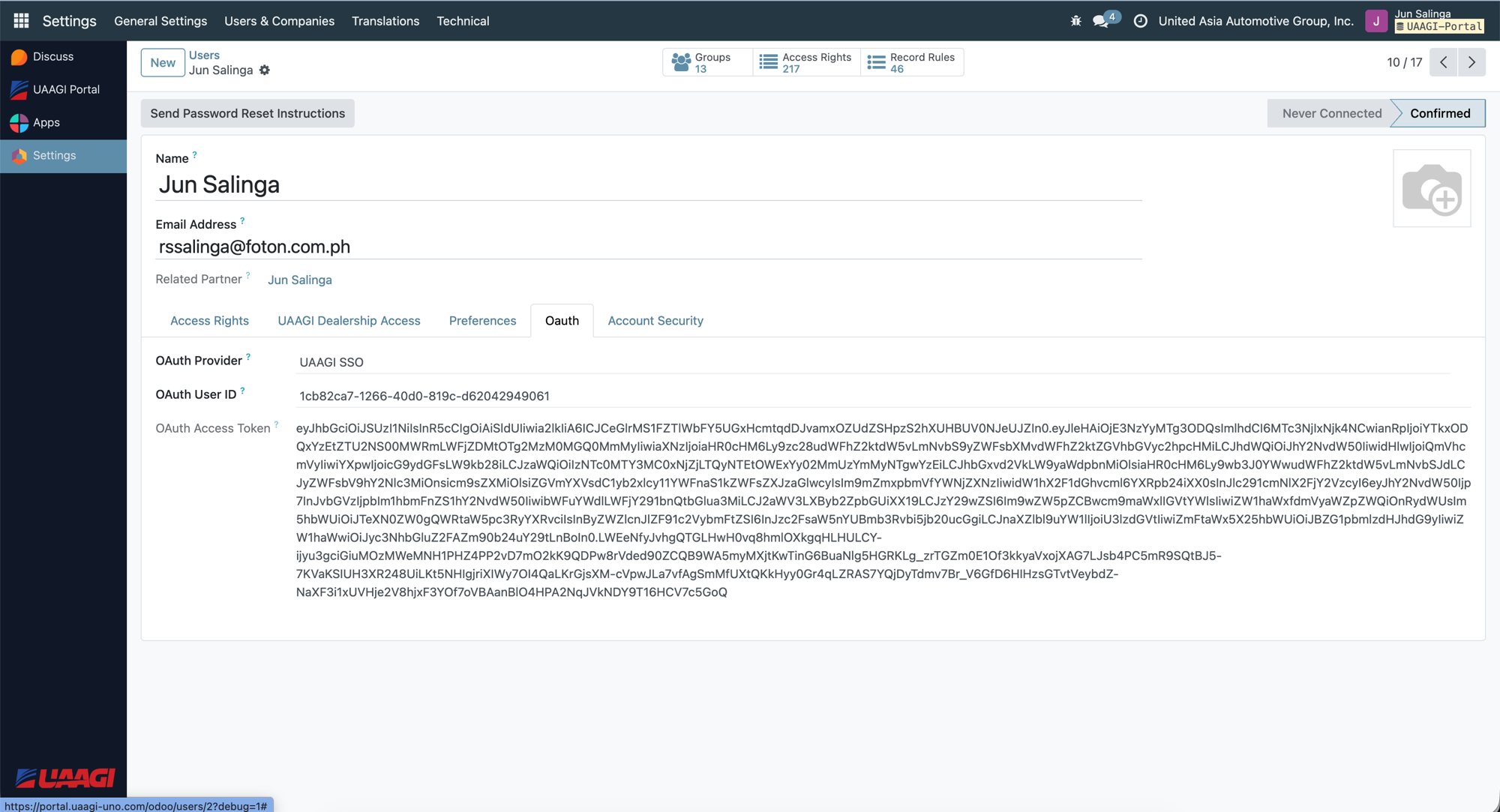
| Field | Description |
|---|---|
| OAuth Provider | The provider this user authenticated through (UAAGI SSO) |
| OAuth User ID | The Keycloak sub claim (UUID) — uniquely identifies this user in Keycloak |
| OAuth Access Token | The current access token (long JWT string) — refreshed on each login |
These fields are set automatically during OAuth login. You should never need to edit them manually.
:::info Status badge The Confirmed badge (top right) indicates the user has successfully authenticated at least once. Never Connected means the user record exists but the user has not yet logged in via SSO. :::
Step 4: Verify dealership access mapping
Click the UAAGI Dealership Access tab on the same user form.
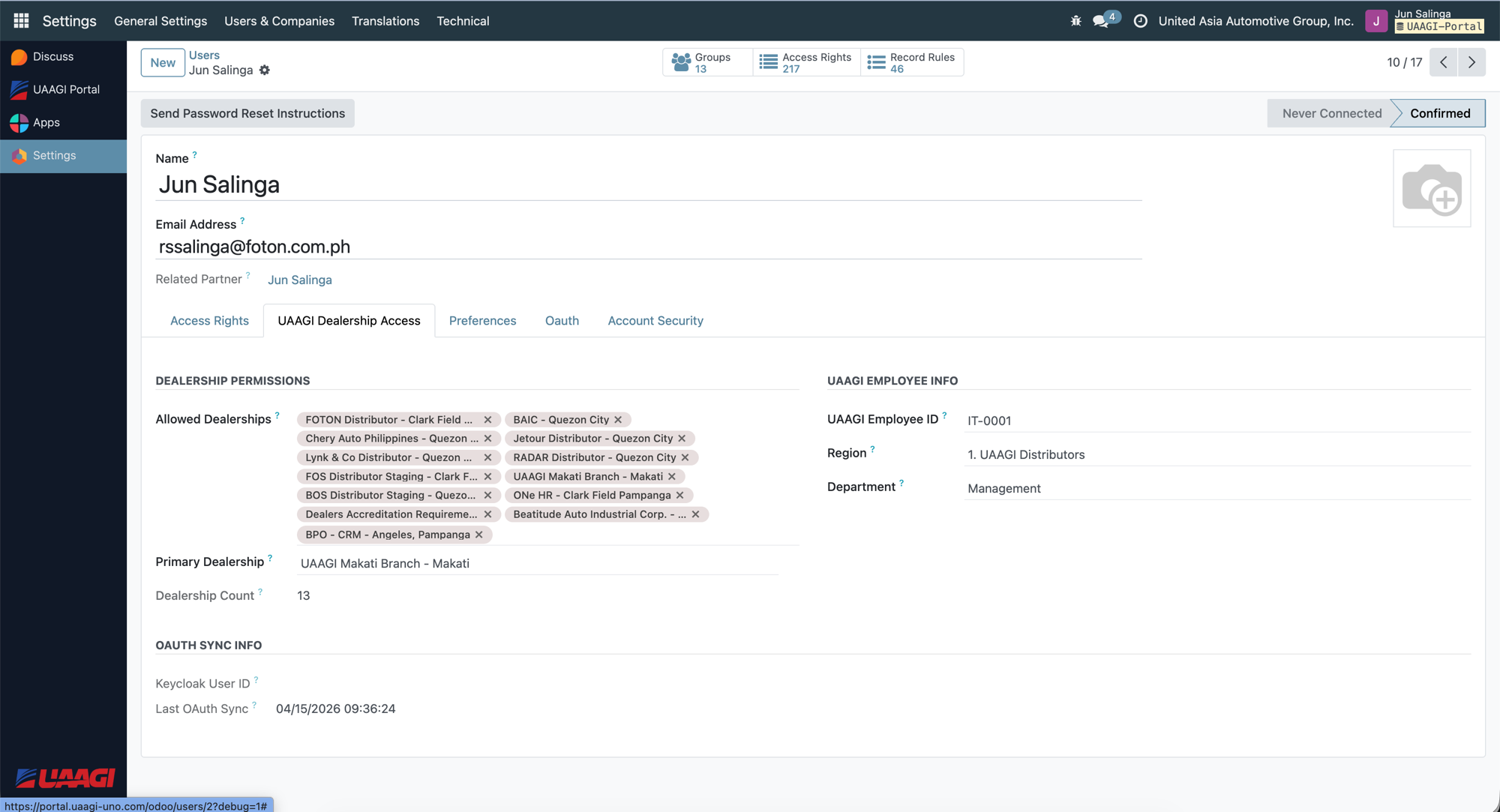
This tab shows the data that Odoo extracted from the Keycloak token claims:
Dealership permissions
| Field | Description |
|---|---|
| Allowed Dealerships | Many2many tags — every dealership this user can access. Populated from the allowed_dealerships token claim. |
| Primary Dealership | The user's default dealership. Populated from the primary_dealership token claim. |
| Dealership Count | Computed count of allowed dealerships. |
UAAGI employee info
| Field | Description |
|---|---|
| UAAGI Employee ID | From the employee_id token claim |
| Region | From the region token claim |
| Department | From the department token claim |
OAuth sync info
| Field | Description |
|---|---|
| Keycloak User ID | The sub claim — same as OAuth User ID |
| Last OAuth Sync | Timestamp of the last login when attributes were refreshed |
:::tip Attributes refresh on every login
These fields are updated every time the user logs in via SSO. If you change a user's allowed_dealerships in Keycloak, the change takes effect on their next login — no manual Odoo update needed.
:::
Step 5: System parameters
Navigate to Settings > Technical > Parameters > System Parameters in Odoo.
Portal instance
| Key | Value | Purpose |
|---|---|---|
uaagi.is_portal_instance | True | Enables auto-redirect to Keycloak on login and shows the dealership selector after authentication |
Dealership instance
| Key | Value | Purpose |
|---|---|---|
uaagi.portal_url | https://portal.uaagi-uno.com | Used for "Back to Portal" links and post-logout redirects |
What's next
- Testing & Troubleshooting — verify the end-to-end SSO flow and resolve common issues