Realm Setup
This guide walks through creating and configuring the uaagi-dealerships realm in Keycloak.
Step 1: Log in to the Admin Console
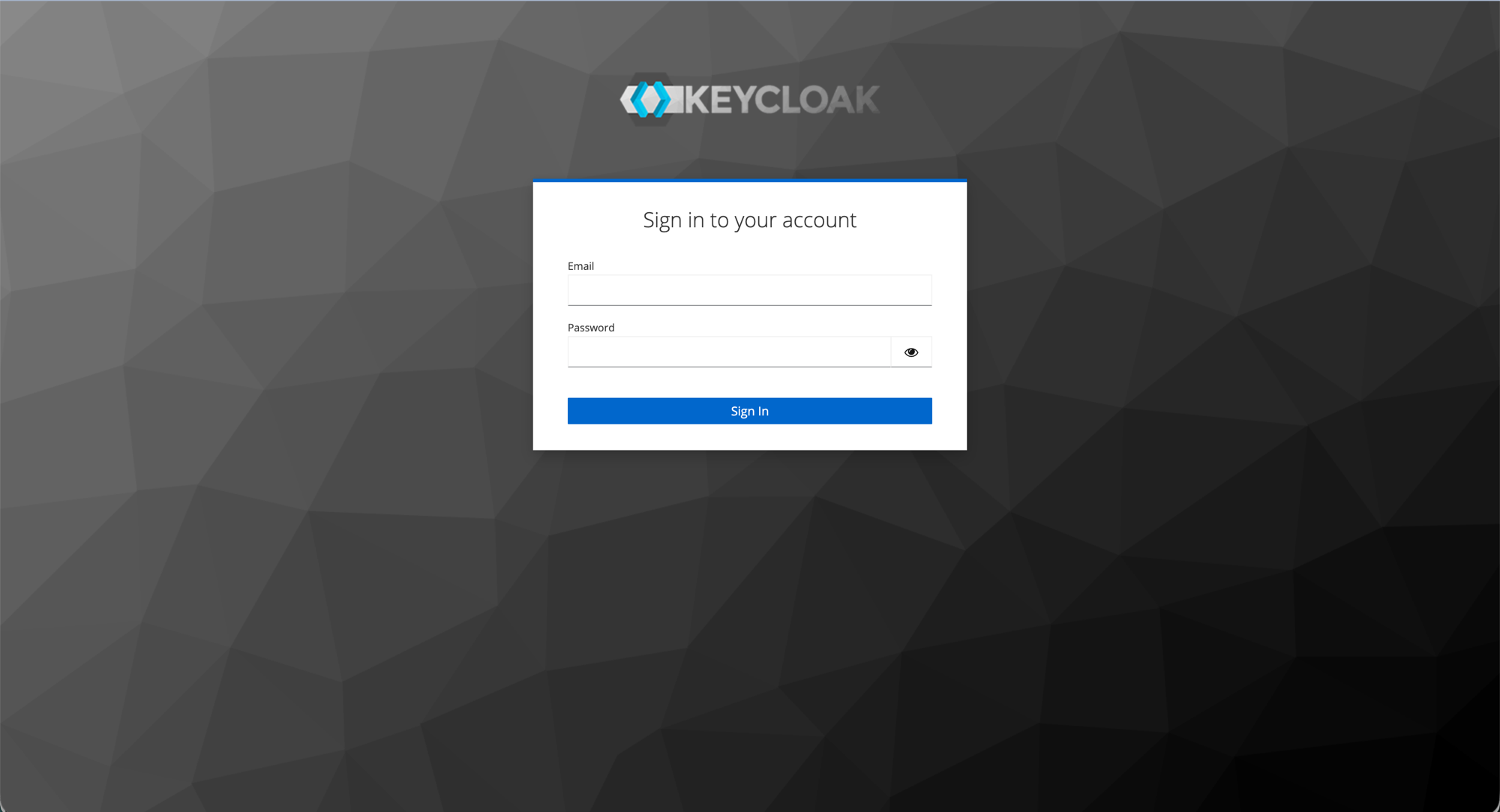
Navigate to https://sso.uaagi-uno.com/admin and sign in with your Keycloak admin credentials.
Step 2: Create the realm
- After login, click the realm dropdown (top-left corner of the sidebar).
- Click Create Realm.
- Enter
uaagi-dealershipsas the Realm ID. - Click Create.
The Realm ID cannot be changed after creation. Make sure it is exactly uaagi-dealerships — this value is embedded in all OAuth endpoint URLs.
Step 3: General settings
Navigate to Configure > Realm settings > General tab.
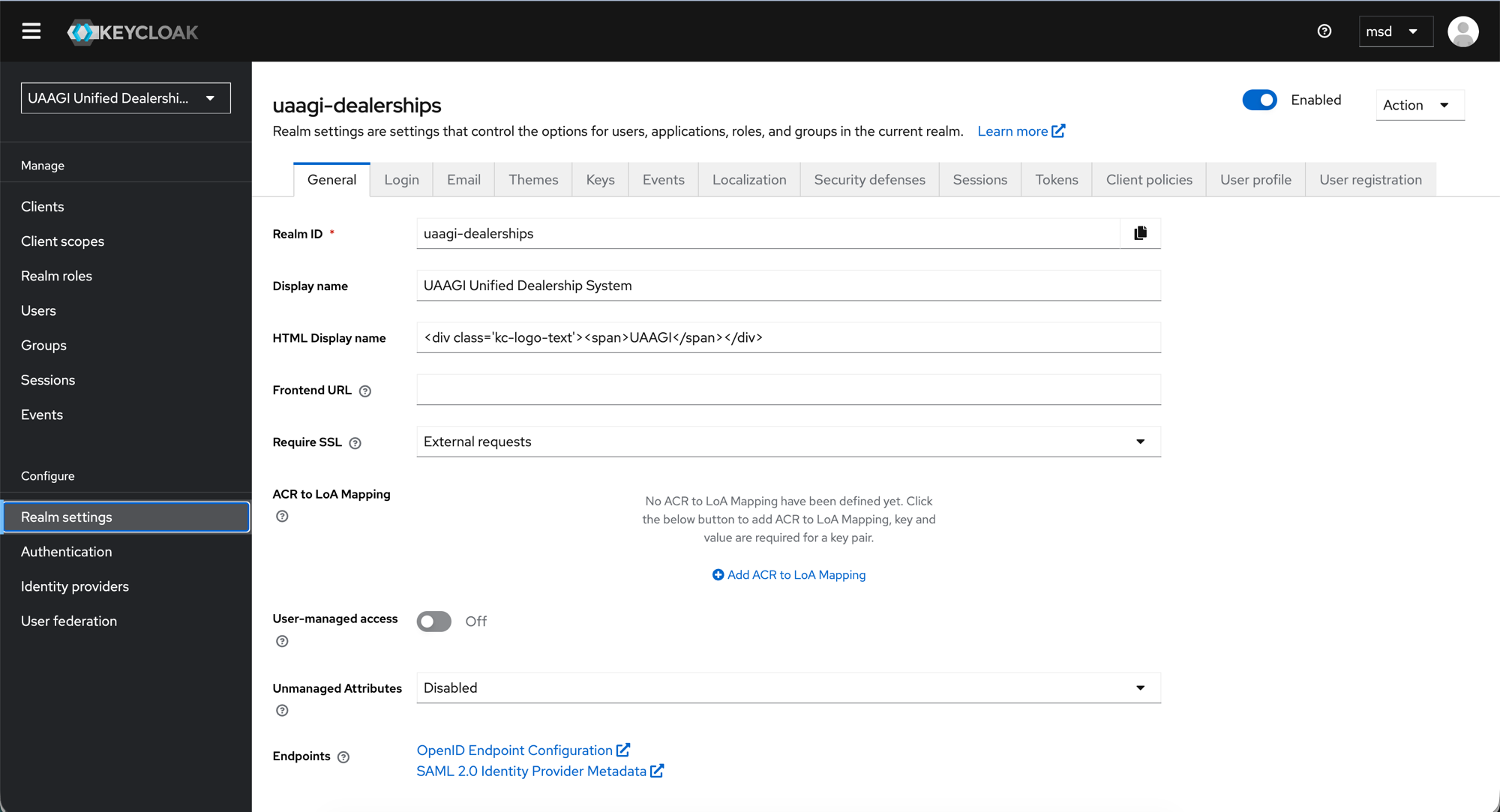
Configure the following:
| Field | Value | Notes |
|---|---|---|
| Realm ID | uaagi-dealerships | Read-only after creation |
| Display name | UAAGI Unified Dealership System | Shown in the admin console sidebar |
| HTML Display name | <div class='kc-logo-text'><span>UAAGI</span></div> | Branded login page header |
| Frontend URL | (empty) | Leave blank unless fronting Keycloak behind a separate reverse proxy hostname |
| Require SSL | External requests | Enforces HTTPS for all external traffic; internal cluster comms can stay plain HTTP |
| User-managed access | Off | Users cannot manage their own account resources |
| Unmanaged Attributes | Disabled | Prevents users from setting arbitrary attributes on themselves |
At the bottom you will see the Endpoints links — these are useful references:
- OpenID Endpoint Configuration — the
.well-known/openid-configurationURL that lists all OAuth/OIDC endpoints for this realm - SAML 2.0 Identity Provider Metadata — not used in this setup
Click Save.
Step 4: Login settings
Navigate to the Login tab.
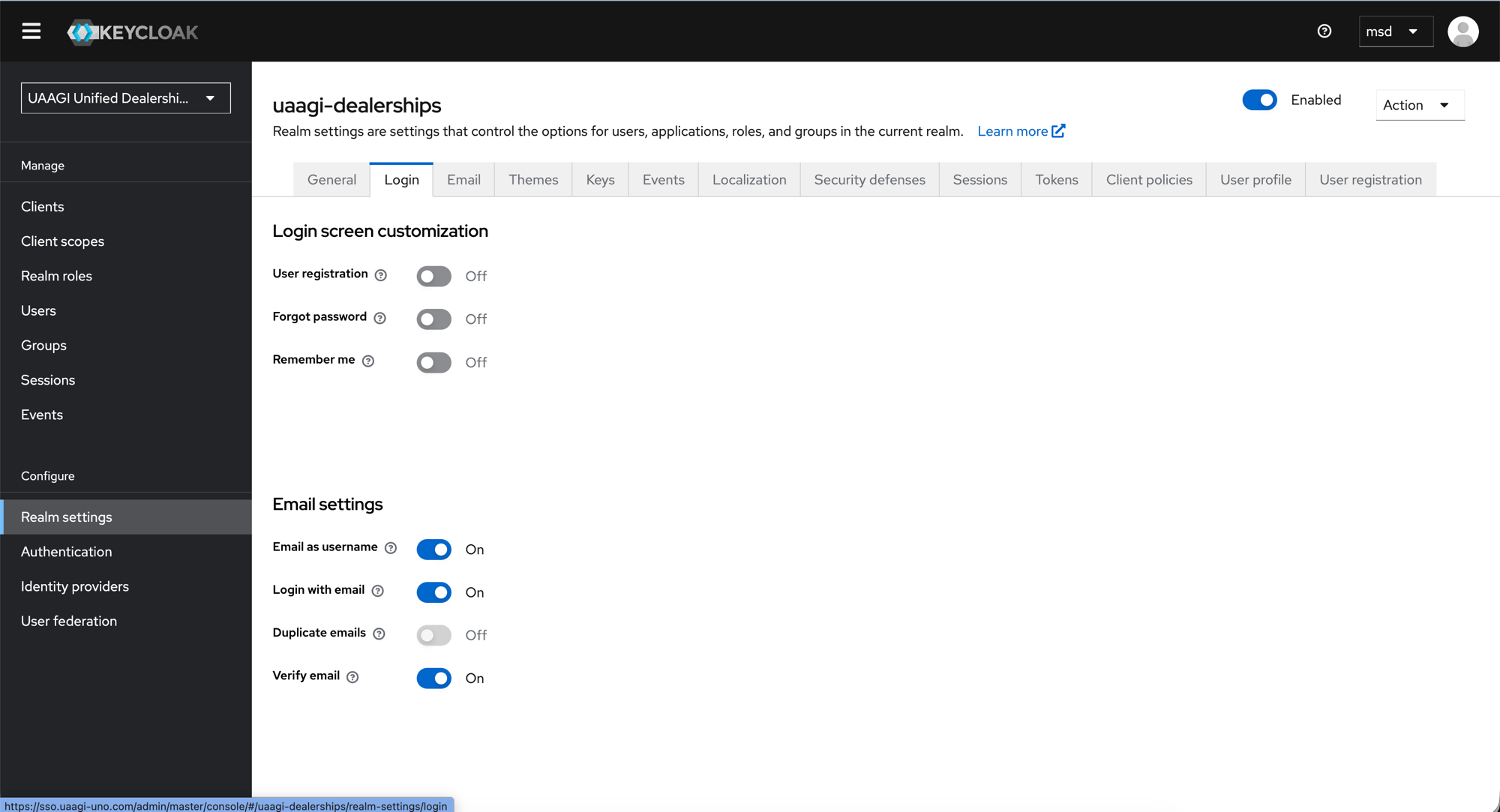
Login screen customization
| Setting | Value | Rationale |
|---|---|---|
| User registration | Off | Users are provisioned by admins only — no self-signup |
| Forgot password | Off | Password resets are handled by sysadmins, not end-users |
| Remember me | Off | Session length is controlled by token lifespans, not browser cookies |
Email settings
| Setting | Value | Rationale |
|---|---|---|
| Email as username | On | Users log in with their email address (e.g. juan@uaagi.com) |
| Login with email | On | Allows email in the login form (required when Email as username is on) |
| Duplicate emails | Off | Ensures each email maps to exactly one Keycloak user — critical for Odoo's email-based user matching |
| Verify email | On | Users must verify their email before first login |
:::warning Duplicate emails must stay Off The Odoo SSO module matches users by email when linking OAuth accounts. If two Keycloak users share the same email, the wrong Odoo user could be linked. Always keep Duplicate emails disabled. :::
Click Save.
Step 5: Tokens (recommended settings)
Navigate to the Tokens tab and configure session lifespans:
| Setting | Recommended value | Notes |
|---|---|---|
| Access Token Lifespan | 30 minutes | How long the access token is valid. Odoo uses it for the userinfo request and dealership redirects. |
| SSO Session Idle | 1 hour | Session expires after 1 hour of inactivity |
| SSO Session Max | 8 hours | Maximum session length regardless of activity (one workday) |
Individual clients can override these values via their Advanced tab. For most dealership clients, leaving them as "Inherits from realm settings" is correct.
Click Save.
What's next
With the realm configured, proceed to create the OAuth clients:
- Portal Client — the
portal-odooclient for the central portal - Dealership Clients — per-dealership clients (e.g.
bacolod-dealership)