User Management
This guide covers creating Keycloak users, setting their credentials, assigning roles, and configuring the custom attributes that control dealership access in Odoo.
Step 1: Create a user
Navigate to Manage > Users in the sidebar, then click Add user.
Fill in the Details tab:
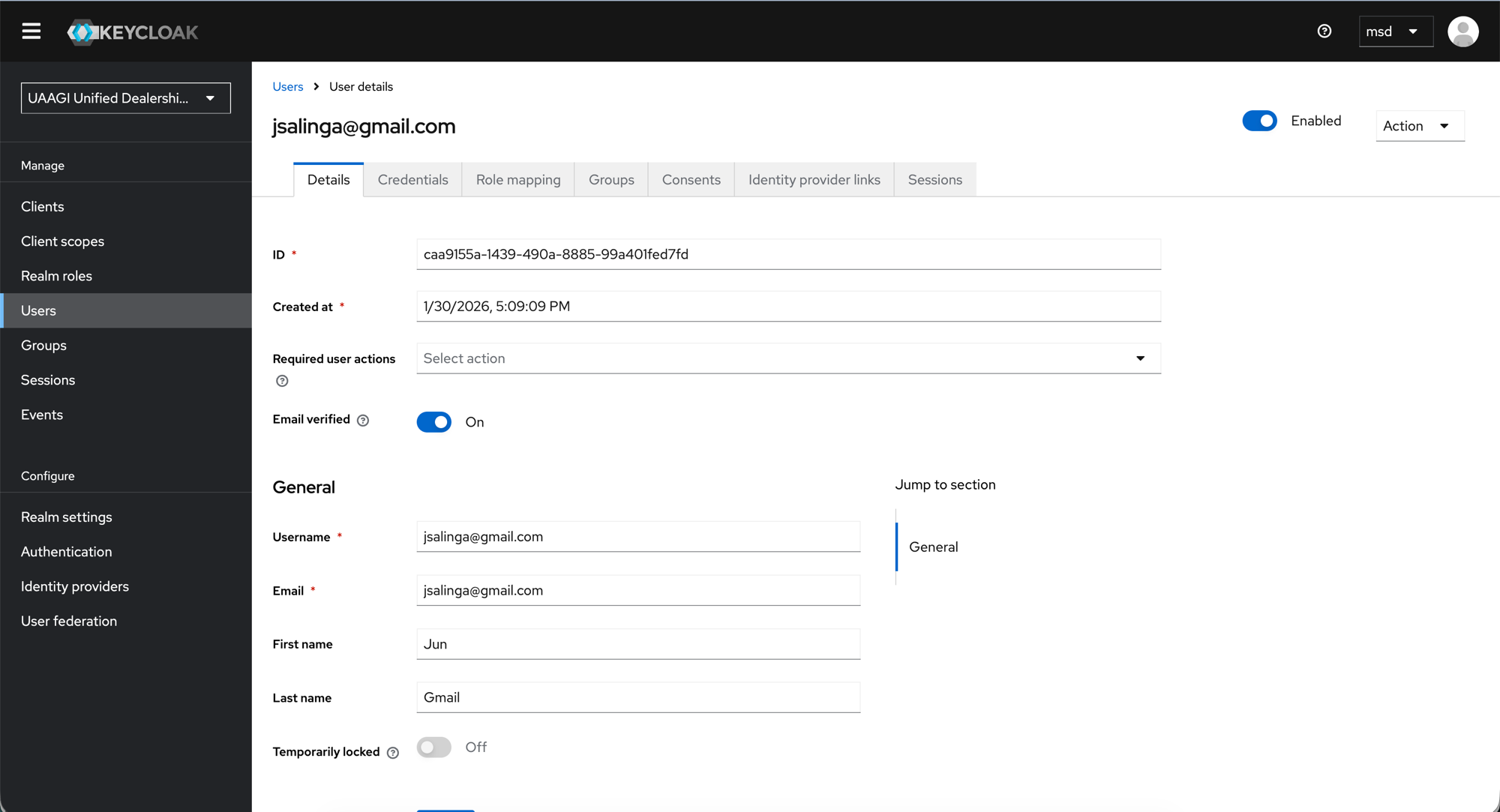
| Field | Value | Notes |
|---|---|---|
| Username | user@example.com | Same as email (realm has "Email as username" enabled) |
user@example.com | Must be unique across the realm | |
| Email verified | On | Toggle on for admin-provisioned users to skip email verification |
| First name | User's first name | Mapped to Odoo's user name |
| Last name | User's last name | |
| Temporarily locked | Off | Only toggle on to temporarily disable an account |
The ID and Created at fields are auto-generated and read-only.
Click Create.
Step 2: Set password
Open the user and navigate to the Credentials tab.
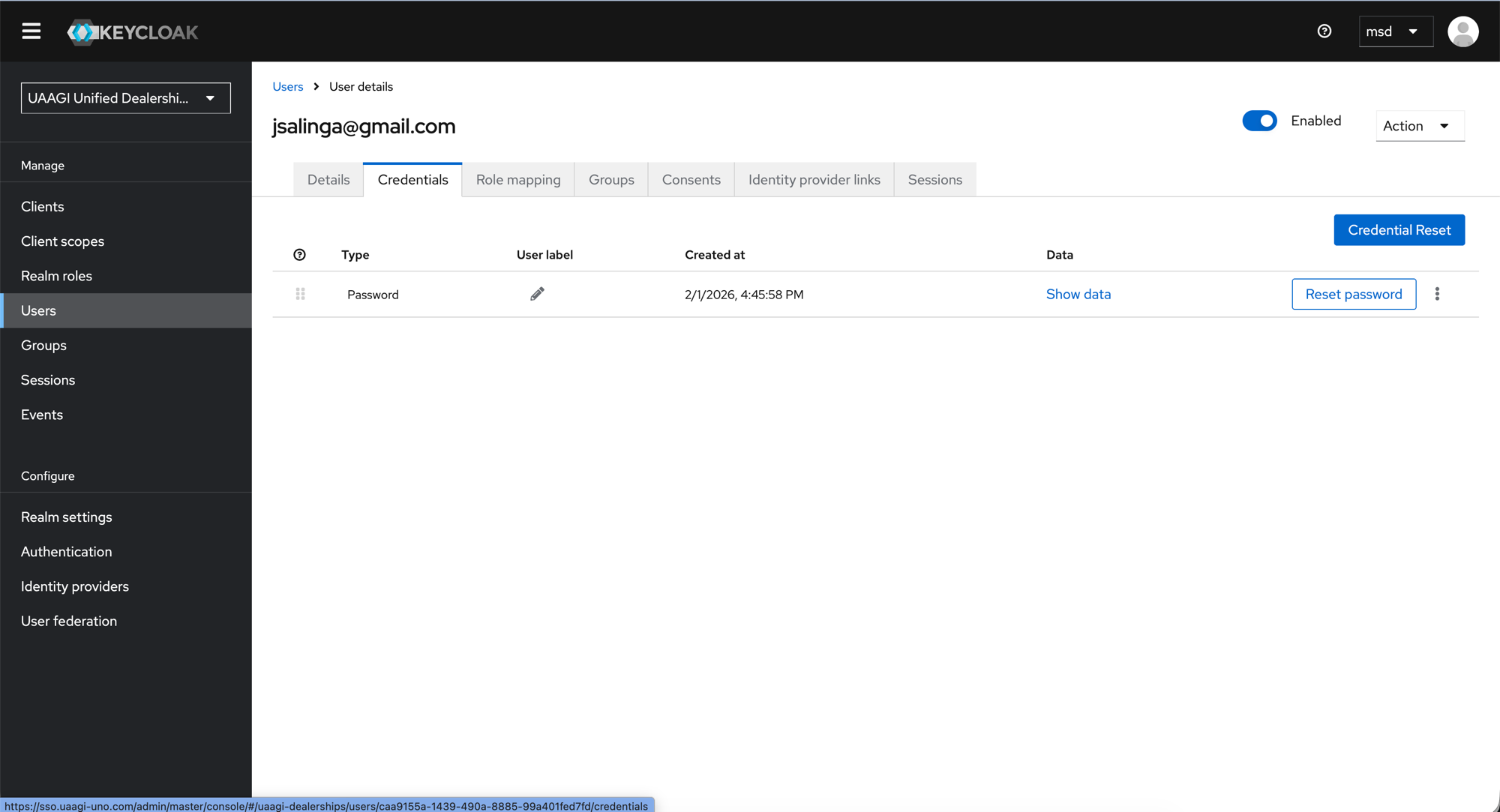
- Click Set password (or Credential Reset to send a reset email).
- Enter the new password.
- Set Temporary to
Offif the user should not be forced to change it on first login. - Click Save.
The credentials table shows:
| Column | Description |
|---|---|
| Type | Password — the only credential type used in this setup |
| Created at | When the password was last set |
| Data | Click "Show data" to view the hashed credential metadata |
| Reset password | Force a password change on next login |
Step 3: Verify role mapping
Navigate to the Role mapping tab.
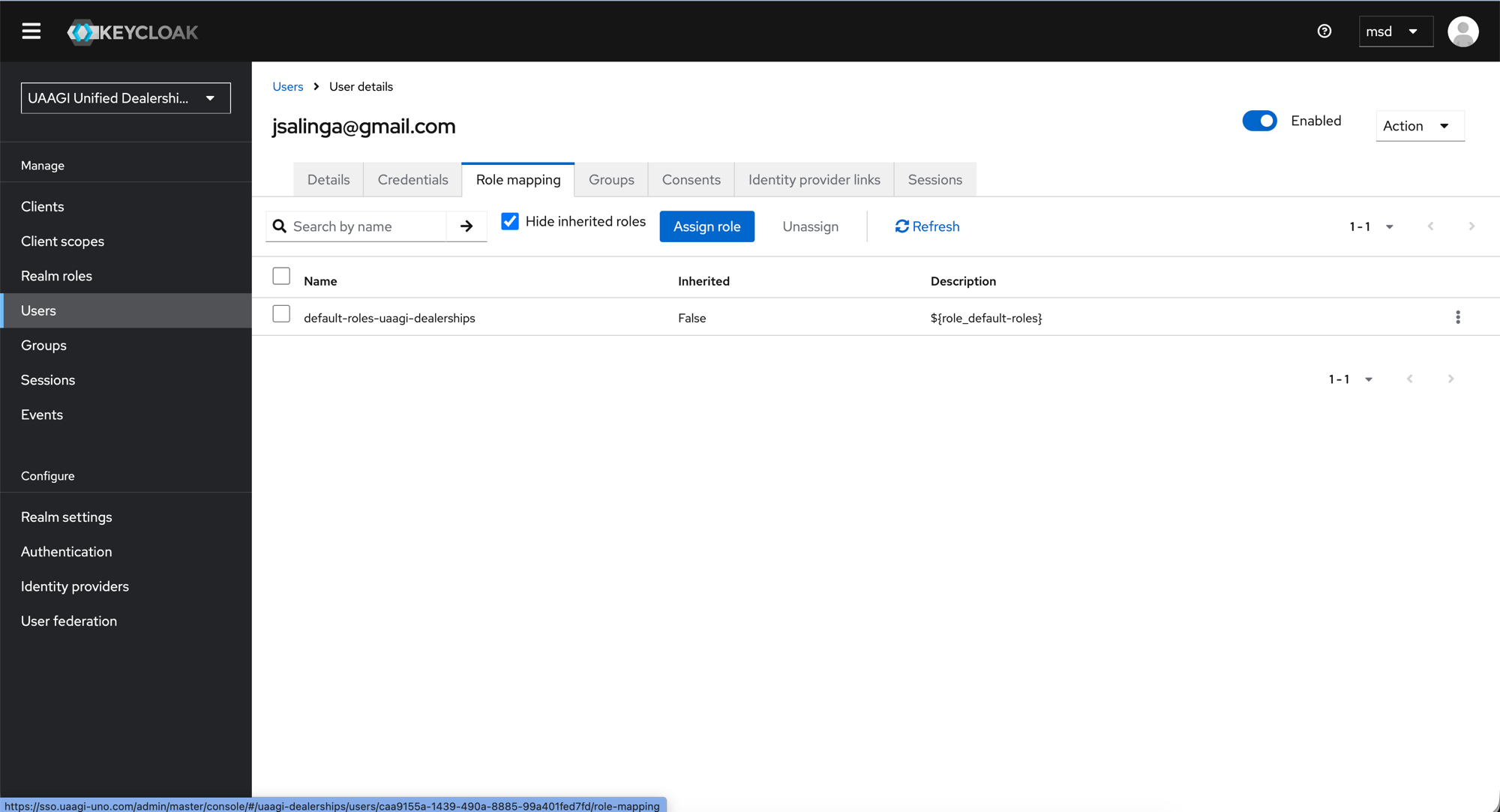
Every user should have the default-roles-uaagi-dealerships role assigned. This is the realm's default role and is automatically assigned to new users.
:::info Roles are not used for Odoo access control Dealership access in Odoo is controlled by user attributes (see next step), not Keycloak roles. The default role is sufficient for all users. :::
Step 4: Set user attributes
Navigate to the Attributes tab on the user. Add the following key-value pairs:
| Key | Value | Example |
|---|---|---|
allowed_dealerships | Comma-separated list of dealership Keycloak Client IDs | makati-dealership,cebu-dealership |
primary_dealership | Default dealership Client ID | makati-dealership |
employee_id | UAAGI employee ID | UAAGI-2024-001 |
region | User's assigned region | metro-manila |
department | User's department | sales |
Click Save.
:::info Keycloak version note In some Keycloak versions, user attributes appear as a separate Attributes tab. In newer versions, they may be managed via Realm settings > User profile or inline on the Details tab. The key-value pairs are the same regardless of where they appear in the UI. :::
:::warning Attribute keys must match exactly
These attribute keys must match the User Attribute names configured in the Protocol Mappers. A typo (e.g. allowed-dealerships with a hyphen instead of allowed_dealerships with an underscore) will result in empty token claims, and the user will see no dealerships in the portal.
:::
How attributes flow to Odoo
Keycloak User Attribute          Protocol Mapper          Token Claim          Odoo Field
─────────────────────── ──────────────────── ─────────── ──────────
allowed_dealerships  →  allowed_dealerships  →  allowed_dealerships  →  allowed_dealership_ids
primary_dealership   →  primary_dealership   →  primary_dealership   →  primary_dealership_id
employee_id          →  employee_id          →  employee_id          →  employee_id_uaagi
region               →  region               →  region               →  region
department           →  department           →  department           →  department
Valid region values
| Value | Description |
|---|---|
metro-manila | Metro Manila |
luzon-north | North Luzon |
luzon-central | Central Luzon |
luzon-south | South Luzon |
visayas | Visayas |
mindanao | Mindanao |
Valid department values
| Value | Description |
|---|---|
sales | Sales |
service | Service / After-sales |
parts | Parts |
admin | Administration |
Disabling a user
To revoke a user's access:
- Open the user in Manage > Users.
- Toggle Enabled to
Off(top right). - Click Save.
The user will be denied at Keycloak login and cannot access any Odoo instance. Their Odoo user record remains intact for audit purposes.
Alternatively, to restrict access to specific dealerships without fully disabling the account, update the allowed_dealerships attribute and remove the dealership Client IDs.
What's next
- Protocol Mappers — understand how user attributes become token claims
- Odoo Configuration — see how Odoo reads these claims and maps them to user fields