End-User Experience
This is what every UAAGI employee sees when they log in. No configuration happens here — this page describes the flow the Portal delivers once administrators have set up the dealerships, brands, and user access.
End users — BPO agents, dealership sales staff, managers — anyone who needs to get into an Odoo system from a browser.
The flow, in one picture
  ┌──────────────┐   1. open portal.uaagi-uno.com
  │   Browser    │ ───────────────────────────────────▶ ┌────────────────┐
  └──────┬───────┘                                      │  The Portal    │
         │                                              │  (Odoo 18)     │
         │  2. redirect to Keycloak                     └────────┬───────┘
         │ ◀────────────────────────────────────────────────────┘
         │
         │  3. authenticate (username/password, MFA)
         ▼
  ┌──────────────┐
  │   Keycloak   │
  └──────┬───────┘
         │  4. redirect back with authorization code
         ▼
  ┌──────────────┐
  │  The Portal  │  5. exchanges code for token, reads allowed_dealerships claim
  └──────┬───────┘
         │  6. renders /dealership/portal
         ▼
  ┌──────────────────────────────┐
  │  Region-grouped dealership   │
  │  selector — one card per     │
  │  dealership the user can     │
  │  access                      │
  └──────────────────────────────┘
         │  7. user clicks a card
         ▼
  ┌──────────────────────────────┐
  │  subdomain.uaagi-uno.com     │  auto-authenticated via shared Keycloak session
  │  (Dealer CRM backend)        │
  └──────────────────────────────┘
Signing in
- The user opens
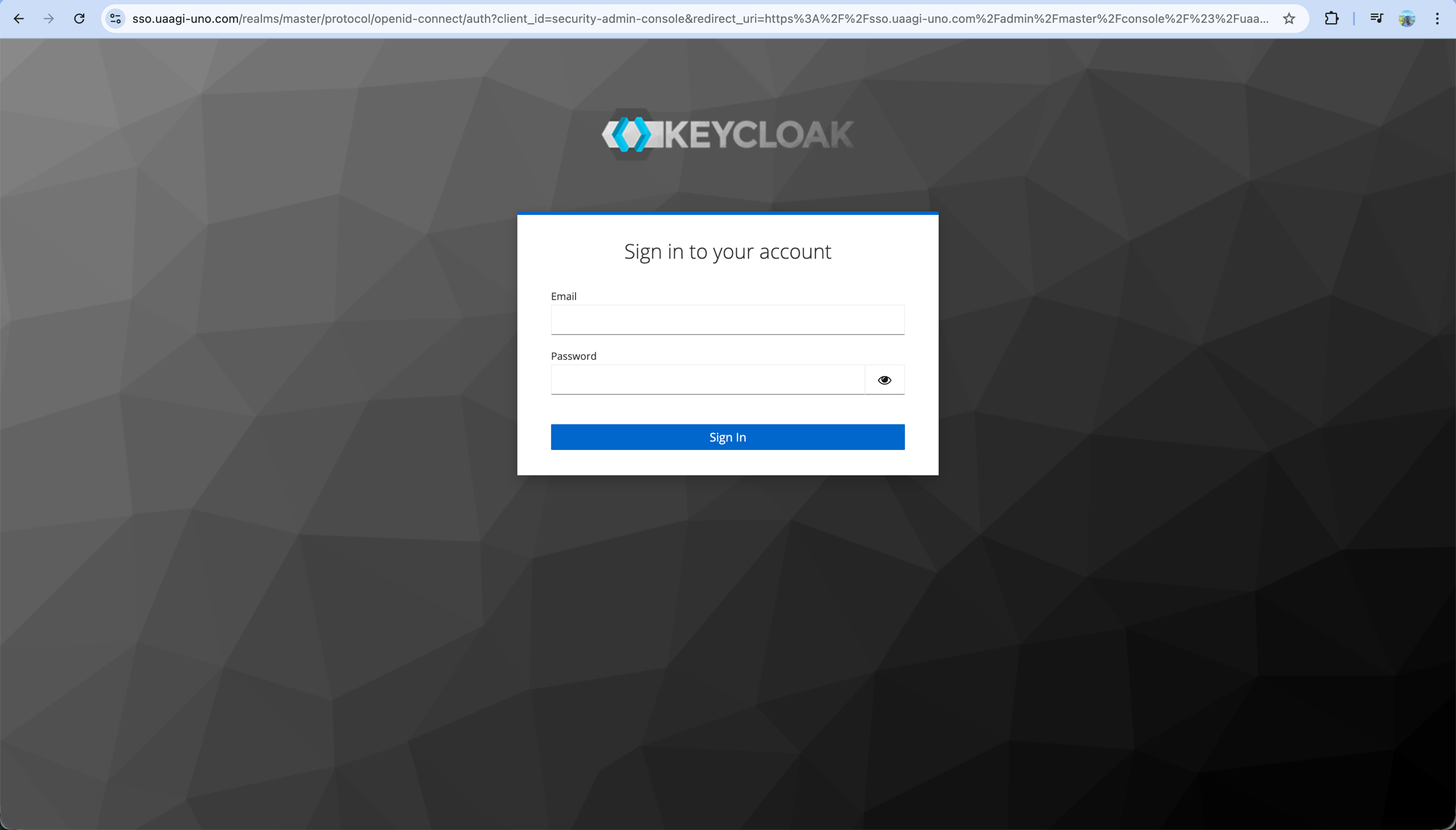
https://portal.uaagi-uno.com. - The Portal immediately redirects to Keycloak — there is no Odoo login form in the normal flow.
- The user enters their UAAGI credentials in Keycloak.
- On success, Keycloak redirects back to the Portal, which exchanges the authorization code for tokens, reads the user's claims, and provisions or updates the Odoo user record.
Administrators who need to reach the Odoo backend directly can use /web/login?direct=1 to skip the OAuth redirect and see the standard Odoo login form. This is how the MSD team logs in to manage dealerships and brands.
The dealership selector
After sign-in, non-admin users land on /dealership/portal — the main selector page.
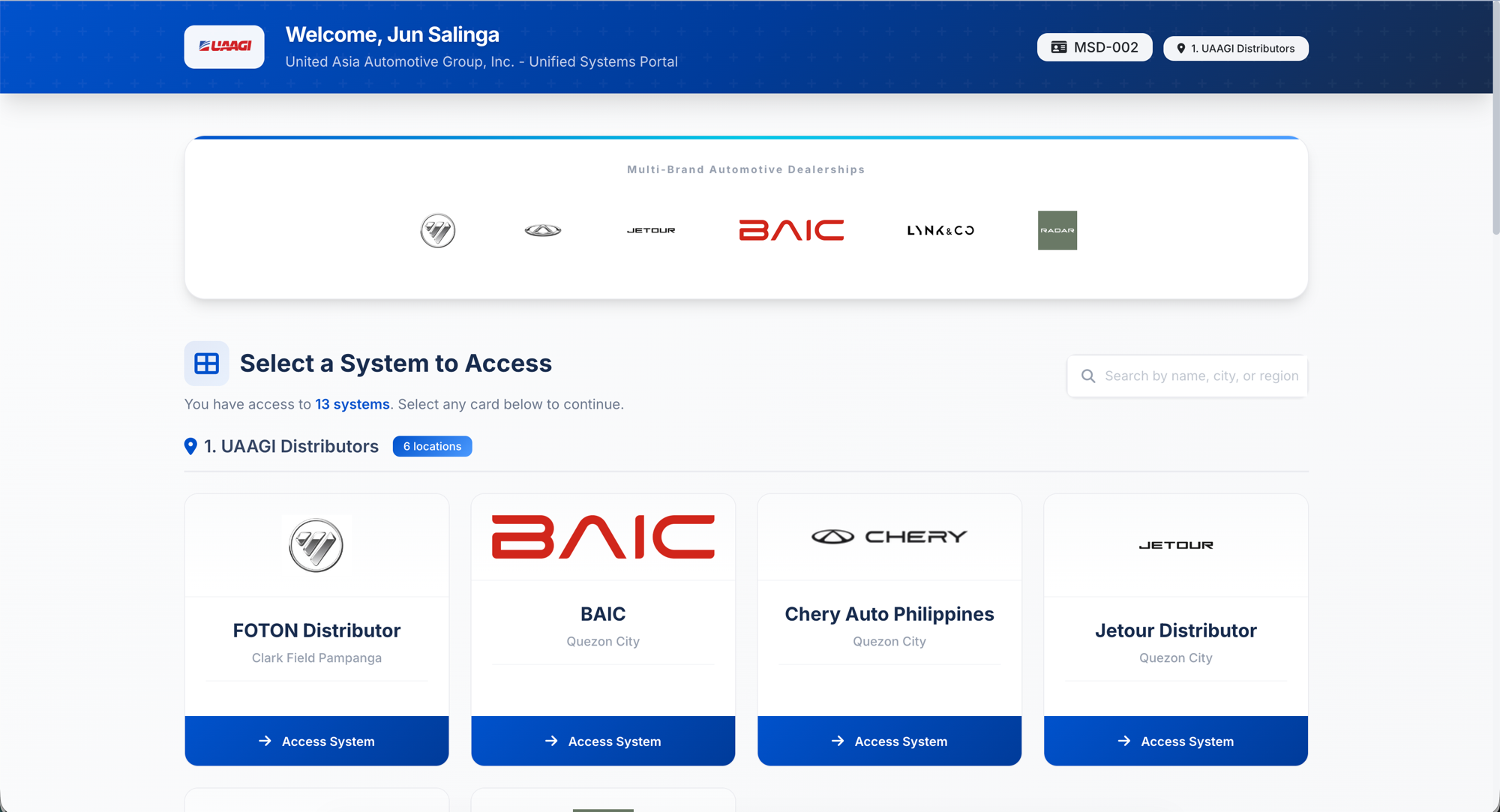
The page is made of four sections:
1. Header
Shows the company logo on the left, a personalized "Welcome, {name}" greeting, and two badges on the right: the user's UAAGI Employee ID and region. Both badges come from the Keycloak token claims (employee_id, region) set up on the user-management side.
2. Brand banner
A horizontal strip showing every active brand in the uaagi.brand catalog. Each logo links to the brand's manufacturer website if one is configured.

3. System selector
Below the banner, dealerships are grouped by region, in this fixed order:
- UAAGI Distributors
- MSD Staging
- Corporate / Head Office
- Metro Manila
- Luzon (North)
- Luzon (Central)
- Luzon (South)
- Visayas
- Mindanao
A user only sees regions where they have at least one allowed dealership. Empty regions are hidden.
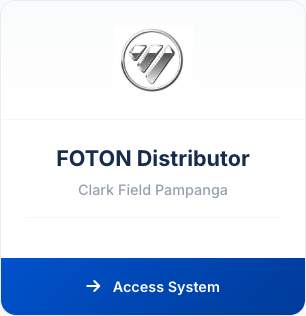
Each dealership is rendered as a card with:
- The dealership logo (falls back to a generic building icon)
- Dealership name and city
- Phone and email (if set)
- Up to six brand badges; any overflow is shown as a
+Ntag - A Access System footer — the entire card is a link
The search box in the section title bar filters cards live by name, city, or region.
4. Footer
The footer shows copyright and a small admin toolbar:
- Admin Panel (only shown for administrators) — direct link to
/web - Admin Login — link to
/web/login?direct=1to reach the standard login form - Logout — triggers full SSO logout (see below)
Accessing a dealership
Clicking a dealership card calls /dealership/access/<dealership_id>. The Portal:
- Verifies the user has access to that dealership (belt-and-suspenders check on top of the Keycloak claim).
- Reads the dealership's
subdomainfield and builds the URLhttps://<subdomain>.uaagi-uno.com/web/login?oauth=1. - Redirects the browser there.
The dealership's Odoo instance sees ?oauth=1, redirects to Keycloak, and because the user already has an active Keycloak session, the round-trip happens invisibly — the user lands directly in the dealership's backend with no second login prompt.
When you have no access
If a user signs in but has no dealerships assigned, the selector page shows a clear empty-state message pointing them to UAAGI IT Support at msd@uaagi.com.
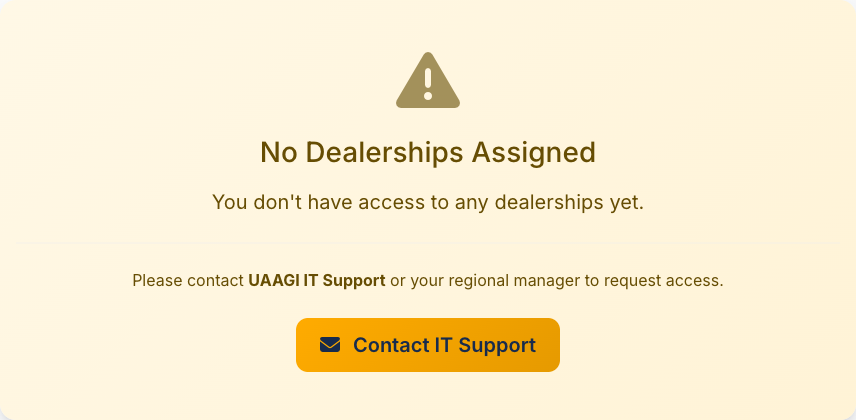
This usually means one of two things:
- The user was just created and hasn't been assigned any dealerships yet (Keycloak-side configuration — see user management).
- The user's Keycloak
allowed_dealershipsattribute refers to client IDs that don't exist asuaagi.dealershiprecords yet.
Logging out
Logout is always a full SSO logout — terminating the Keycloak session, not just the Odoo one. This ensures the user can re-authenticate cleanly, and that the next person on the same machine can't click "back" and resume the session.
The Portal supports two logout routes:
| Route | Where it's used |
|---|---|
/dealership/logout | The footer Logout link on the selector page |
/web/session/logout | Any standard Odoo logout trigger (menu, direct URL) |
Both call the same internal handler: logout from Odoo, then redirect to Keycloak's logout endpoint with id_token_hint and post_logout_redirect_uri pointing back to /web/login?direct=1.
After logout, the user sees the standard Odoo login form (because of direct=1) instead of being immediately redirected back into the OAuth flow — this is intentional, so they can genuinely sign out and walk away.