Vehicle Models
A Vehicle Model (crm.vehicle.model) is a single sellable vehicle variant — e.g. Foton TunLand G7 4×4 MT. Vehicle models are synced from the distributor; they are not usually created by hand. Once synced, BPO agents can tag each lead against a specific model so the dealer-side Sales Order captures exactly what the customer asked for.
:::info Who can edit this? BPO Managers trigger the sync from the Brand form. Supervisors and Agents can read vehicle models but should not edit them directly — manual edits are overwritten on the next sync. :::
Open the Vehicle Models list
Navigate to BPO CRM → Data → Vehicle Models.
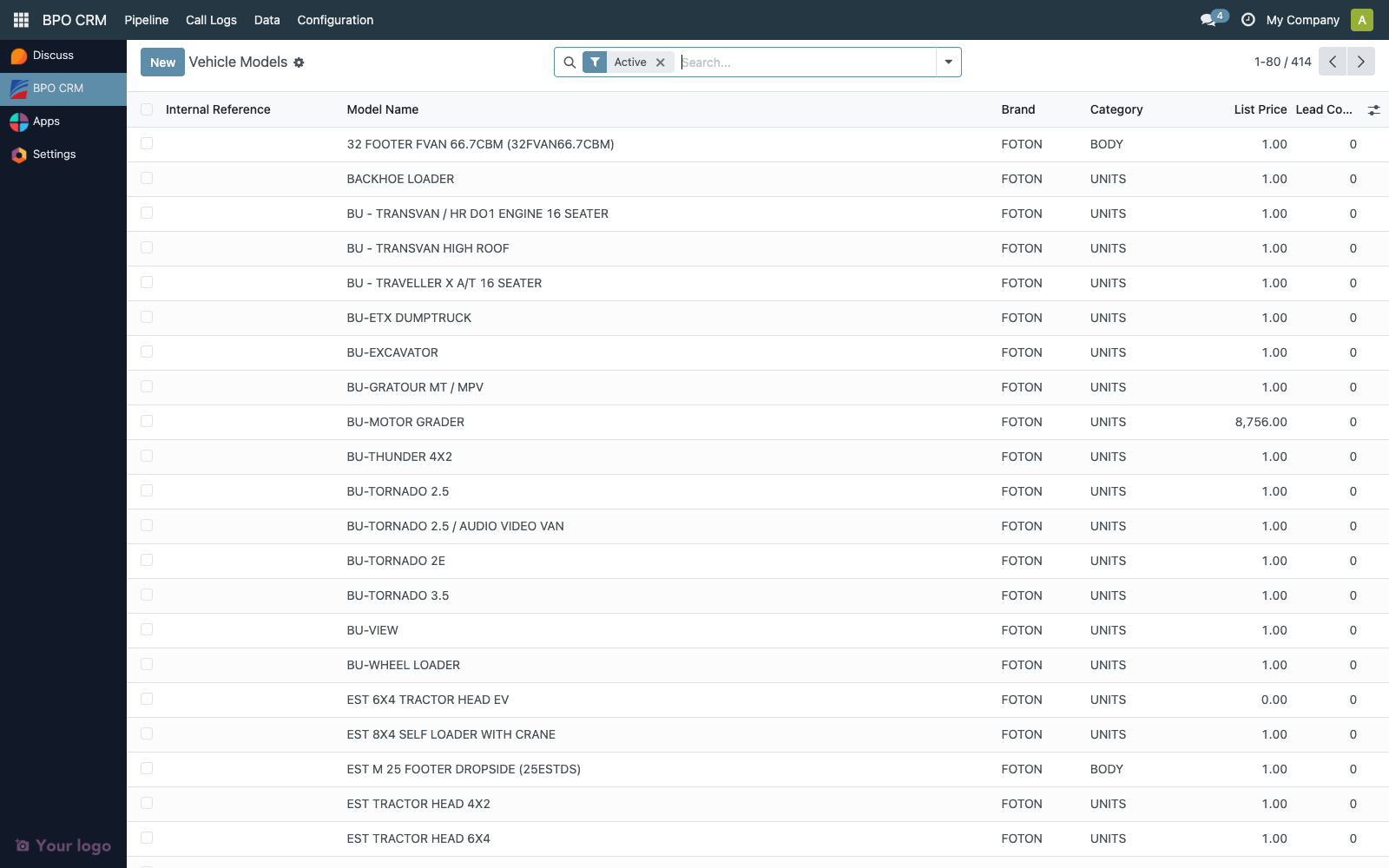
Columns:
| Column | Source field | Description |
|---|---|---|
| Internal Reference | default_code | Pulled from distributor product.template.default_code. |
| Model Name | name | |
| Brand | brand_id | Many-to-one back to crm.brand. |
| Category | category | Pulled from distributor product category. |
| List Price | list_price | |
| Lead Count | computed | How many leads have selected this model. |
| Active | active |
Group by Brand or Category from the search view to browse the catalog.
Run the sync
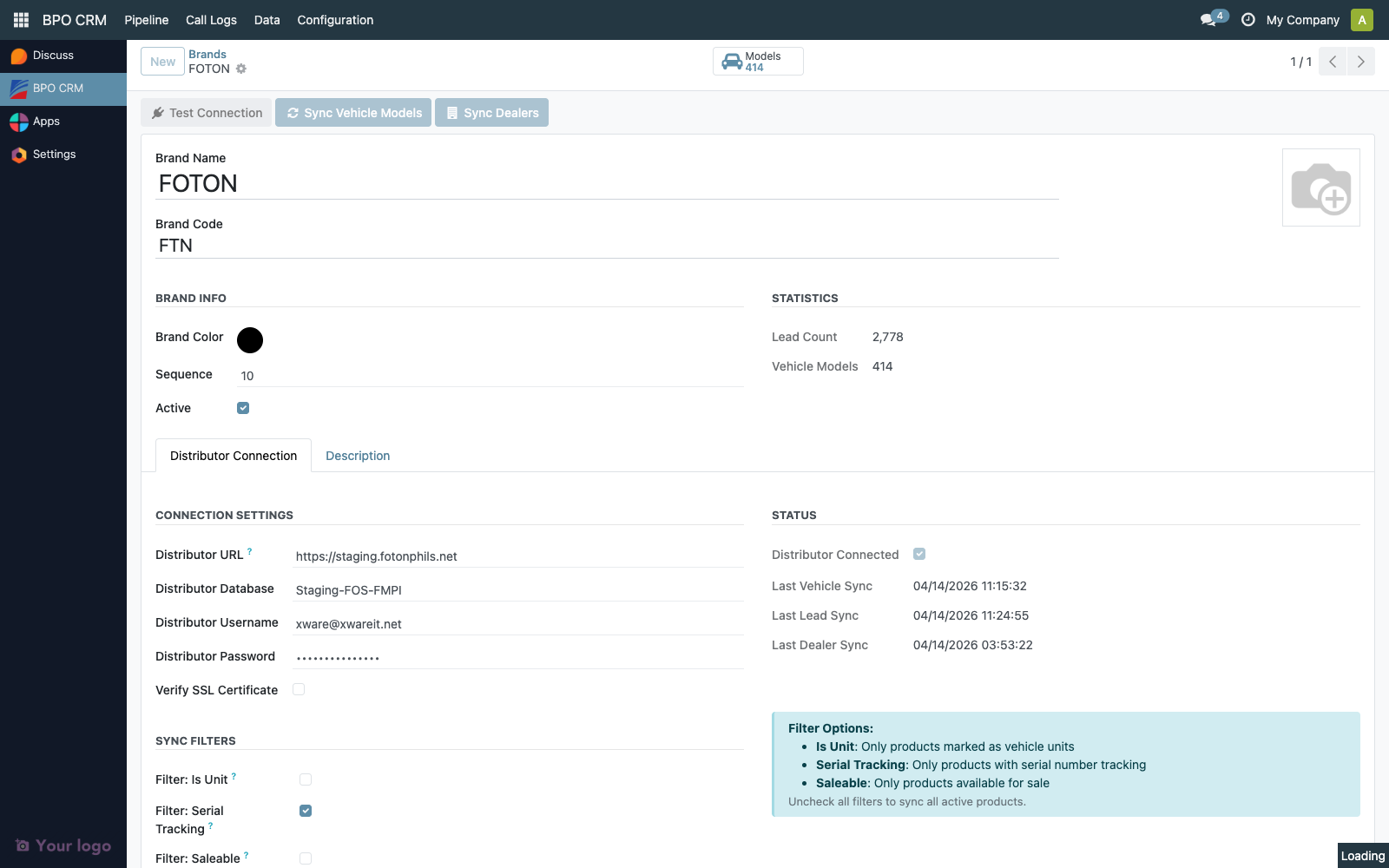
Vehicle models are synced per brand.
- Go to BPO CRM → Data → Brands.
- Open the brand.
- Make sure Test Connection succeeds first.
- Click Sync Vehicle Models in the header.

The CRM will:
- Search
product.templateon the distributor, applying the brand's Sync Filters (Is Unit, Serial Tracking, Saleable). - Read each product in batches.
- Upsert into
crm.vehicle.modelkeyed on(brand_id, external_ref), whereexternal_refis the distributor's product ID. - Update the brand's
distributor_last_synctimestamp.
A toast announces how many models were created or updated.
:::tip Getting zero results?
Open the Sync Filters panel on the brand and turn them off one at a time. Most "zero synced" issues trace back to a distributor where is_unit isn't populated, or where tracking is set to lot instead of serial.
:::
View a vehicle model
Click a row to open the form.
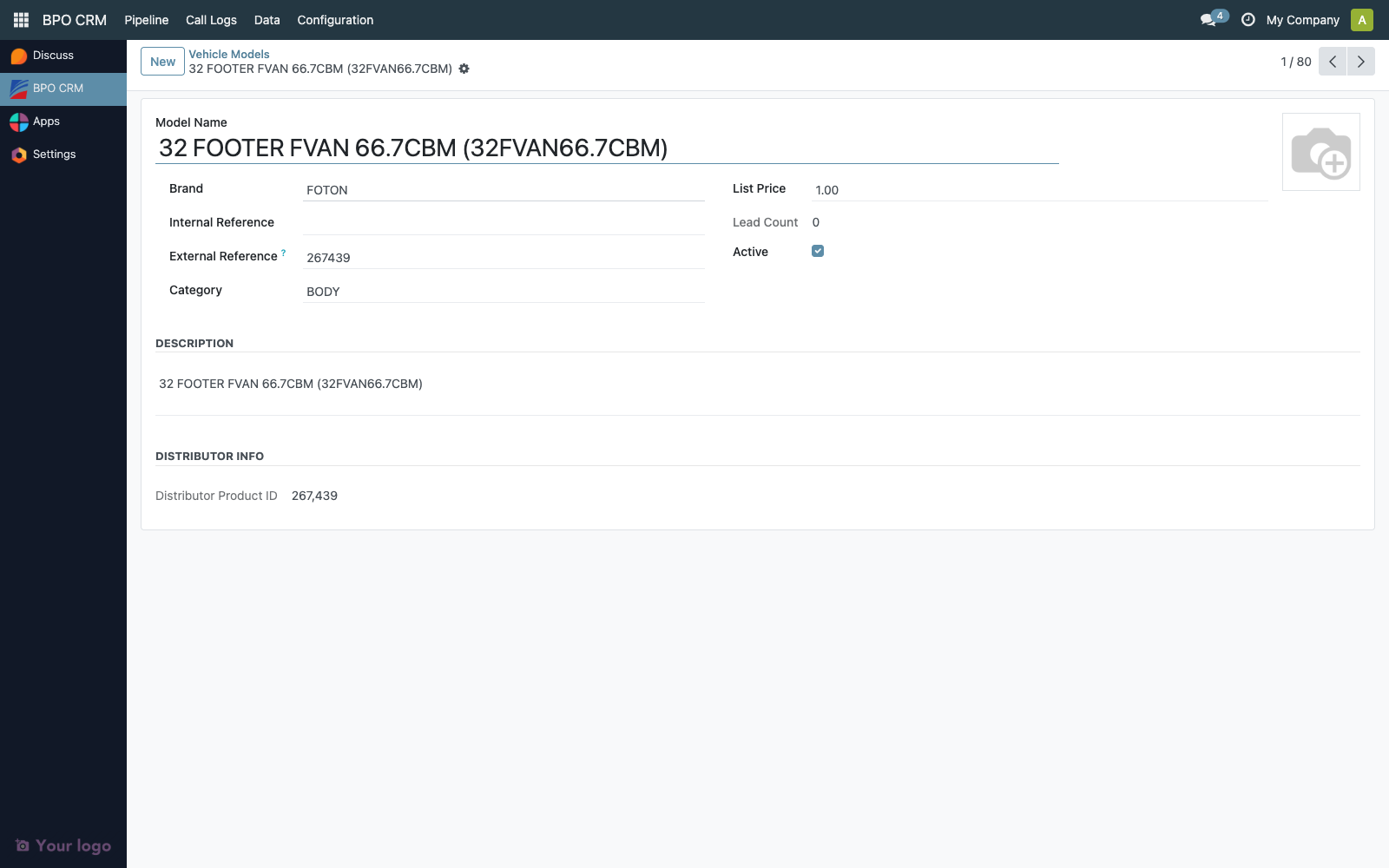
| Field | Notes |
|---|---|
| Image | Synced from distributor product image. |
| Model Name | Display name. |
| Brand | Locked many-to-one. Not editable. |
| Internal Reference | Distributor default_code. |
| External Reference | Distributor product.template.id as string. Used as the sync key. |
| Category | Distributor product category. |
| List Price | Suggested selling price. Informational only — the dealer-side SO is re-priced at Won time. |
| Description | Free text from distributor. |
| Lead Count | Computed, links to filtered lead view. |
| Distributor Info → Distributor Product ID | Raw remote ID, BPO Manager only. |
Use from a lead
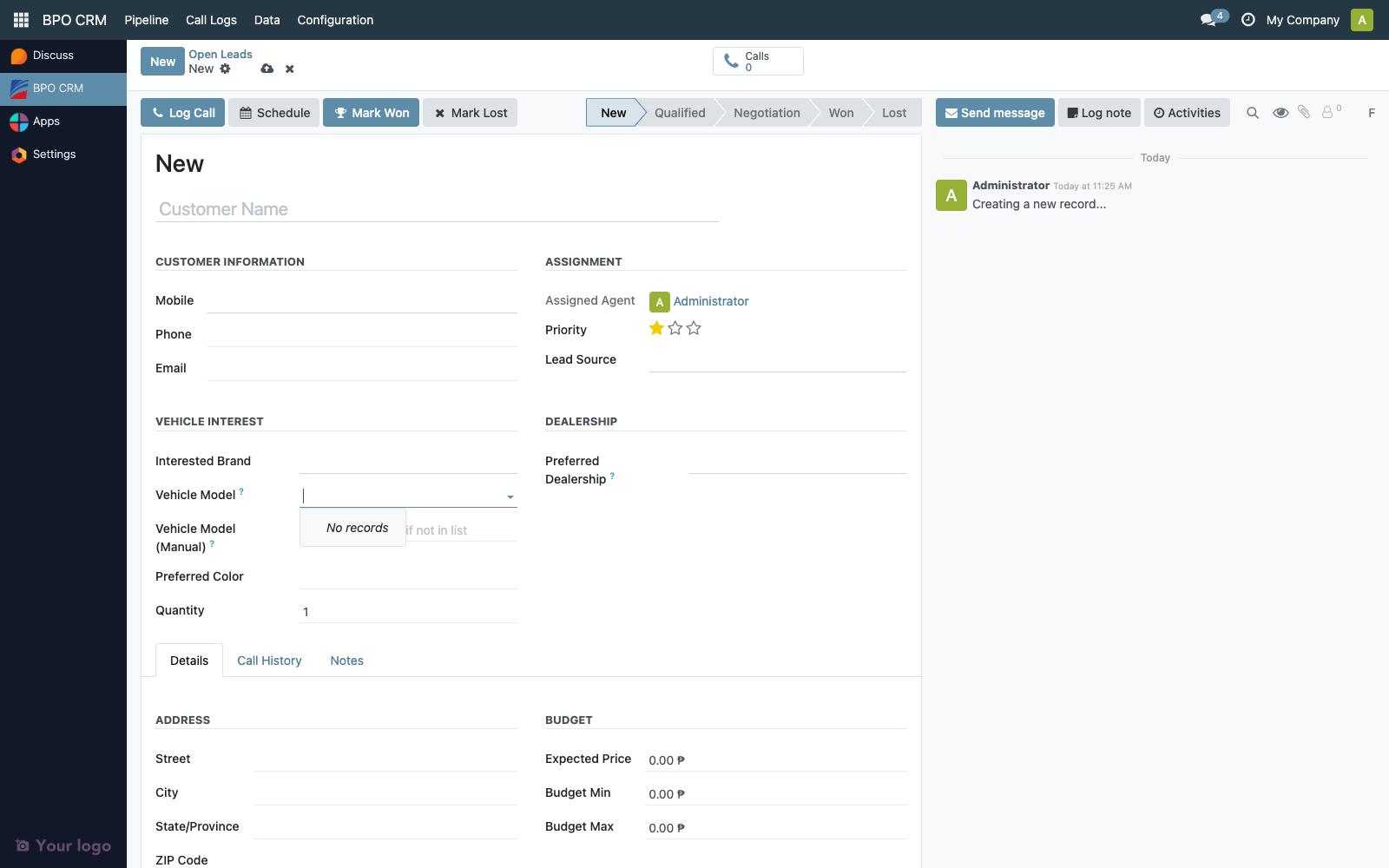
When an agent creates a lead and selects a Brand, the Vehicle Model picker filters to that brand's synced models. The picker supports searching by:
- Model name
- Internal reference (
default_code) - External reference (distributor ID)
Archiving
If the distributor archives a product, the BPO CRM does not auto-archive locally — the model stays active so in-flight leads still resolve. To retire a model:
- Ensure no open leads reference it.
- Uncheck Active on the vehicle model form.
Troubleshooting
| Symptom | Likely cause |
|---|---|
Sync Vehicle Models returns 0 records | Filters too strict — try unchecking Is Unit or Serial Tracking. |
| Duplicate entries after a distributor product rename | The distributor changed product.template.id. The old row stays; archive it manually. |
| Lead can't find a recently launched model | Run the sync. Models are not ingested through the lead cron. |
| Price looks wrong on a won SO | Pricing comes from the dealer instance at Won time, not from list_price here. Update pricing on the dealer instance. |