Pipeline Overview
The dealer lead pipeline is the operational heart of the Dealer CRM. This page covers the three ways to view it (kanban, list, form), the search and filter tools, how to read a kanban card, and — for auditors — how field changes and actions are tracked and retained.
The three views
A dealer.crm.lead record is the same in all three views; only the layout changes. Use the view switcher in the top-right of the list toolbar to move between them.
Kanban
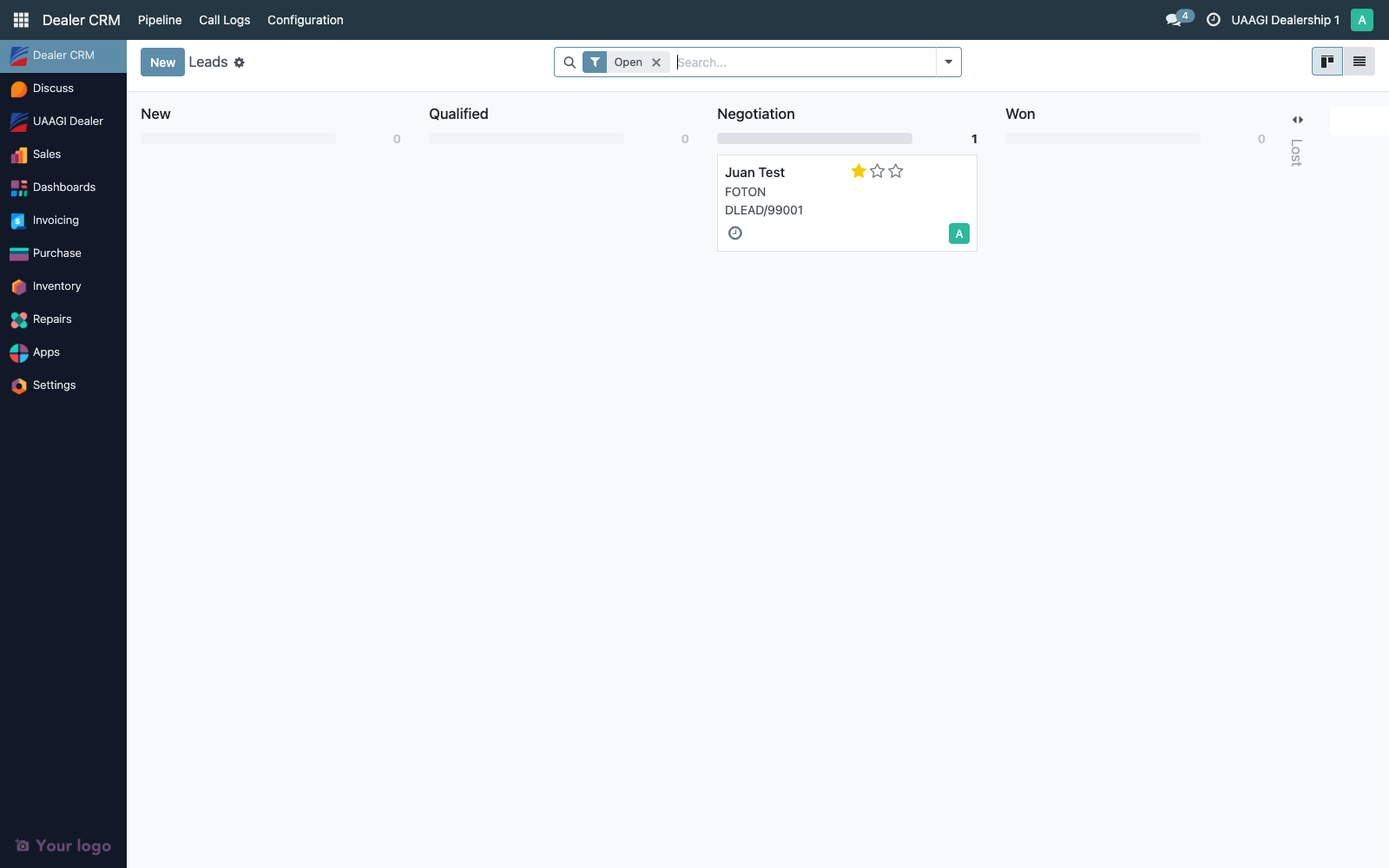
Dealer CRM → Pipeline → All Leads opens the kanban by default, grouped by stage.
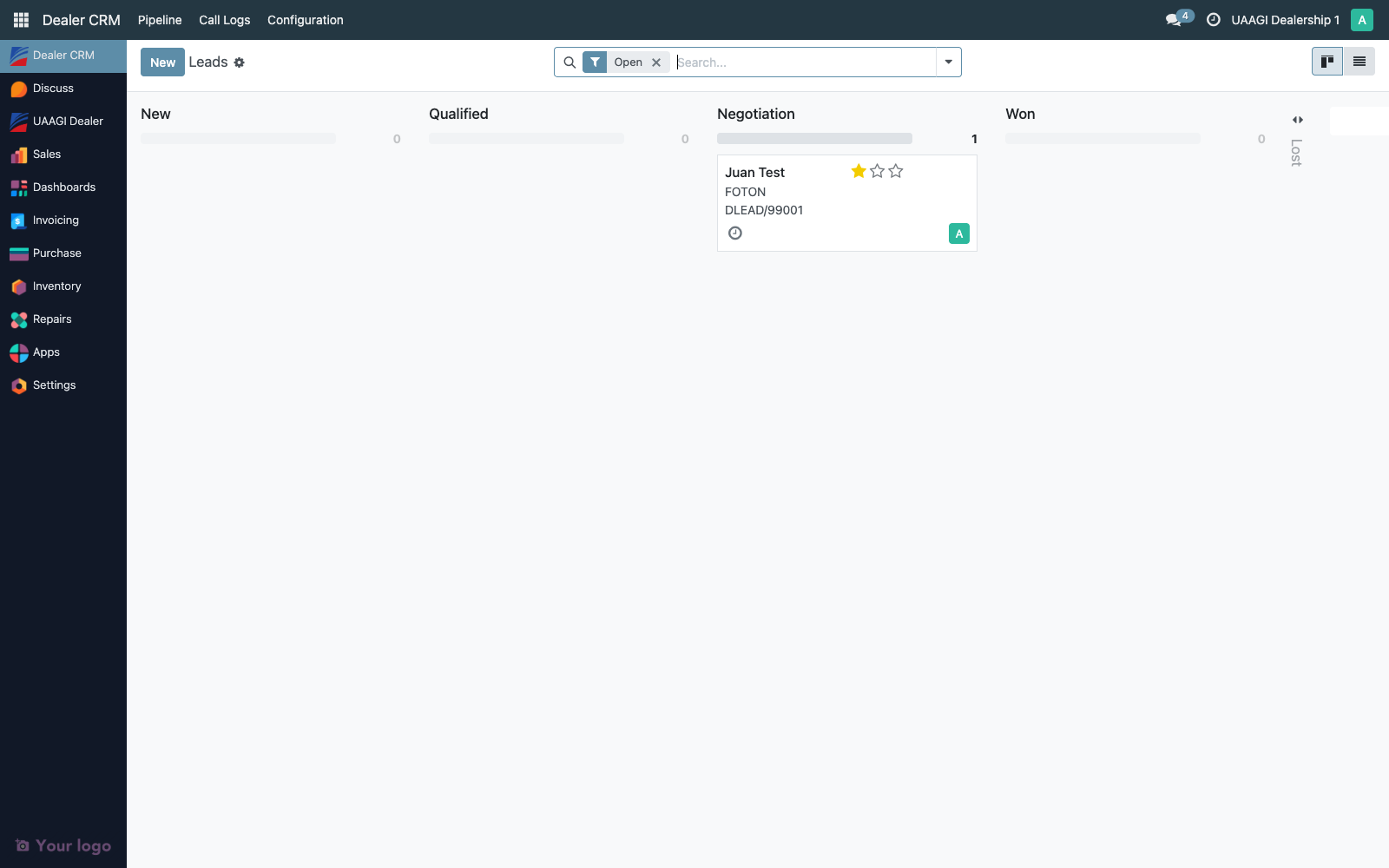
Each column is a dealer.crm.stage. Card count in the column header shows how many leads are in that stage. Drag a card to move it to the next stage — the move is validated server-side by the forward-only rule (see below).
Reading a kanban card:
| Element | Meaning |
|---|---|
| Customer name (title) | contact_name on the lead |
| Priority flame (top-right) | priority — click to change from Low / Normal / High / Urgent |
| Brand | brand_id |
| Vehicle display | product_id.display_name if set, otherwise the free-text vehicle_model_text |
| DLEAD/... reference | Unique name generated by the dealer.crm.lead sequence |
| Activity chip (bottom-left) | Next scheduled activity — red/yellow/green signals urgency |
| Agent avatar (bottom-right) | user_id — the dealer agent currently assigned |
| Card color stripe | kanban_state — grey (normal), green (done), red (blocked) |
List
Click the list-view toggle (☰ icon) in the toolbar. Same records, tabular layout, useful for bulk operations and exports.
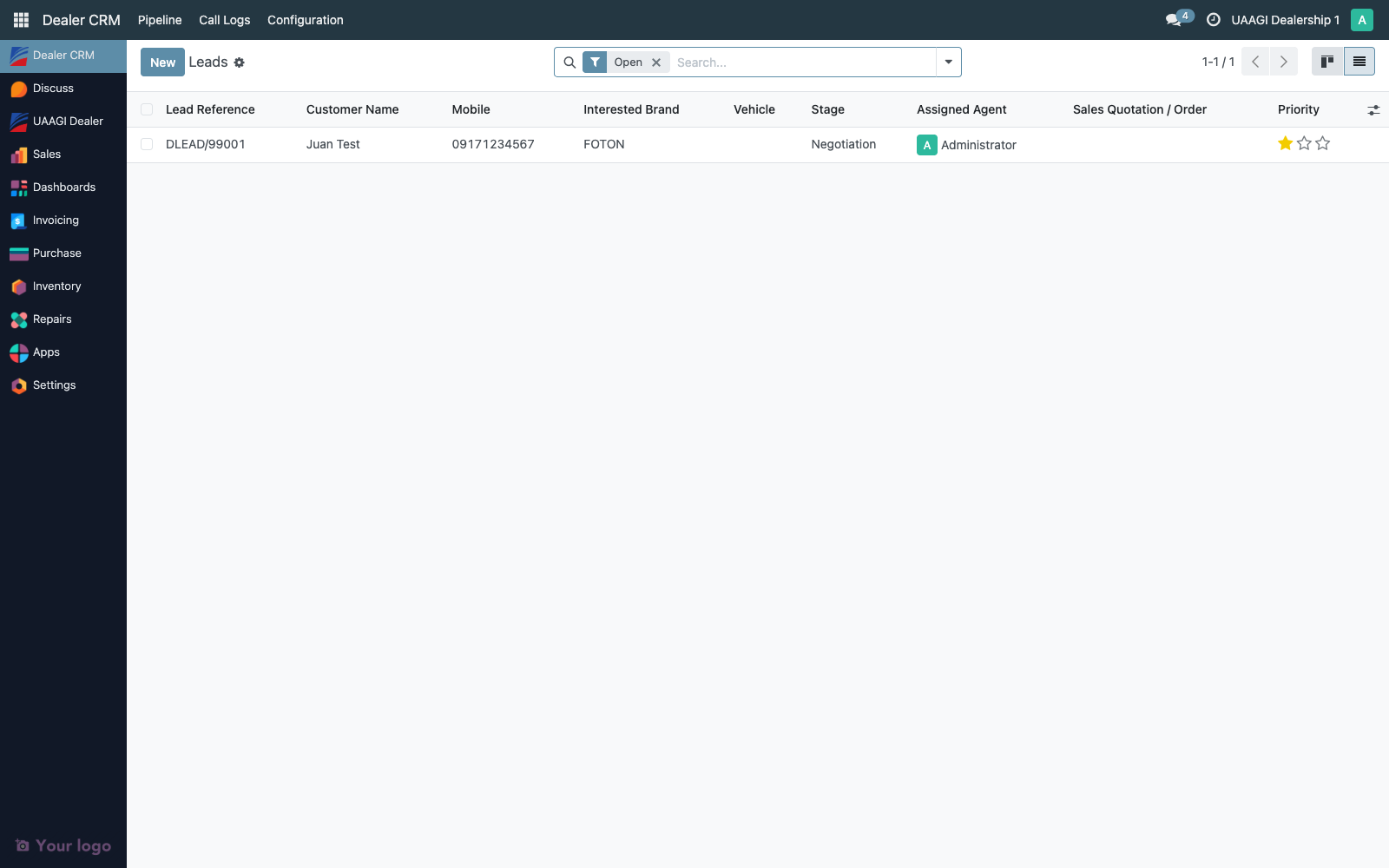
The list shows name, contact_name, mobile, brand_id, vehicle_display, stage_id, user_id, and — when a quotation exists — the linked sale_order_id. Click any row to open the form.
Form
Clicking a kanban card or list row opens the form view — the full detail and the place where you actually work the lead.
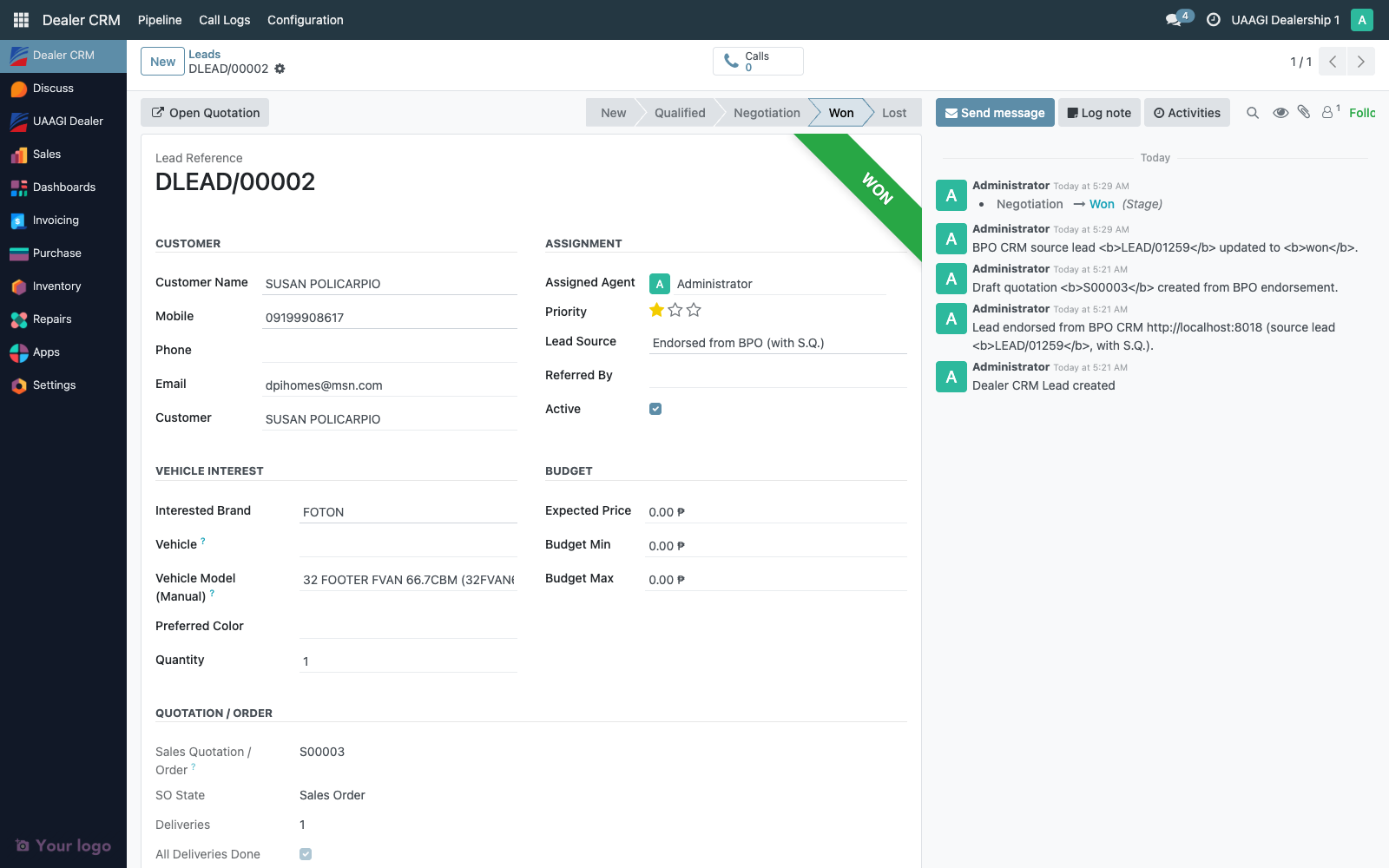
The form is split into:
- Header — action buttons (Log Call, Convert to Quotation, Mark Won, Mark Lost) and the stage statusbar
- Stat buttons — counters that drill into related records (Calls, etc.)
- Title block —
name(read-only sequence) and key identifiers - Groups — Customer, Assignment, Vehicle Interest, Budget, Quotation / Order
- Notebook tabs — Address, Trade-In / Financing, Notes, Outcome, BPO Origin (only visible on endorsed leads)
- Chatter — see Audit trail below
Searching and filtering
The search bar at the top of any list or kanban view accepts free-text that matches several fields at once: name, contact_name, mobile, email, brand_id, user_id.
Built-in filters
Click Filters (or the funnel icon) to see the dropdown.
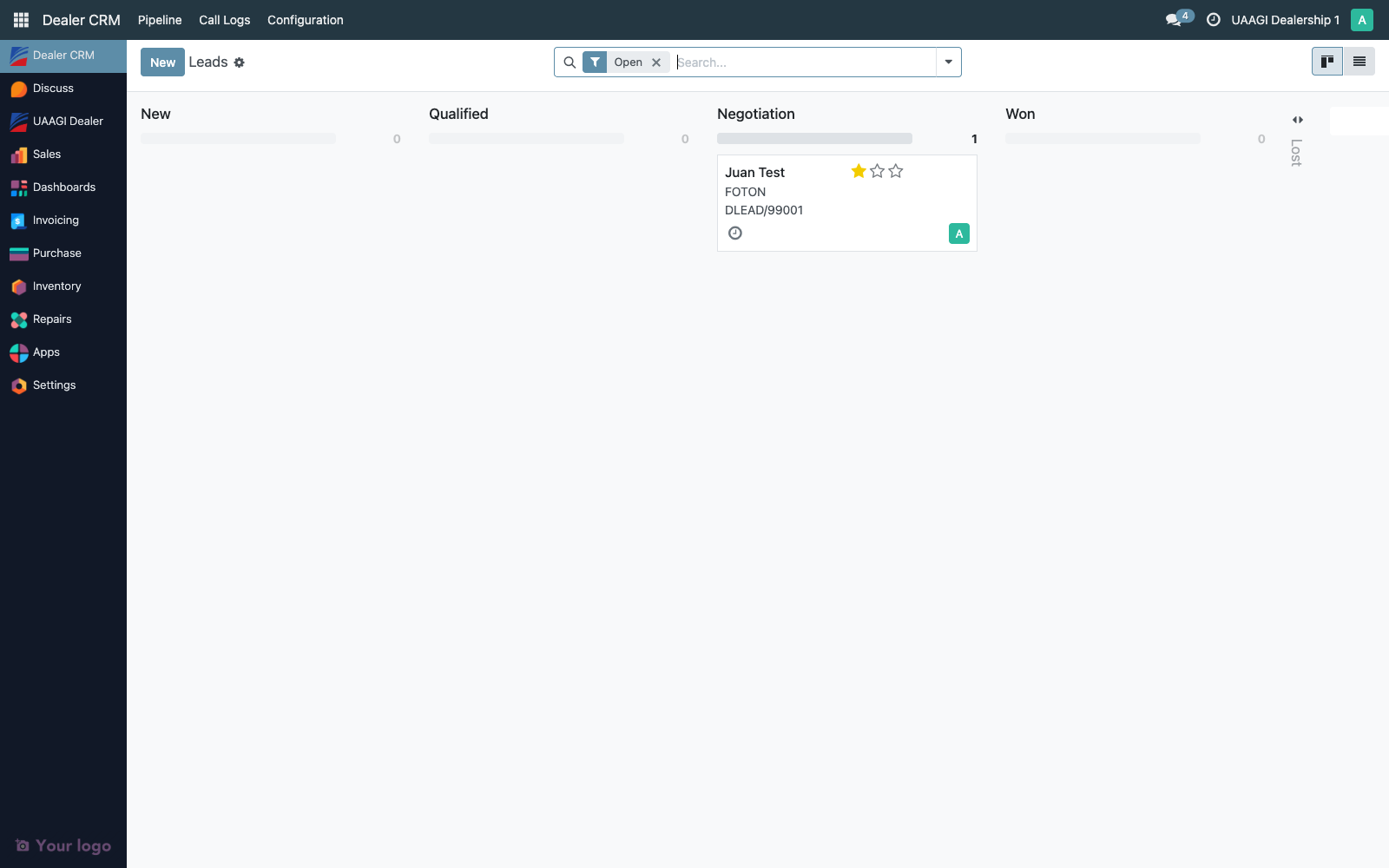
| Filter | Domain | Use case |
|---|---|---|
| My Leads | user_id = current_user | Agent's personal pipeline view |
| Unassigned | user_id = False | Find leads that need an owner |
| Endorsed from BPO | bpo_source_lead_id != False | Audit pull for endorsement traceability |
| Open | is_won = False AND is_lost = False | Exclude closed leads (default on All Leads) |
| Won | is_won = True | Reporting / commission review |
| Lost | is_lost = True | Lost-reason analysis |
Multiple filters combine with AND. Switch between saved filter sets or create custom ones via the Save current search option.
Group by
Click Group By in the search panel.
Available groupings: Stage (default in kanban), Brand, Agent, Source. Useful for quick at-a-glance counts — e.g. "how many endorsed leads does each agent have open?" → group by Agent, filter Endorsed + Open.
Forward-only stage progression
Stage transitions are enforced server-side. The same rule applies whether an agent drags a kanban card, clicks the statusbar on the form, or drives it programmatically.
| From | Allowed next |
|---|---|
| New | Qualified |
| Qualified | Negotiation |
| Negotiation | Won (only after the SO is confirmed and all deliveries done), Lost (via the wizard) |
| Won | (terminal — no further transitions) |
| Lost | (terminal — no further transitions) |
Skipping a stage (New → Negotiation directly) or reverting (Qualified → New) raises a UserError with a clear message.
The only way to bypass the rule is an admin running a server action with with_context(skip_stage_transition_check=True). No UI path.
Access matrix
| Group | Open Leads | Convert to Quotation | Mark Won / Lost | Reassign lead | Edit closed lead |
|---|---|---|---|---|---|
Dealer User (group_dealer_user) | Own + unassigned | Own leads | Own leads | ❌ | ❌ |
Dealer Manager (group_dealer_manager) | All | All | All | ✅ | ✅ (via Archive / Unarchive) |
Dealer Admin (group_dealer_admin) | All | All | All | ✅ | ✅ + configuration |
Menus hidden from Dealer User: Configuration → Stages, Configuration → Lead Sources, Configuration → BPO CRM Connection.
Audit trail
dealer.crm.lead inherits mail.thread + mail.activity.mixin, which means:
- Every tracked field change is logged to chatter. Tracked fields on
dealer.crm.leadinclude:stage_id,user_id,active,contact_name,mobile,phone,email, address fields,brand_id,product_id,vehicle_model_text,preferred_color,quantity,expected_price,budget_min,budget_max,customer_notes,internal_notes, trade-in fields, financing fields,date_won,date_lost,lost_reason,lost_notes,kanban_state,sale_order_id,priority,next_activity_*. - Each message records
create_uidandcreate_date— you can always trace "who changed what, when" from the chatter history. - Stage transitions post their own message (
"Lead moved from Qualified to Negotiation") with the triggering user. - Endorsement origin — when a lead arrives from BPO via
receive_endorsed_lead, a chatter entry is posted with the BPO source lead name + URL and the endorsement type. That message is your audit hook for tracing a dealer lead back to its BPO predecessor. - Won / Lost transitions post a message with the dealer SO reference (if any) and the lost reason + notes (if Lost). For leads originally endorsed from BPO, the callback to BPO CRM also writes to the dealer chatter on success.

Retention: mail.message records are never auto-deleted by Odoo. The same applies to dealer.crm.lead records themselves — they can be archived (active = False) but not hard-deleted without manager intervention, and even then, any deletion attempt fails if the lead has a linked sale.order.
Exporting for an audit:
- Open Dealer CRM → Pipeline → All Leads
- Apply the filters you need (e.g. Won + date range)
- Switch to List view
- Use Odoo's Action → Export to dump a CSV with whatever fields the auditor asked for —
name,stage_id,user_id,create_date,write_date,date_won,date_lost,bpo_source_lead_name,sale_order_id.name, etc. are all exportable.
The chatter is not included in CSV exports — auditors wanting per-lead history should be shown the lead form directly, or given a PDF export of the form (Odoo's built-in Print menu includes full chatter).
Field reference (lead form)
Required fields for a valid dealer lead:
| Field | Type | Source | Required? |
|---|---|---|---|
name | Char | Sequence (DLEAD/00000) | Auto |
contact_name | Char | Customer name | Yes |
mobile | Char | Customer mobile | Yes |
brand_id | Many2one → dealer.brand | Brand dropdown | Yes |
source_id | Many2one → dealer.crm.lead.source | Source dropdown | Yes |
stage_id | Many2one → dealer.crm.stage | Defaults to first stage | Auto |
user_id | Many2one → res.users | Defaults to current user | Auto |
All other fields are optional but contribute to completeness and reporting. Auditors typically look at how well optional fields like email, budget_min/max, financing_needed, has_trade_in, and customer_notes are populated as a proxy for agent diligence.