ONe-HR Mobile App
The ONe-HR Mobile App is the self-service front-end for employees and approvers. It ships for both iOS (App Store) and Android (Play Store) and is the primary way staff interact with HR day-to-day.
Download
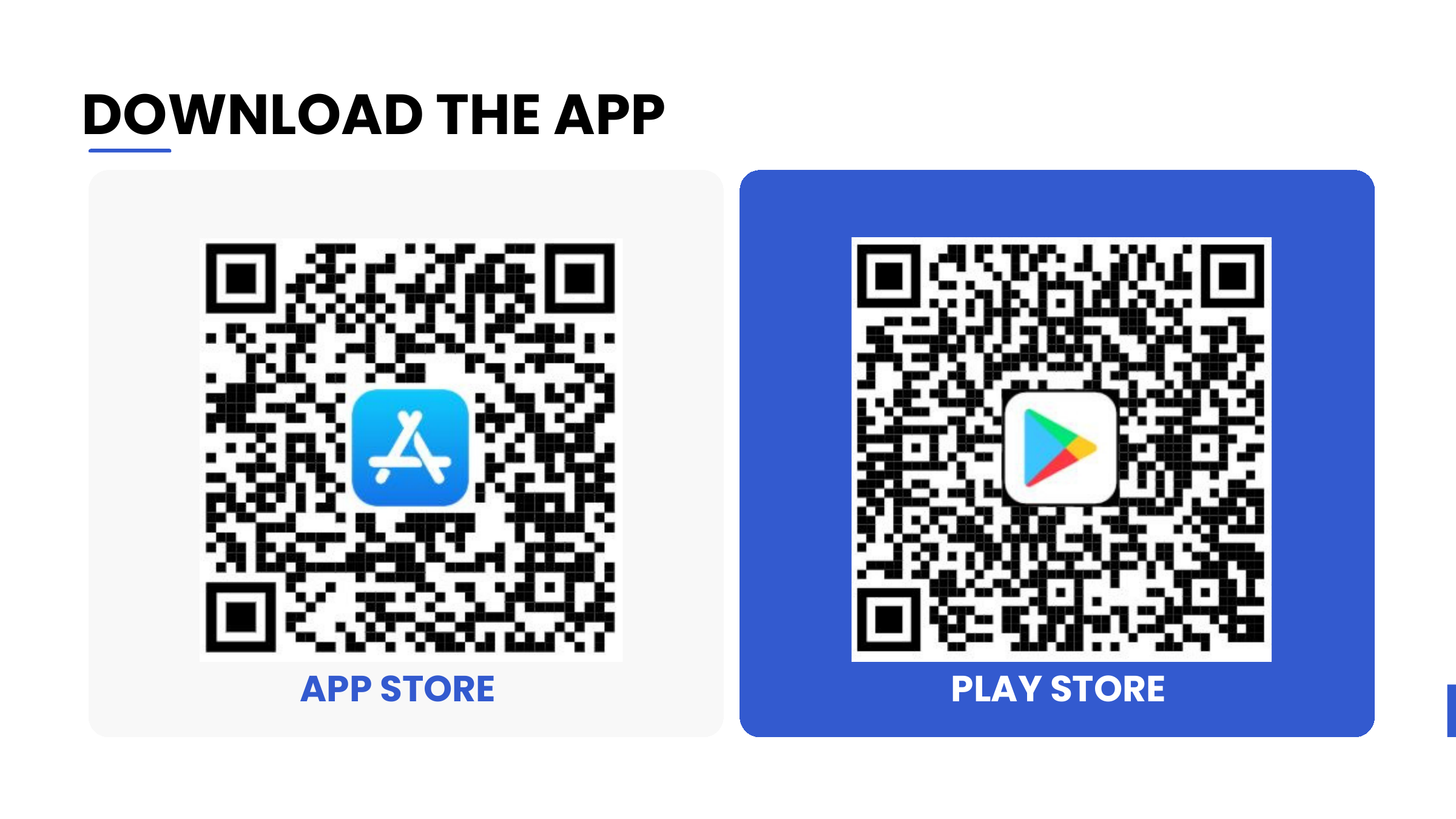
Install ONe-HR from the official stores. MSD distributes QR codes for both platforms as part of onboarding.
| Platform | Source |
|---|---|
| iOS | App Store (search ONe-HR or scan the MSD-provided QR) |
| Android | Google Play (search ONe-HR or scan the MSD-provided QR) |
First-time login
- Open the ONe-HR app.
- Enter your Email and Password (provided by MSD).
- Tap Login.
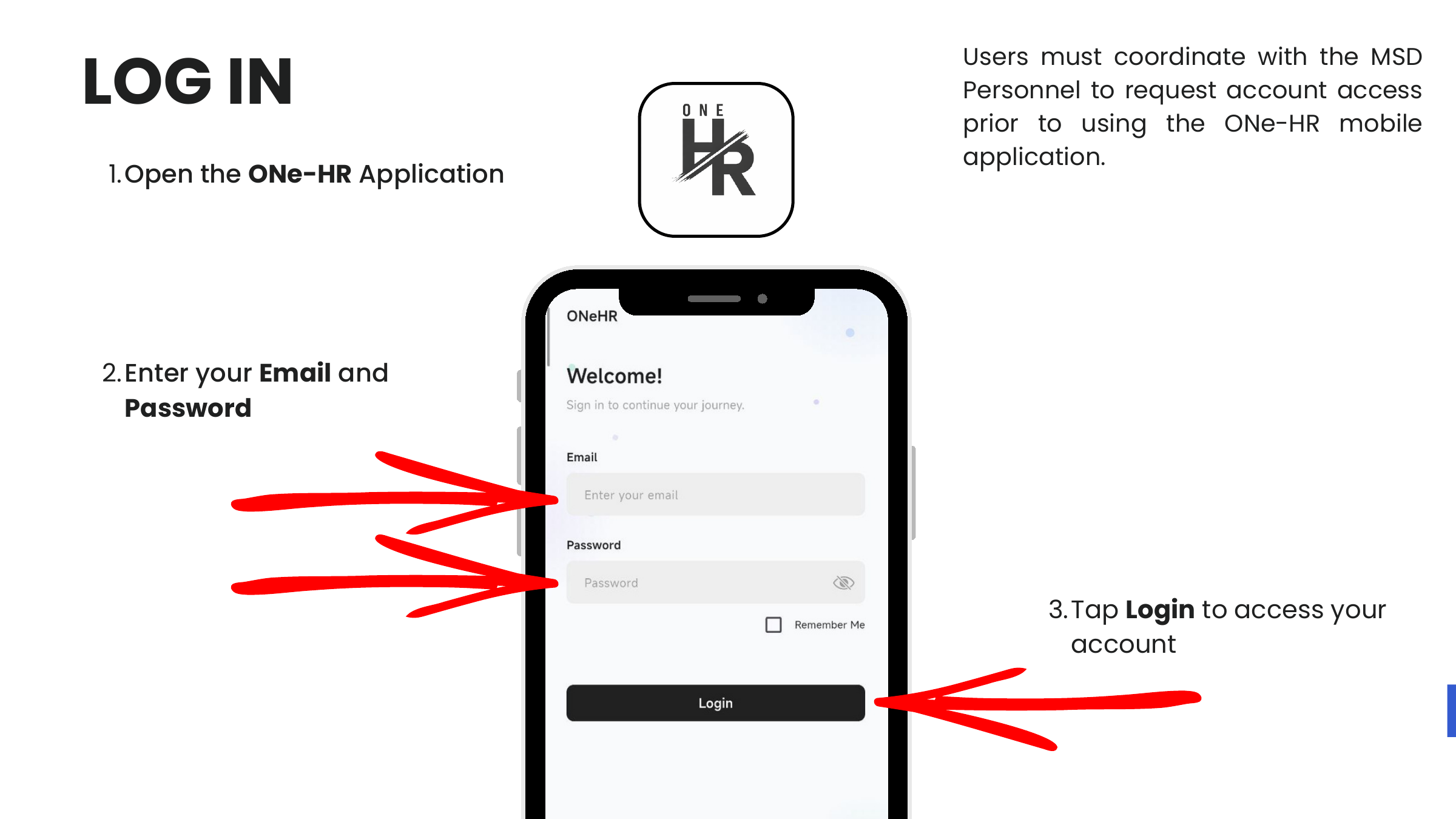
:::info Account provisioning Users must coordinate with MSD personnel to request account access before using the app. There is no self-signup. :::
If the device has signed in before, the launcher shows previously used accounts (grouped by company) — tap a card to sign in, or tap Use another account to enter a different email.
App layout
The app uses a four-tab bottom navigation:
| Tab | What it contains |
|---|---|
| Requests | File and track overtime, leave, and official-business requests. Approvers also review team submissions here. |
| Payslip | Per-pay-period earnings, deductions, loans, and allowances. Monetary values are hidden by default — tap the eye icon to reveal. |
| Attendance | Daily time in / time out, total hours, attendance status, and log entries for the selected payroll period. |
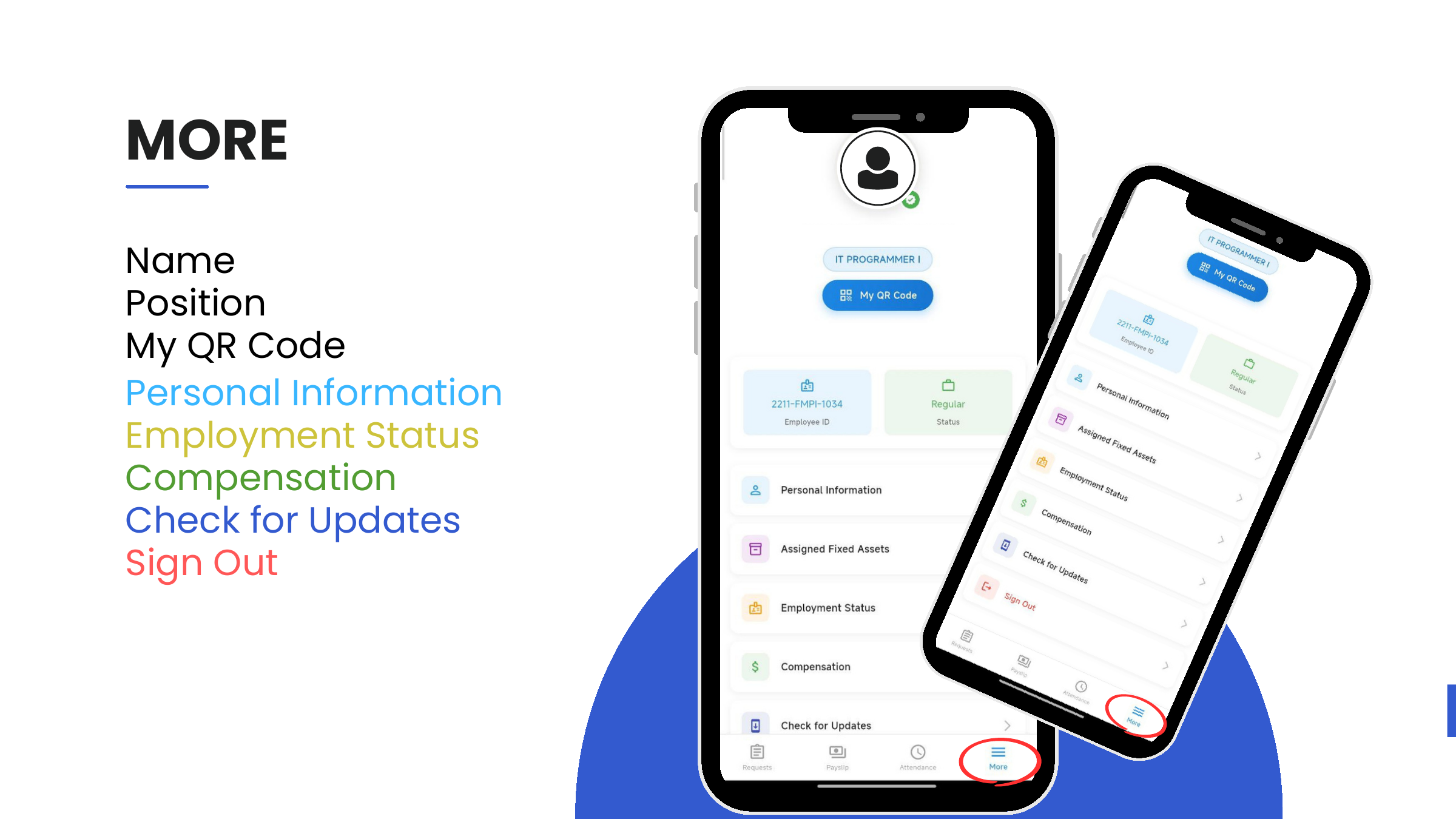
| More | Profile: QR code, personal information, assigned fixed assets, employment status, compensation, check for updates, sign out. |
Modules
- Requests — Overtime, Leave, and Official Business workflows.
- Payslip — View and review per-period payroll.
- Attendance — Daily time records.
- Profile — Personal Information, Employment Status, Compensation, Check for Updates.
Two roles in one app
ONe-HR is a single app used by employees and by approvers (managers / executives). The same screens surface different actions depending on the user's approver status:
- Employees file, edit (while Pending), cancel, and view their own requests.
- Approvers additionally see team submissions under the Pending and All tabs of each request card and can Approve or Disapprove them directly.
Approver status is controlled from the Odoo 17 web app (see the employee's Approver Status under Employment Status).