Attendance
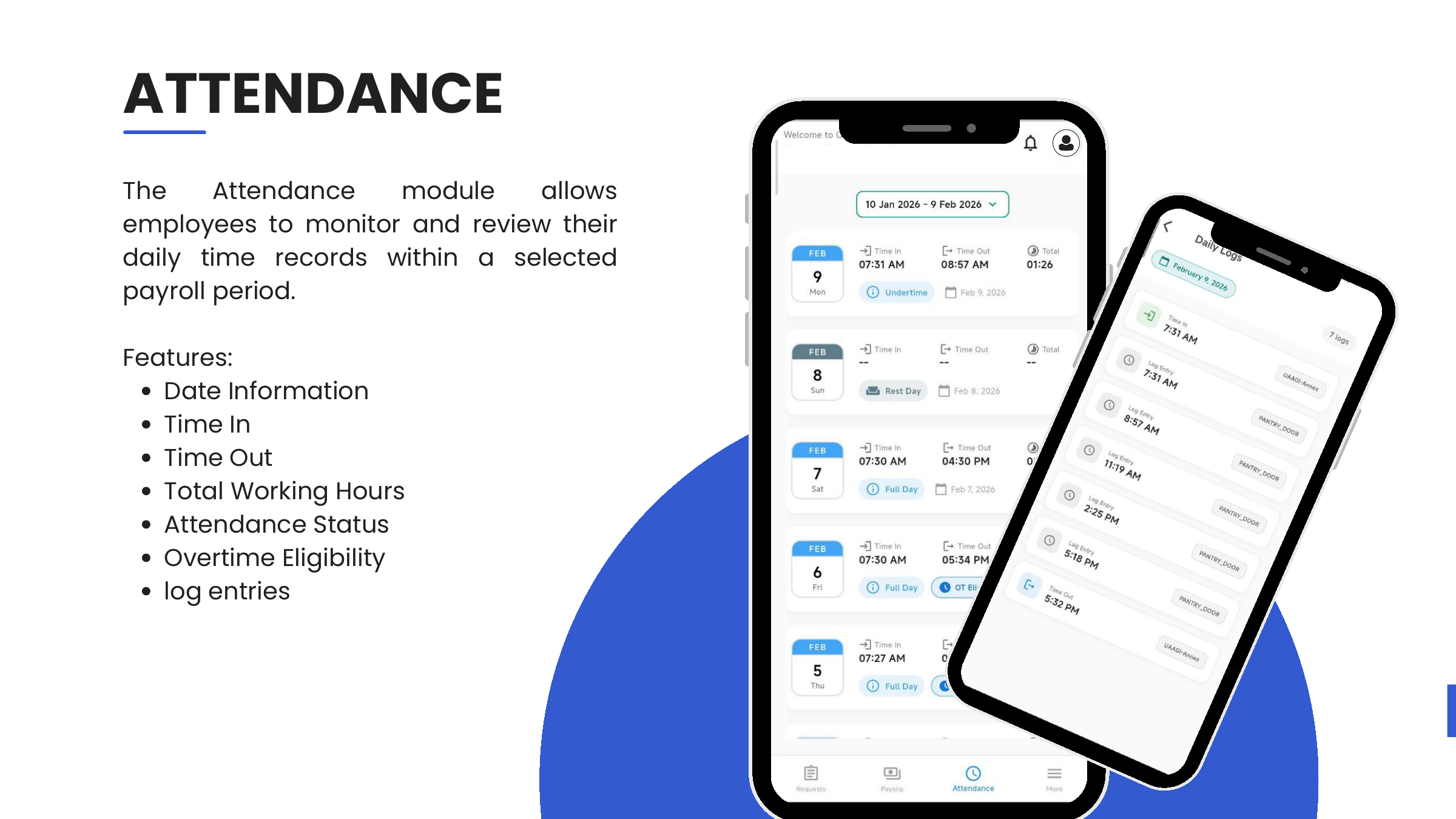
The Attendance tab shows the employee's daily time records for a selected payroll period. It is read-only — actual time-in / time-out logs come from the UAAGI access control and HR systems; this tab surfaces them to the employee.
Access attendance
- Tap Attendance from the bottom navigation.
- The app opens on the current payroll period by default.
- To change the range, tap the Date Range Selector at the top.
- Pick a payroll period from the calendar.
- Tap Apply.
What each row shows
Each row represents one calendar day within the selected range:
| Column | Meaning |
|---|---|
| Date | The day (Mon–Sun) |
| Time In | First clock-in of the day, or -- for rest days |
| Time Out | Last clock-out of the day, or -- for rest days |
| Total | Total working hours |
| Status badge | Full Day, Undertime, Rest Day, or OT Eligible |
A day marked OT Eligible is one where the employee's recorded hours qualify them to file an overtime request — pair this view with the Overtime request flow.
Daily logs
Tap any date row to open Daily Logs — a detailed view of every scan / log entry for that day:
- Time In (first scan)
- Log entries for each subsequent scan, tagged with the door / zone (e.g.,
PANTRY_DOOR,UAAGI-Annex) - Time Out (last scan)
Daily logs are useful when a single day's Time In / Time Out doesn't tell the whole story — for example, an employee who left the building at lunch and returned.
Attendance ↔ requests
The same attendance data powers other parts of the app:
- The Approver's view of an OT request shows Actual In / Actual Out pulled from the same source.
- Filing an Overtime request on a day not marked OT Eligible will likely be disapproved — check this tab before filing.