Payslip
The Payslip tab lets employees review their payroll details for every pay period.
Access the payslip list
- Tap Payslip from the bottom navigation.
- Browse the list of available pay periods (each card shows the period range and an Available / Tap to view status).
- Tap the desired payroll card to open the detail.
Payslip detail
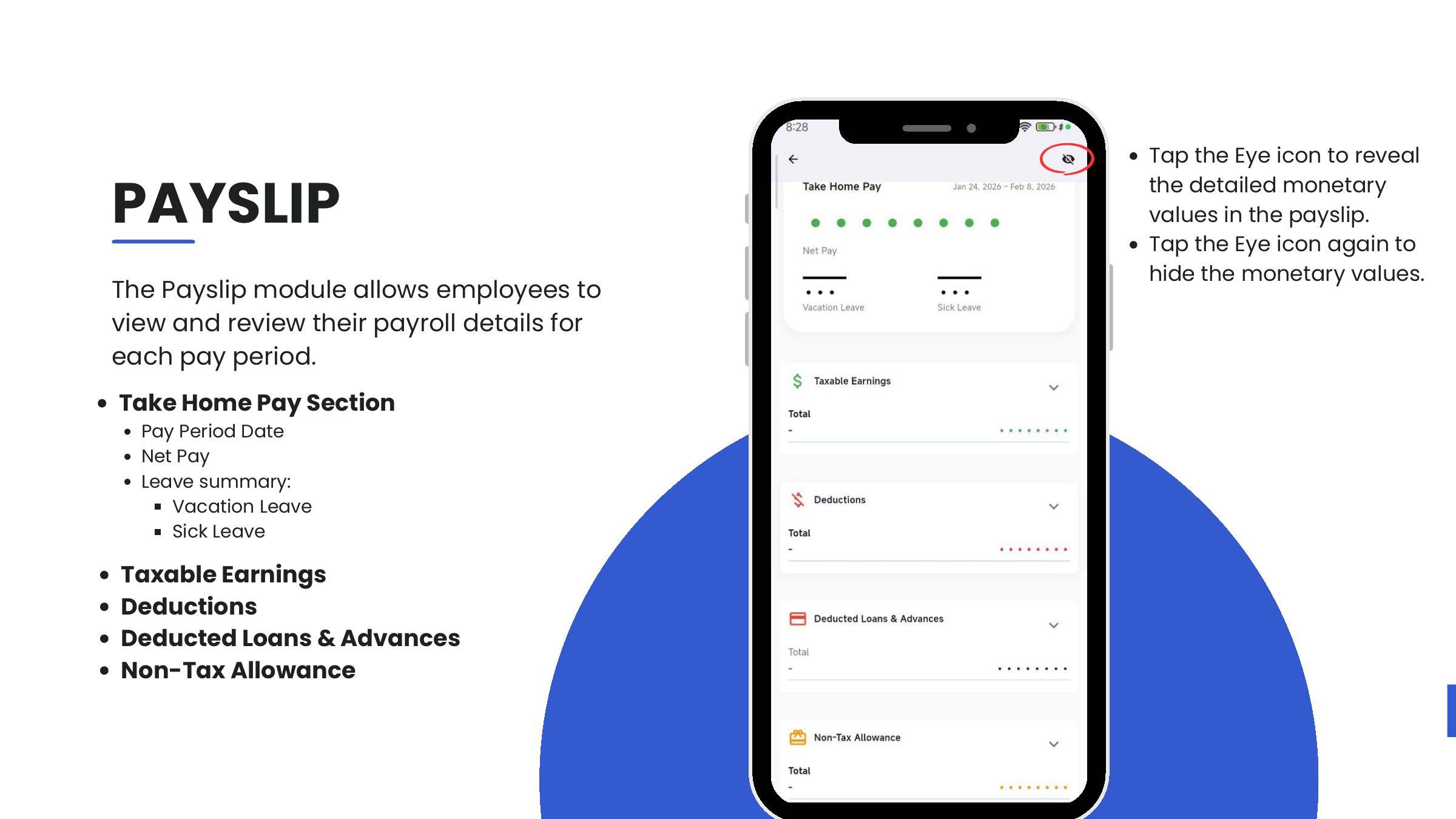
Every payslip is organized into four collapsible sections plus a Take Home Pay header. Monetary values are hidden by default.
| Section | What it shows |
|---|---|
| Take Home Pay | Pay Period Date, Net Pay, and a leave summary (Vacation Leave balance, Sick Leave balance) |
| Taxable Earnings | Gross earnings subject to tax |
| Deductions | Mandatory and voluntary deductions |
| Deducted Loans & Advances | Company loan or salary advance recoveries |
| Non-Tax Allowance | Allowances not subject to withholding |
Each section has a chevron — tap to expand and see the line items with their individual amounts.
Reveal / hide monetary values
For privacy in public spaces, amounts render as dots by default.
- Tap the eye icon (top right) to reveal all monetary values.
- Tap the eye icon again to hide them.
This toggle is per-session and applies to the whole payslip screen — including the Take Home Pay header and every expanded section.
Relationship with Attendance
The Pay Period Date on the payslip header always matches a selectable range in the Attendance module. If a deduction looks off (for example, an unexpected undertime), open the same range in Attendance to review the underlying time logs.