Check for Updates & Sign Out
Two housekeeping actions live at the bottom of the More tab.
Check for Updates
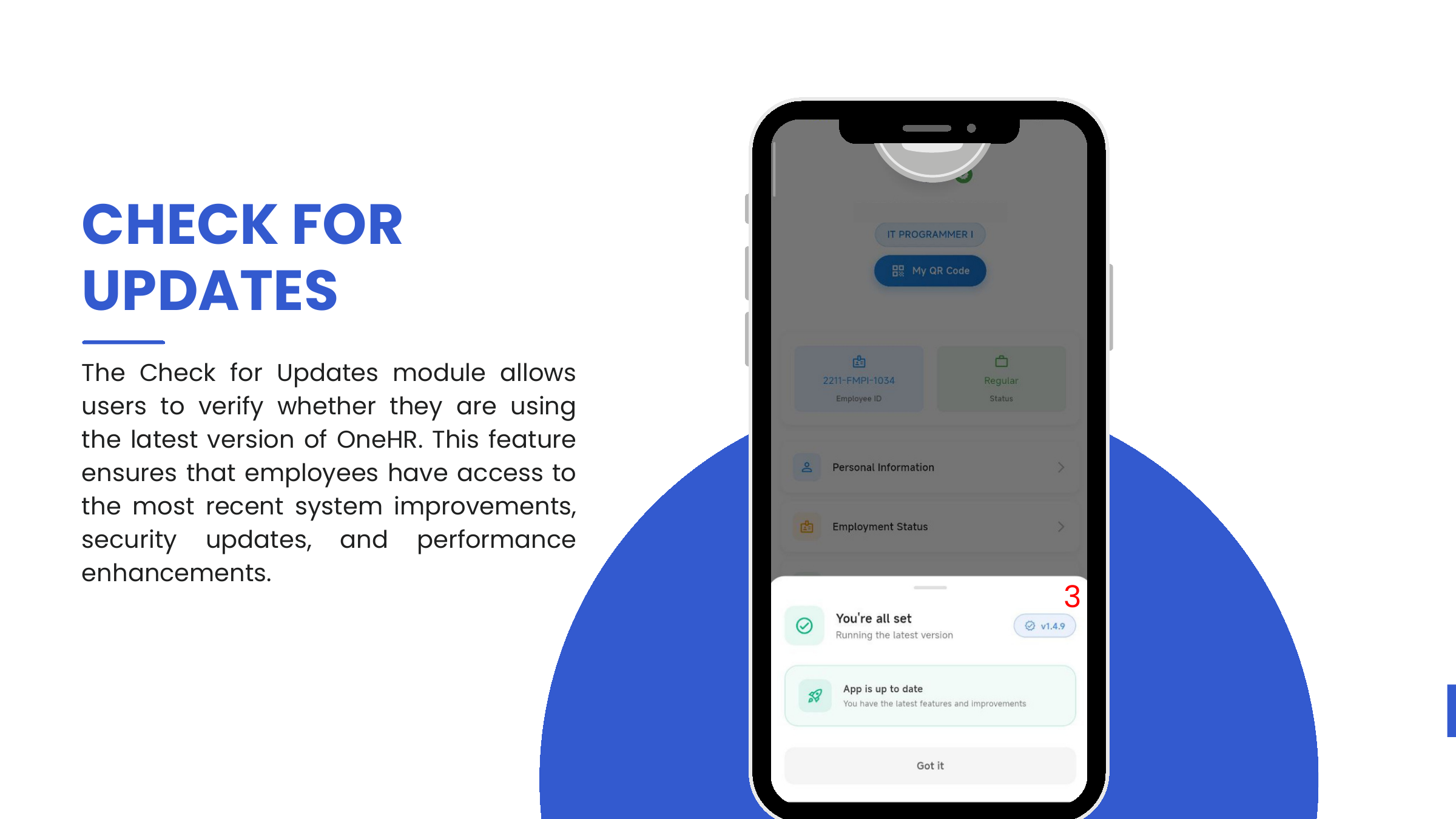
Verifies whether the device is running the latest ONe-HR build and surfaces available system improvements, security patches, and performance fixes.
- Tap More from the bottom navigation.
- Tap Check for Updates.
- The app queries the store and displays either:
- You're all set — Running the latest version (with the current version, e.g.,
v1.4.9), or - An update prompt with a link to the App Store / Play Store listing.
- You're all set — Running the latest version (with the current version, e.g.,
Encourage users to run this periodically — especially before filing time-sensitive requests, to avoid hitting known bugs that have already been fixed upstream.
Sign Out
Signs the user out of the mobile app.
- Tap More from the bottom navigation.
- Scroll to the bottom and tap Sign Out.
- Confirm on the "Are you sure you want to sign out?" overlay:
- Cancel — return to the More screen without signing out.
- Sign Out — log out.
After sign-out: multi-account switcher
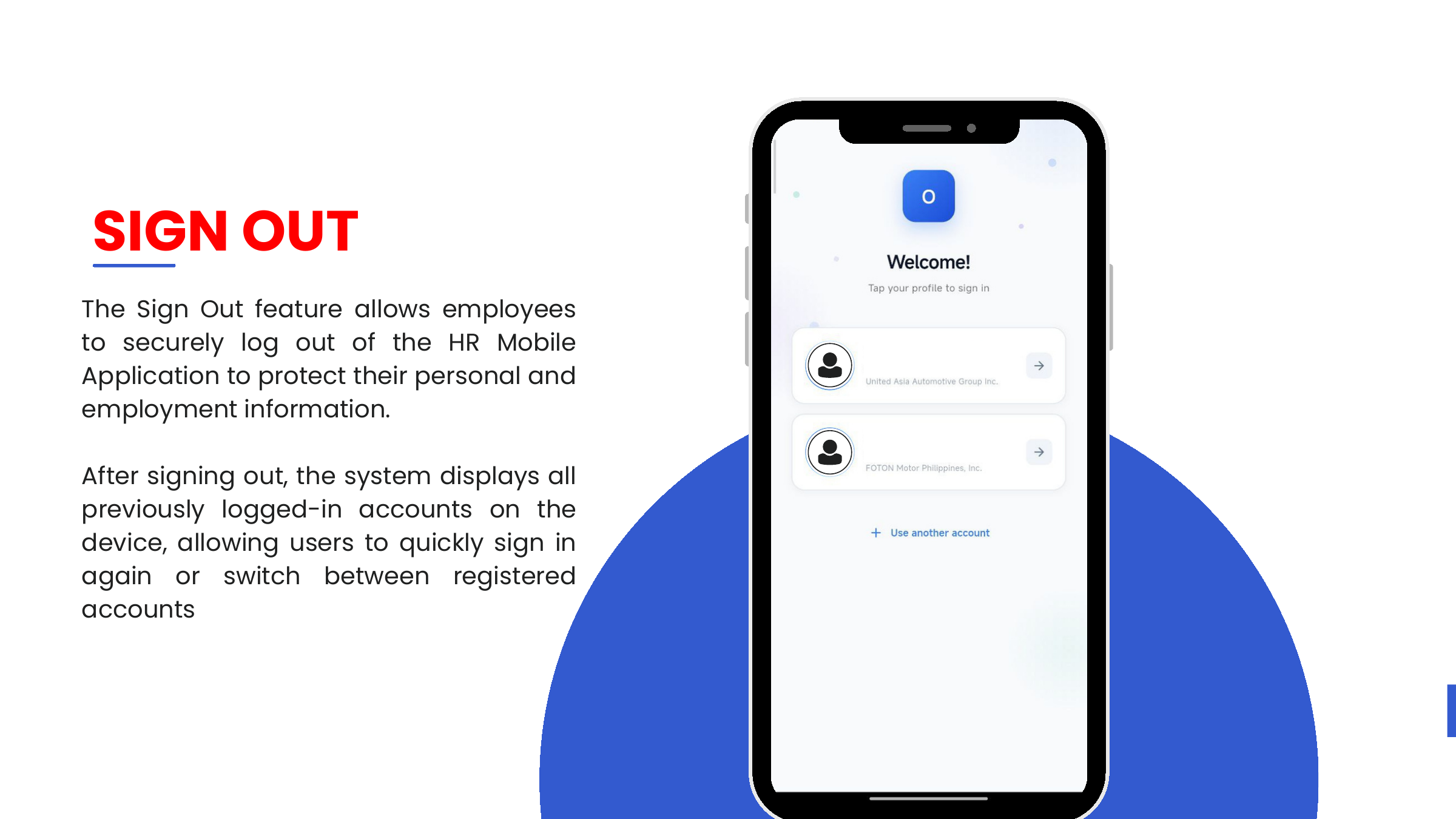
After a successful sign-out the app displays every account that has previously signed in on the device, grouped by company — for example:
- United Asia Automotive Group Inc.
- FOTON Motor Philippines, Inc.
Tap any card to sign back into that account, or tap + Use another account to enter a different email. This is how users employed under more than one UAAGI-group company switch between their profiles without fully re-onboarding.
:::caution Shared devices On a shared or public device, sign out when done. The account switcher remembers accounts by design — anyone holding the device can tap a listed card and attempt to sign in. :::