Leave
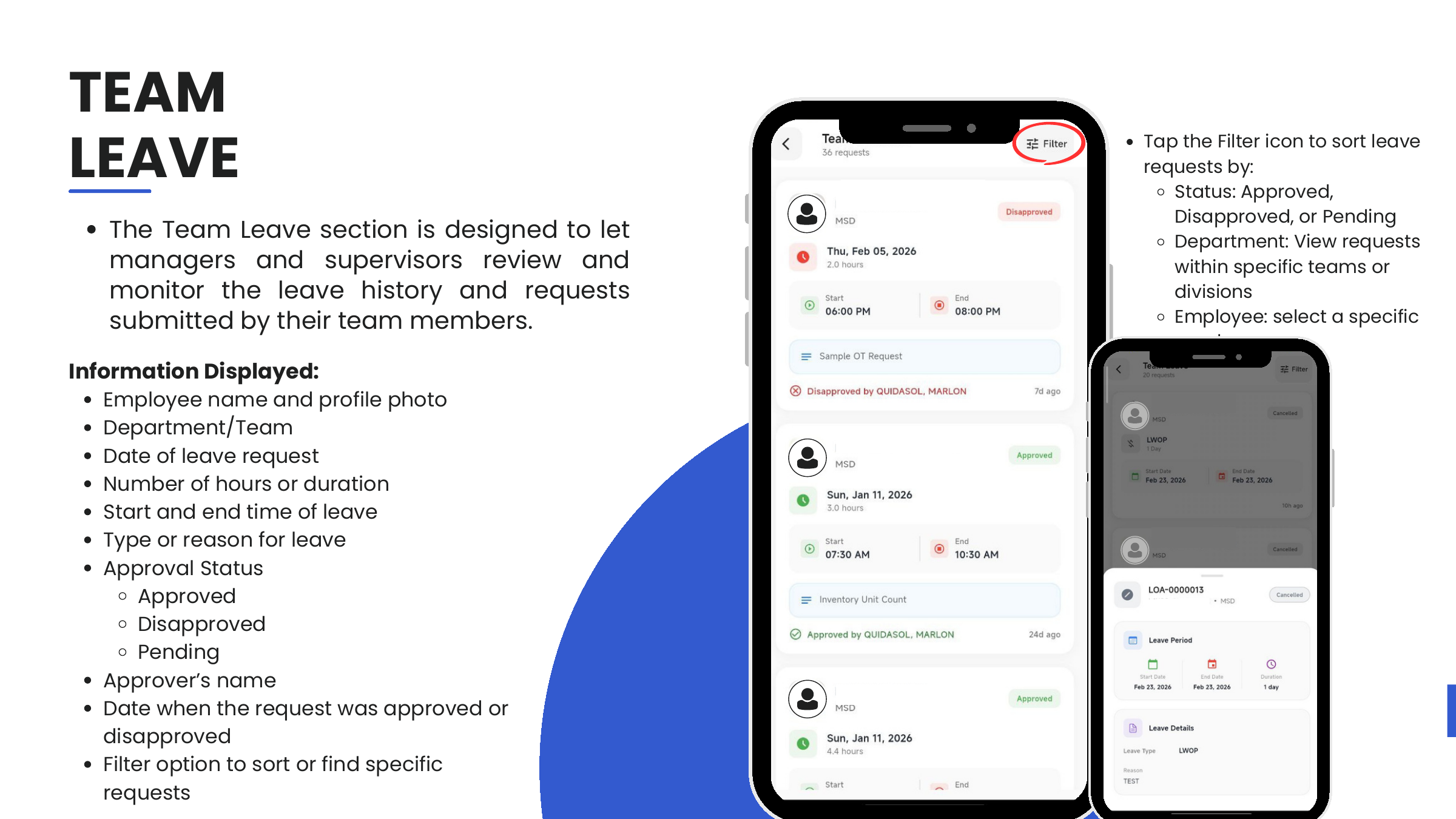
The Leave request covers absences of a half-day or longer: vacation, sick, parental, and unpaid leave. It uses the same four-action layout as the other request cards (New, My, Pending, All).
Leave types
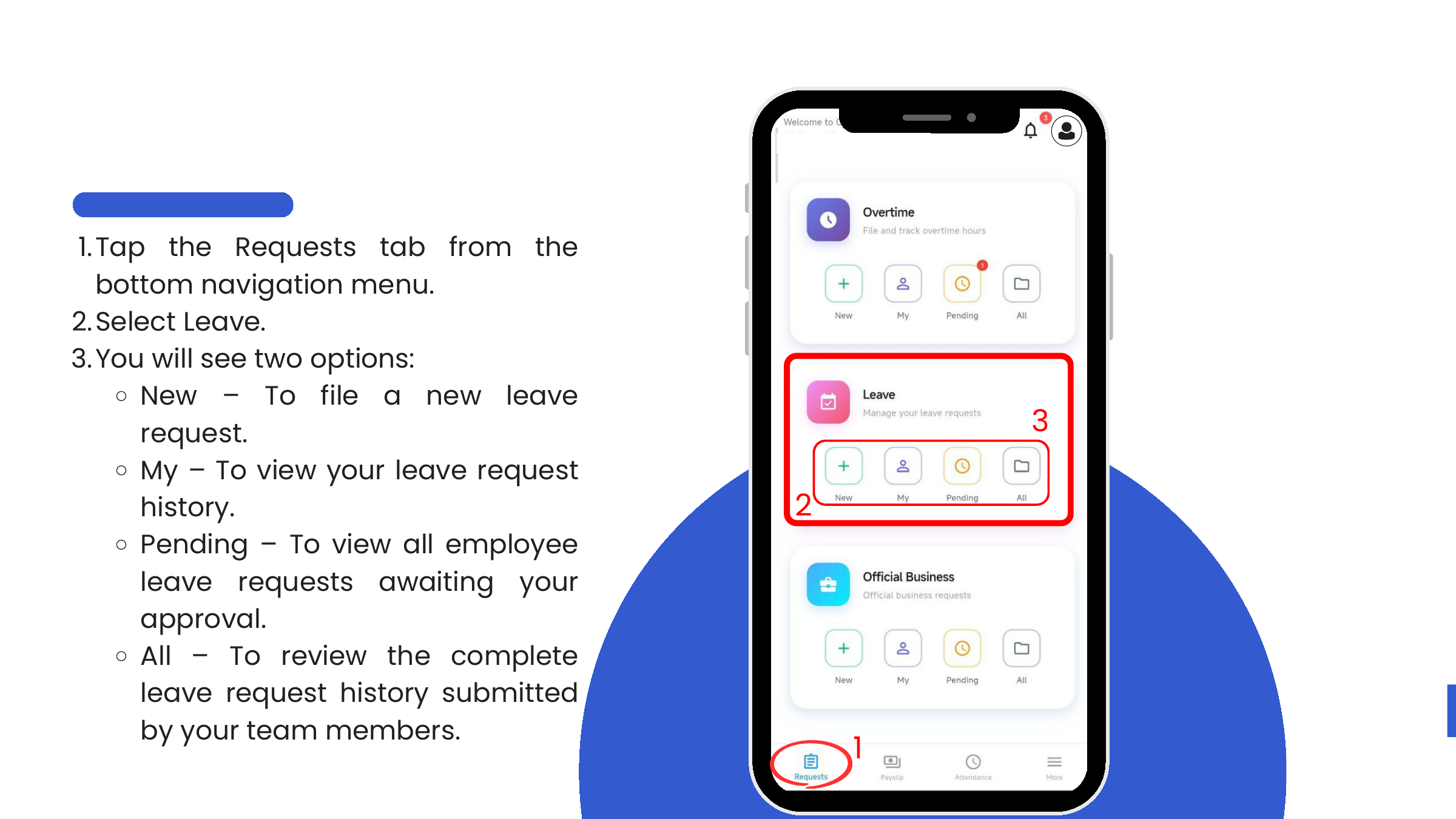
Available types (shown in the Leave Type dropdown when filing):
| Type | Typical use |
|---|---|
| Vacation Leave | Planned personal time off |
| Sick Leave | Illness or medical absence |
| Solo Parent Leave | Solo-parent entitlement |
| Maternity Leave | Birth-related leave |
| Paternity Leave | Father's birth-related leave |
| Other Leave | Any leave outside the standard buckets |
| Leave w/o Pay (LWOP) | Unpaid leave |
When a type is selected, the form displays the Available Balance (in days) for that type so the employee can confirm they have enough credits before filing.
File a new leave request
- Requests → Leave → New.
- Fill in the form:
| Field | Notes |
|---|---|
| Leave Type | Pick from the dropdown. The form shows the balance for that type. |
| Leave Period | Start Date and End Date. A single-day leave uses the same date in both. |
| Half Day Leave | Check this box only if filing for half a day. Leave unchecked for whole-day or multi-day. |
| Reason | A clear, specific explanation. |
- Tap Submit Request. A confirmation dialog appears on success; the request enters the approver's Pending queue.
View your own history (My)
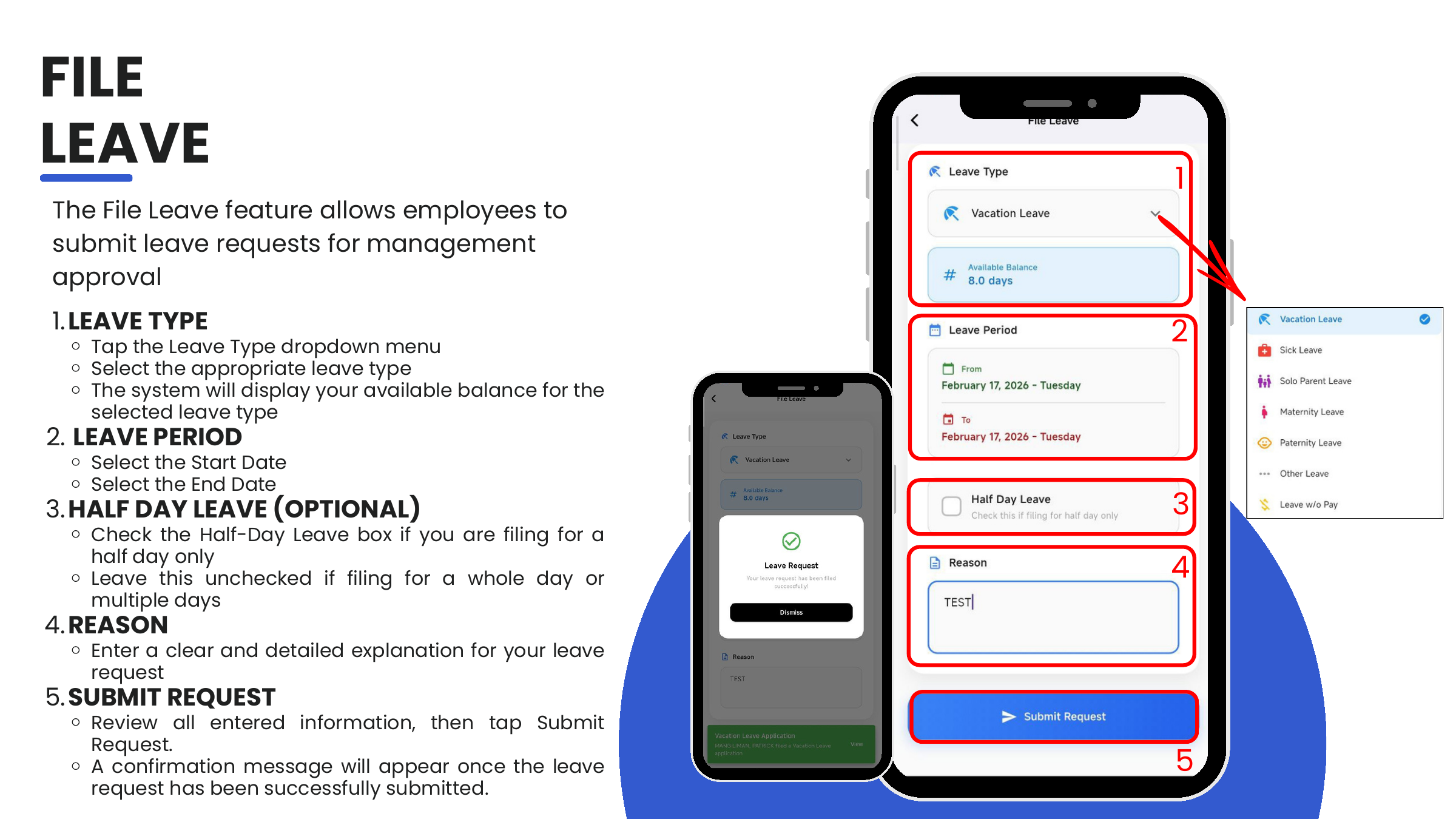
Requests → Leave → My lists every leave the user has filed with status badges and dates. Tap any row for the full detail:
- Leave Type, Number of Days
- Start Date, End Date
- Current Status — Approved, Disapproved, Cancelled, Revoked
- Reason
- Approved By, Approved On
- Date and time of status update
Each leave entry also has a unique reference like LOA-0000013 for cross-referencing with payroll or HR.
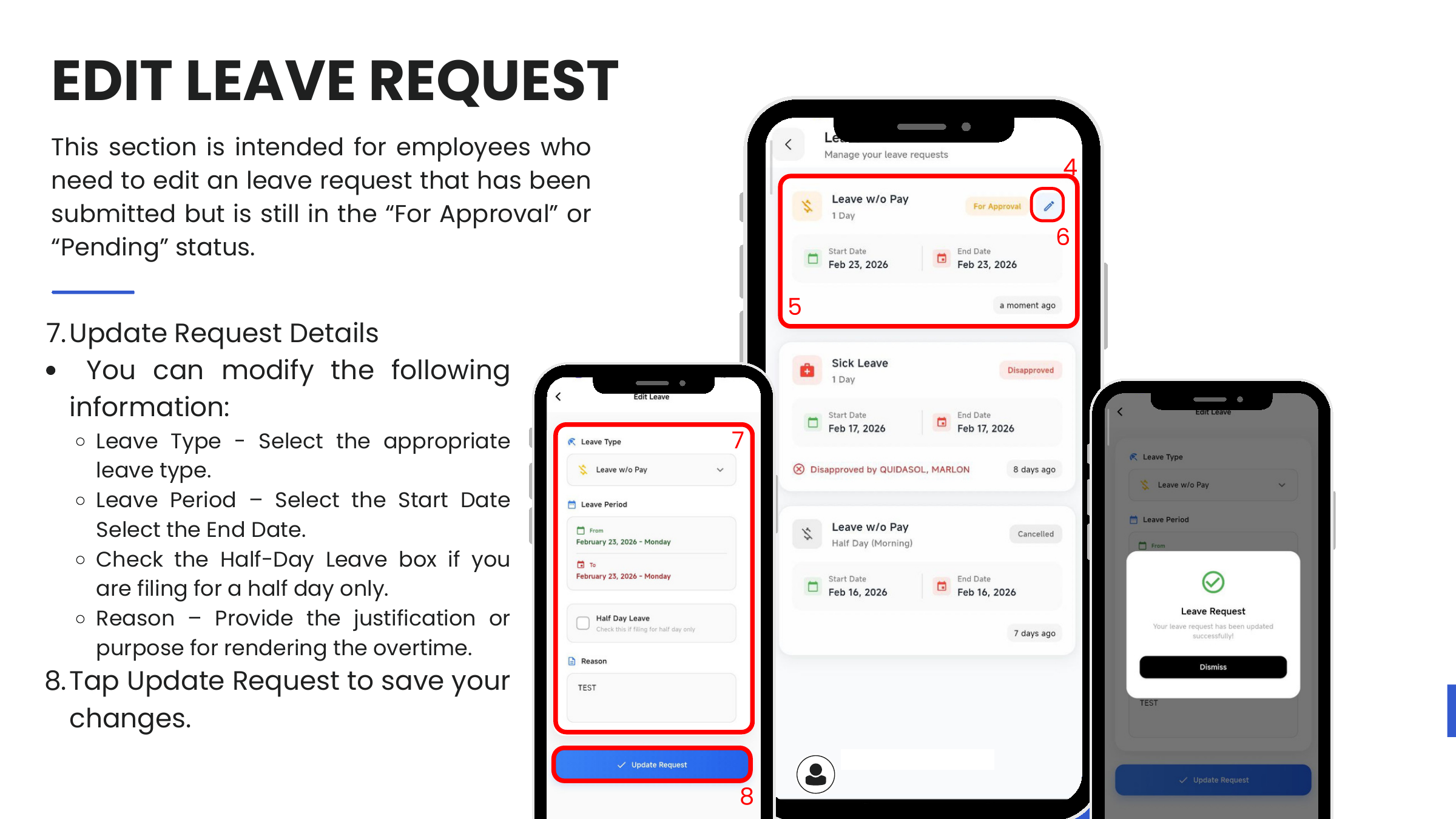
Edit a pending leave request
Only requests in For Approval status can be edited.
- Requests → Leave → My
- Tap the pending request, then the pen icon (✎).
- Modify Leave Type, Leave Period, Half Day Leave, or Reason.
- Tap Update Request.
Cancel a pending leave request
- Requests → Leave → My
- Tap the request to open its detail.
- Tap Cancel at the bottom of the screen.
- Confirm on the "Cancel Leave Request?" overlay by tapping Cancel Request.
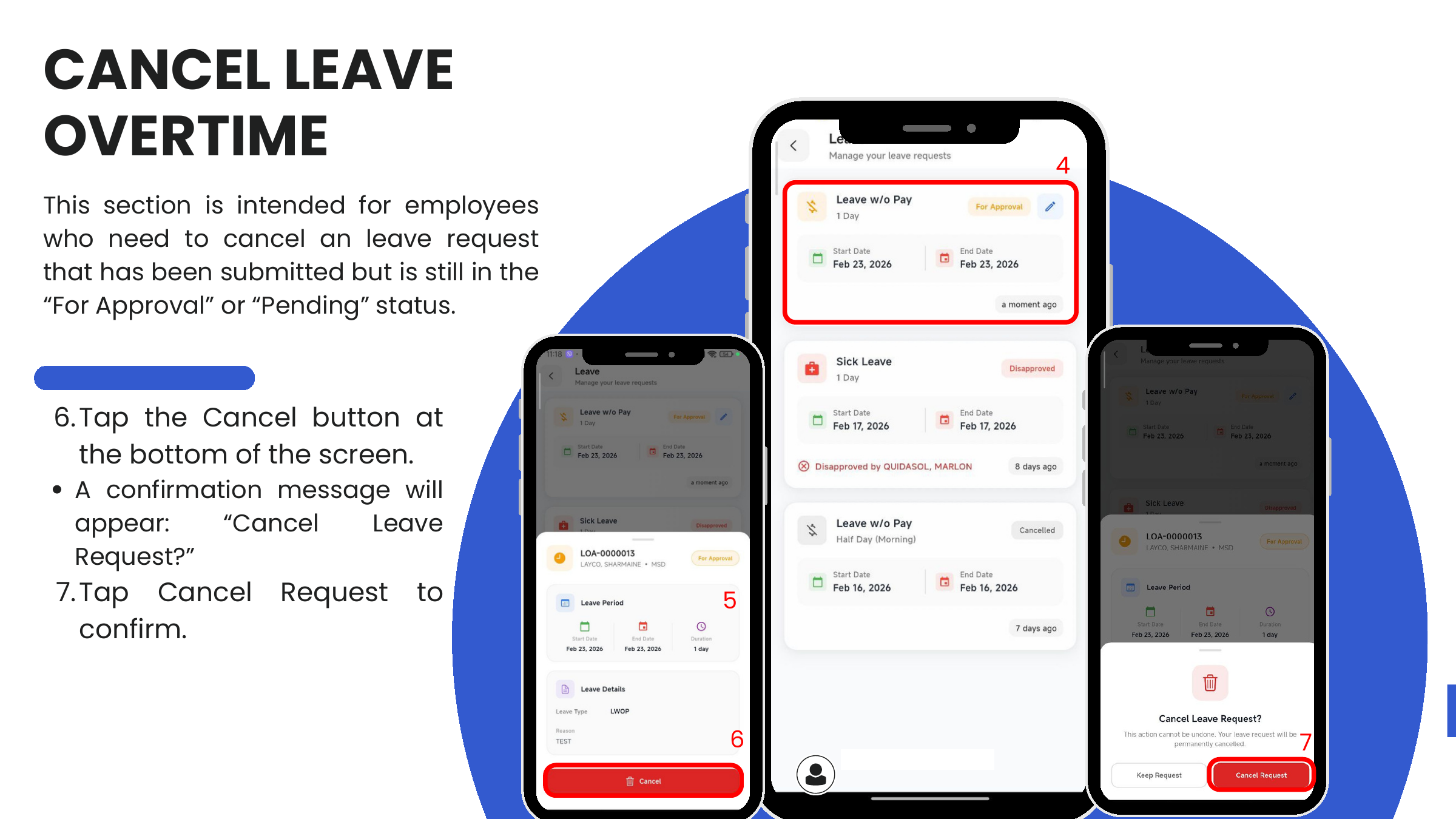
Cancellation is permanent.
Approver actions
Approve or disapprove
-
Requests → Leave → Pending — lists every team leave awaiting action.
-
Review each entry:
- Employee name and department
- Leave Type, Leave Duration (start, end, total days)
- Leave Balance — current balance, balance after approval (e.g.,
0.0 days→-1.0 days) - Reason
- Date and time filed
-
Tap Approve (green) or Decline / Disapprove (red).
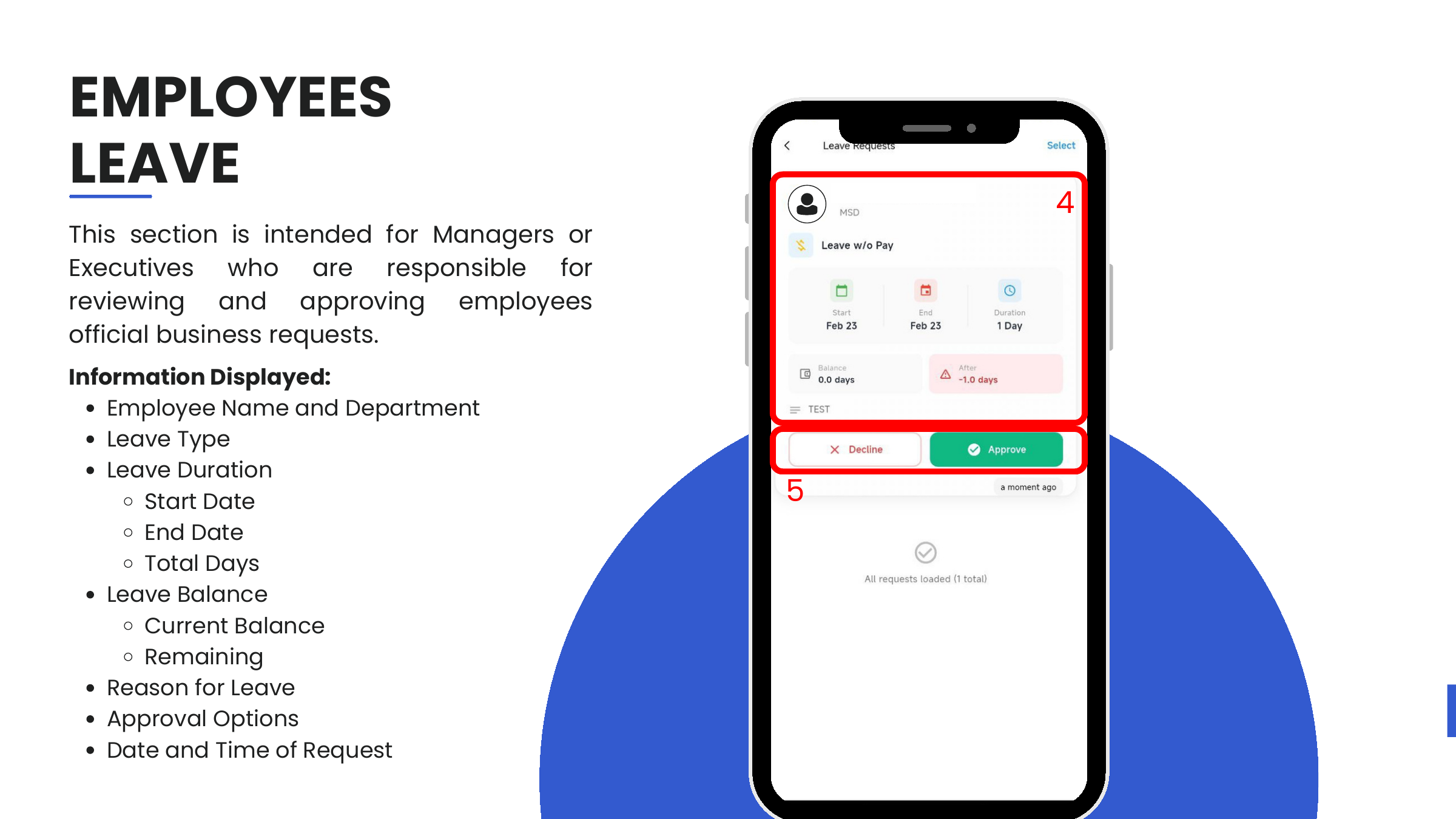
The "After" balance highlights when approval would push the employee into a negative balance — useful for deciding whether to allow LWOP fallback.
Team Leave (All)
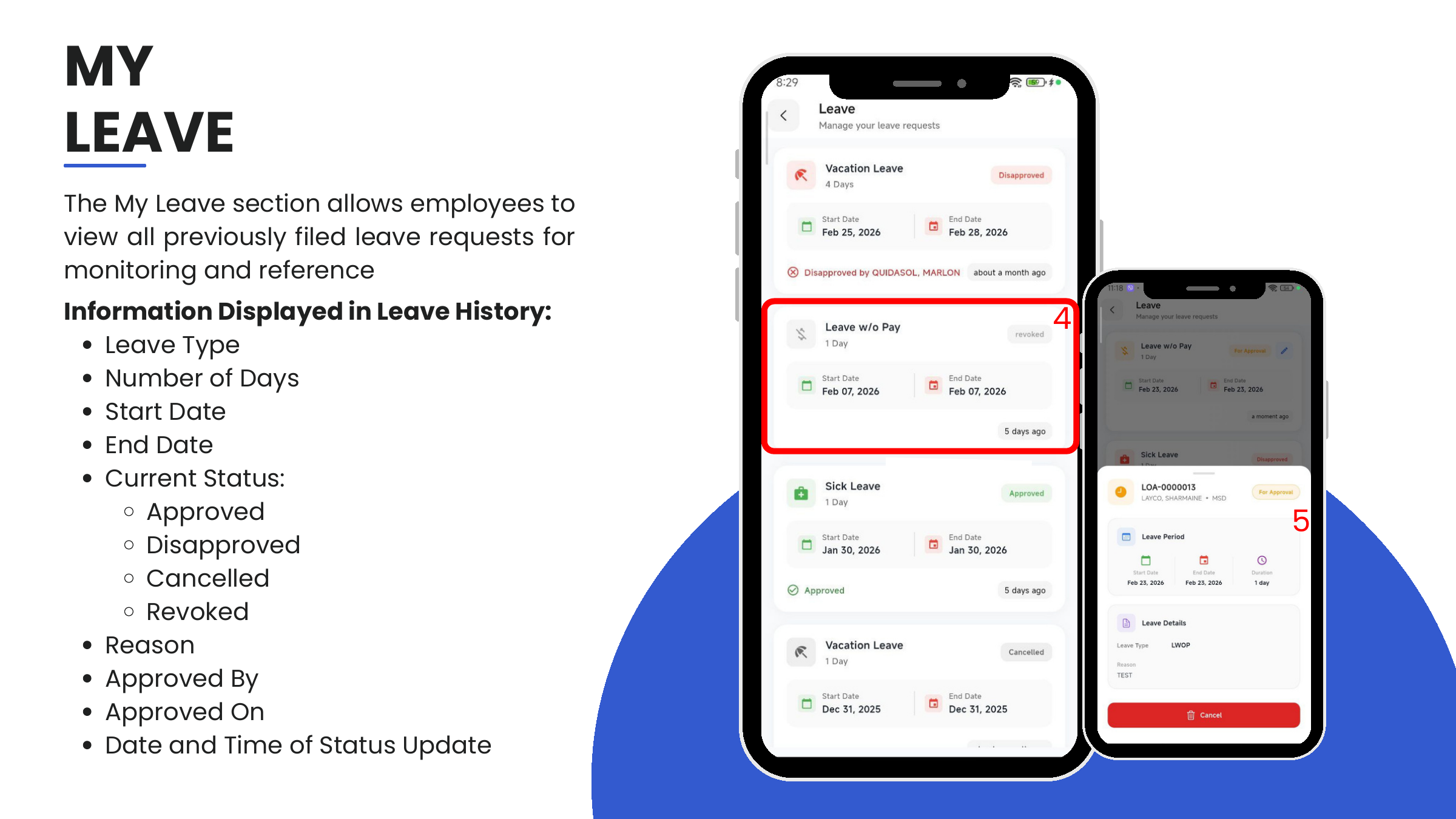
Requests → Leave → All shows the complete leave history submitted by the approver's team across all statuses.
Tap the Filter icon to narrow by:
- Status — Approved, Disapproved, Pending
- Department
- Employee