Official Business (OB)
Official Business requests cover work duties performed outside company premises — client visits, supplier pickups, fieldwork, off-site meetings. Unlike overtime and leave, approved OB requests expose a QR-code-based time tracking flow, so the employee can log arrival and departure at the destination and the approver can see where and when it happened.
File a new OB request
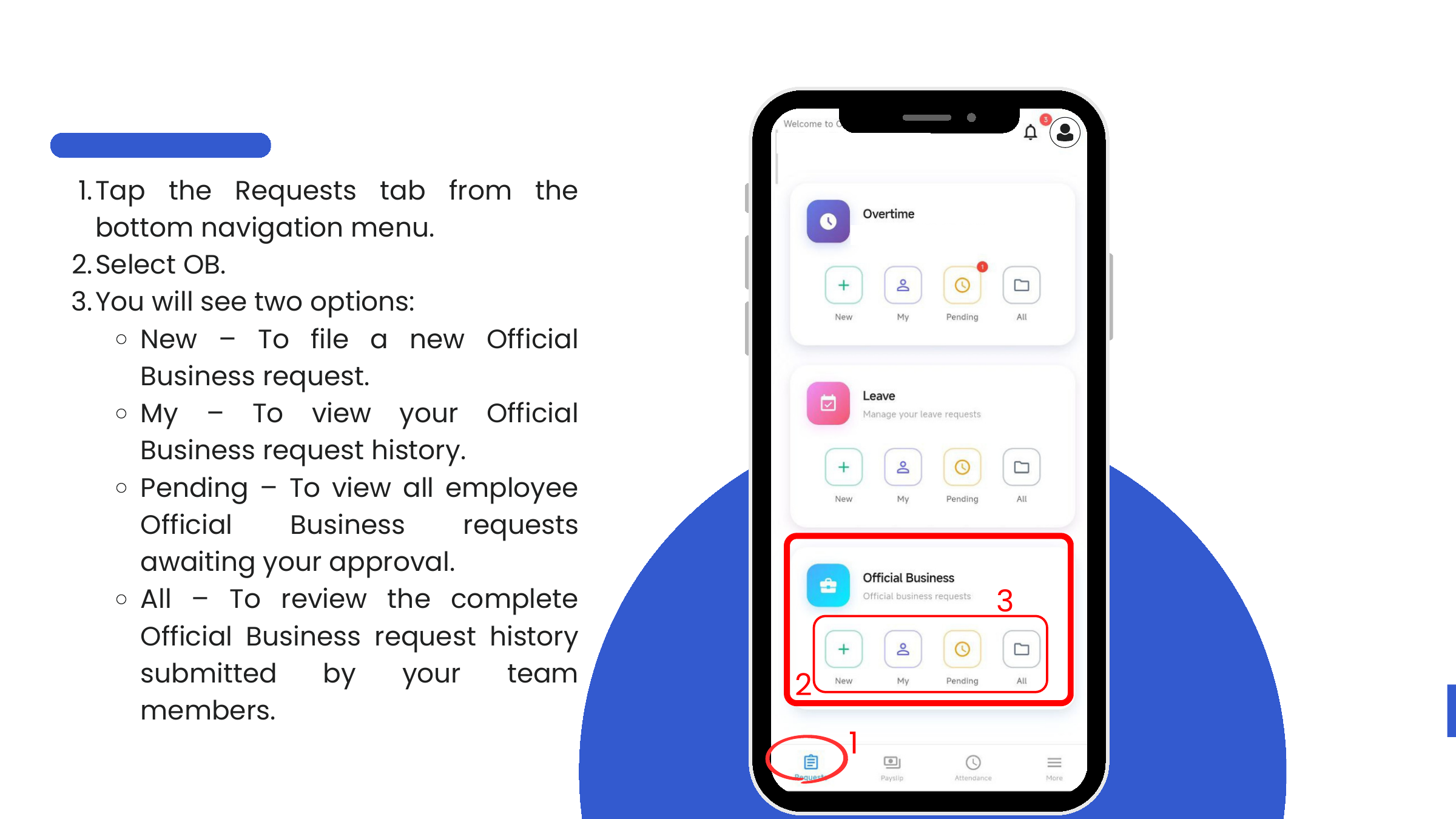
- Requests → Official Business → New.
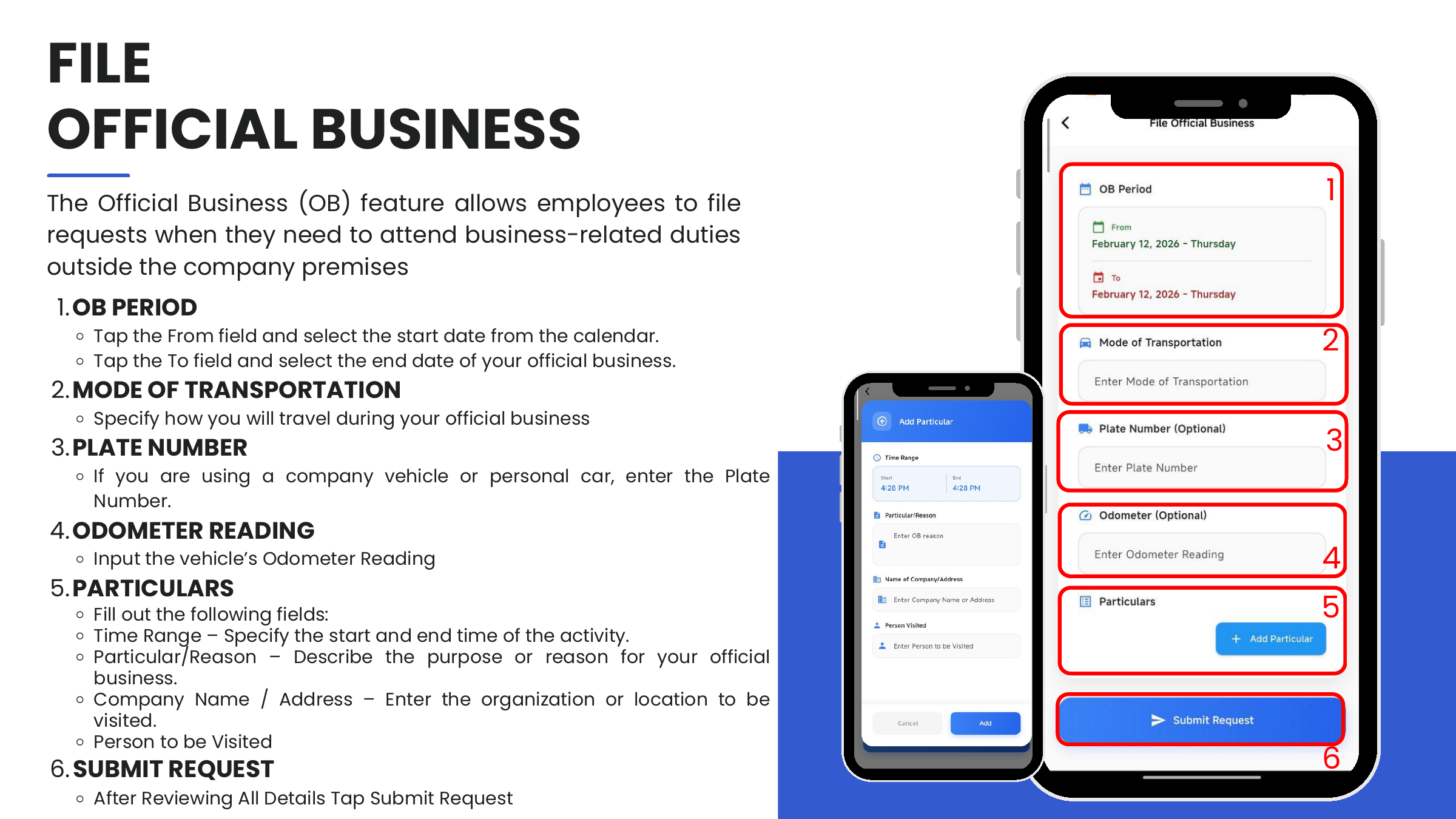
- Fill in the form:
| Field | Notes |
|---|---|
| OB Period | From and To dates. |
| Mode of Transportation | How the employee will travel (e.g., Company Vehicle, Personal Car, Public). |
| Plate Number (optional) | For company vehicles or personal cars — enter the plate. |
| Odometer (optional) | Starting odometer reading for mileage tracking. |
| Particulars | One or more destinations. Each has Time Range (Start / End), Particular / Reason, Company Name / Address, and Person to be Visited. |
- Tap + Add Particular to append additional destinations on the same trip.
- Tap Submit Request.
View your own history (My)
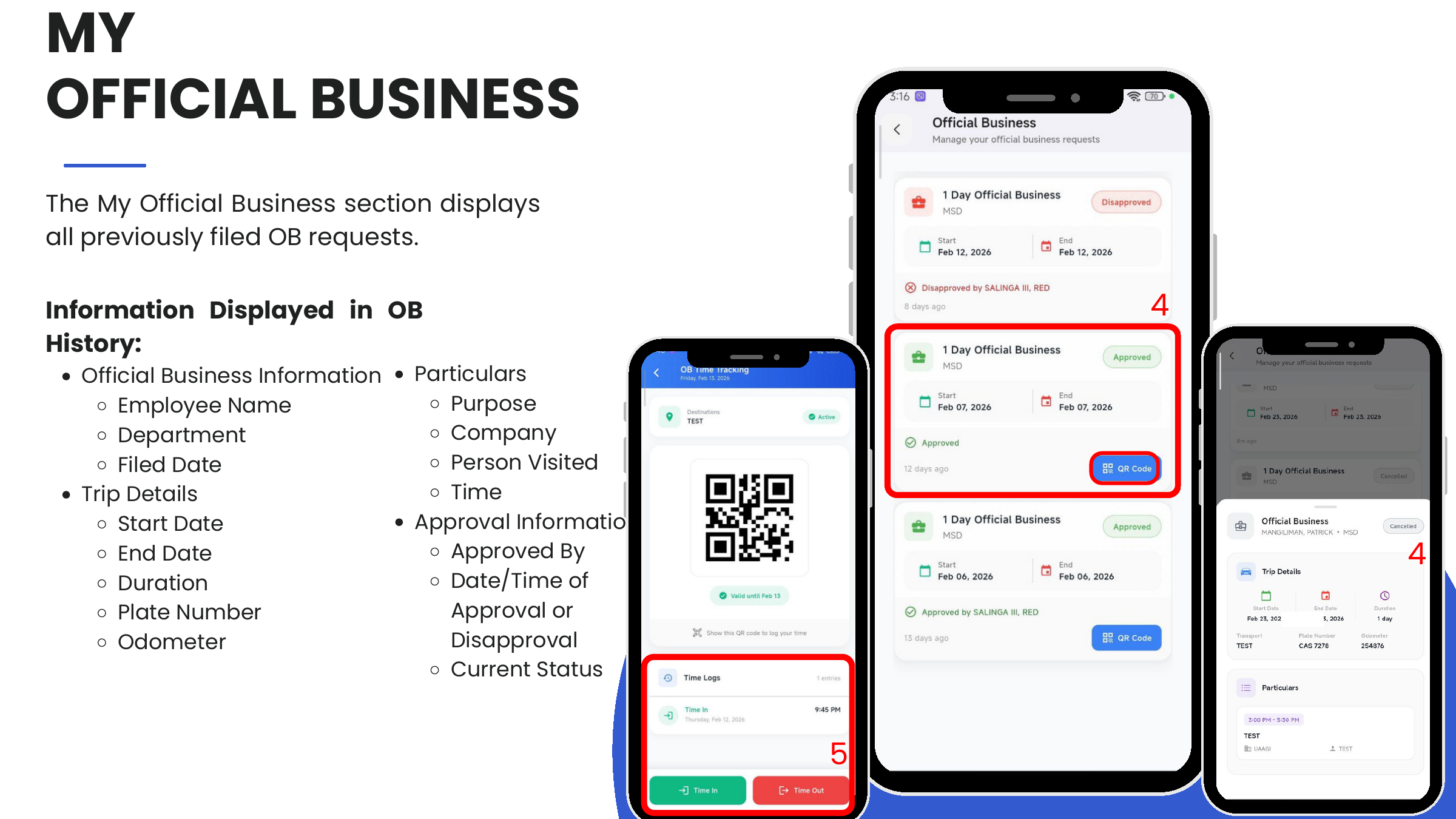
Requests → Official Business → My lists every OB the user has filed. Information per entry:
- Official Business info — Employee Name, Department, Filed Date
- Trip Details — Start Date, End Date, Duration, Plate Number, Odometer
- Particulars — Purpose, Company, Person Visited, Time
- Approval Information — Approved By, Date/Time of Approval or Disapproval, Current Status
OB Time Tracking (QR code)
Approved OB requests expose a QR Code button that enables on-site time logging:
- Requests → Official Business → My
- Tap the approved OB to open its detail.
- Tap QR Code to open the OB Time Tracking screen.
- While the official business is ongoing:
- Tap Time In on arrival to record the start timestamp.
- Tap Time Out when the visit is complete.
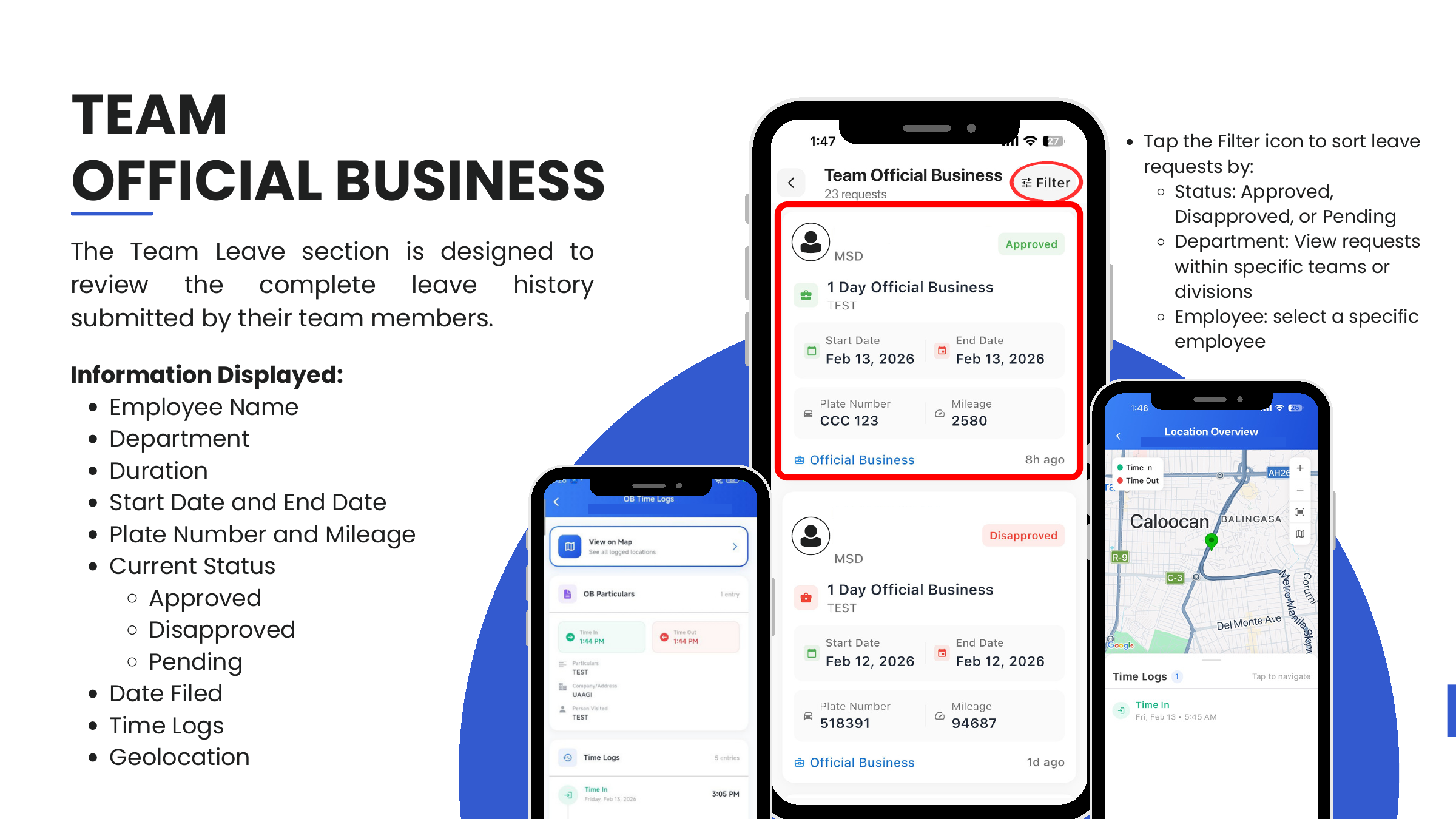
The Time Logs panel records each entry with timestamp, and the approver's Team OB view can plot these entries on a map.
:::info QR code validity The QR code is scoped to the approved date (e.g., Valid until Feb 13). Present it on-site when the host office's system requires scanning. :::
Cancel a pending OB request
- Requests → Official Business → My
- Tap the pending OB to view its details.
- Tap Cancel Request at the bottom of the screen.
- Confirm on the "Cancel OB Request?" overlay.
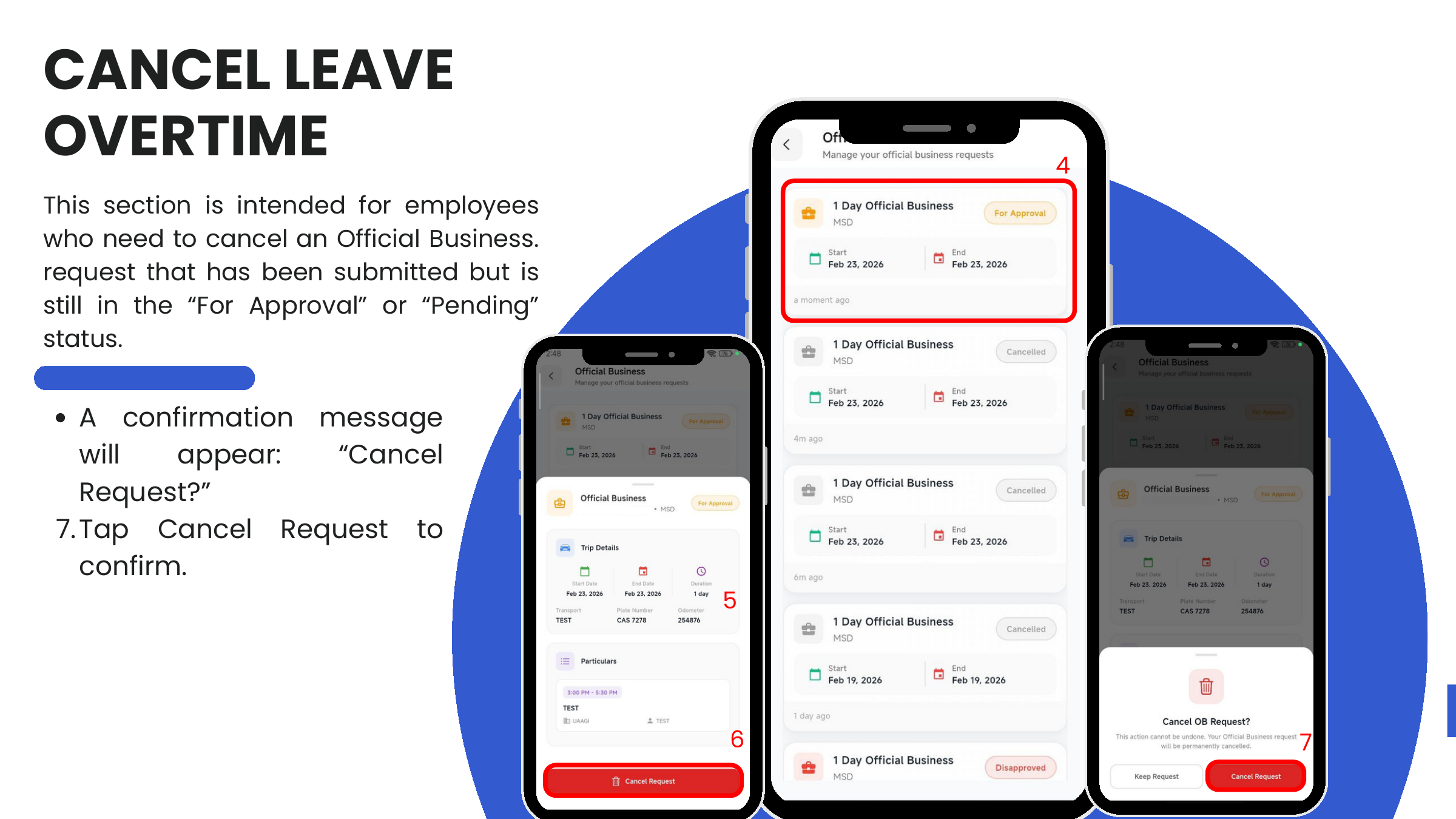
Only requests in For Approval or Pending status can be cancelled.
Approver actions
Approve or disapprove
-
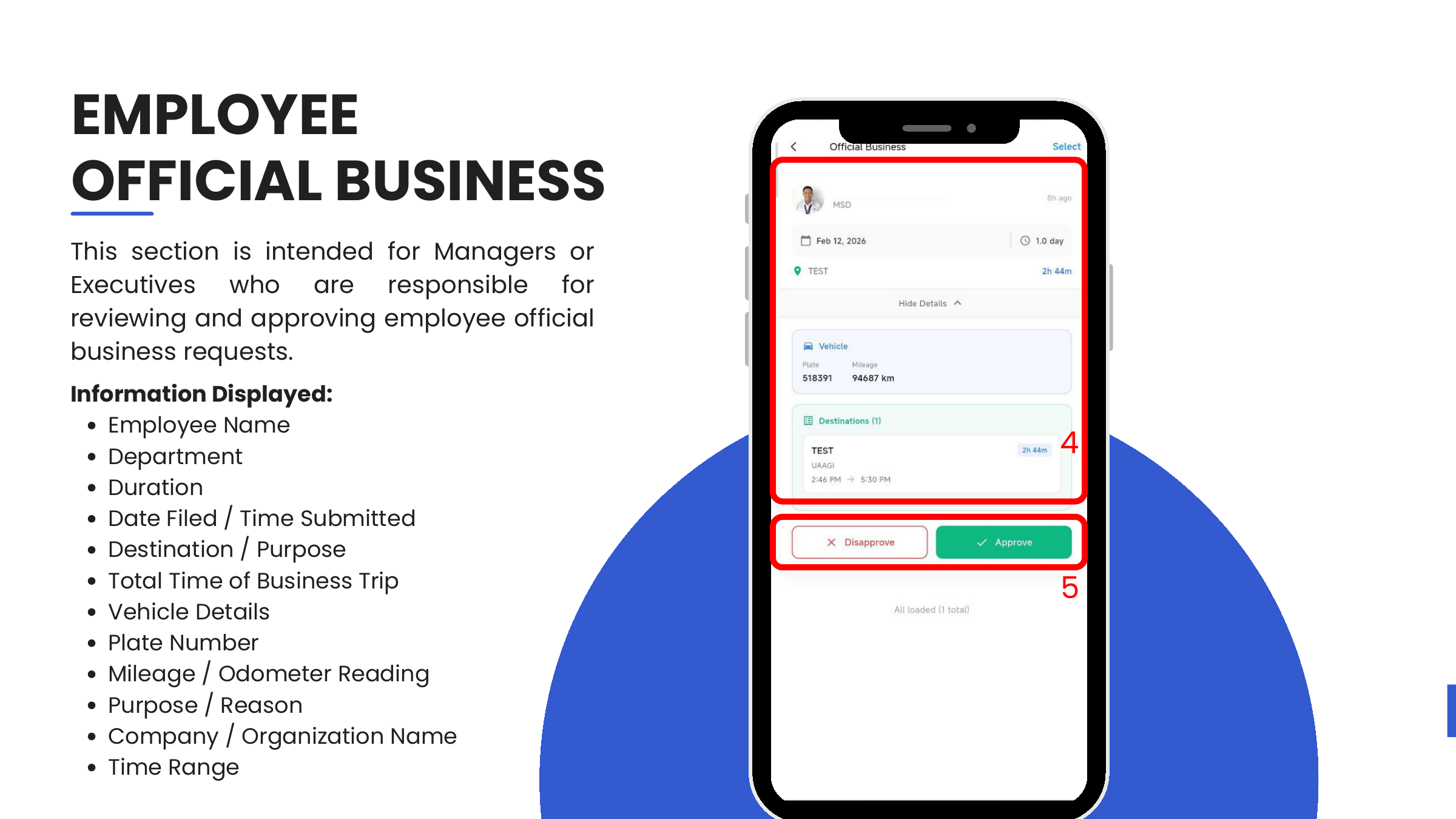
Requests → Official Business → Pending — team OB requests awaiting action.
-
Tap an entry to view the full detail:
- Employee Name, Department
- Duration, Date Filed / Time Submitted
- Destination(s), Purpose
- Vehicle Details — Plate Number, Mileage / Odometer
- Company / Organization Name, Time Range
-
Tap Approve (green) or Disapprove (red).
Team OB (All) + geolocation
Requests → Official Business → All shows the complete team OB history. Tap an entry to see:
- Trip details, OB particulars, approver information
- Time Logs with Time In / Time Out timestamps
- View on Map — plots each Time In / Time Out pin on a map, letting the approver verify the employee was where they said they would be
Tap the Filter icon to narrow by Status, Department, or Employee.