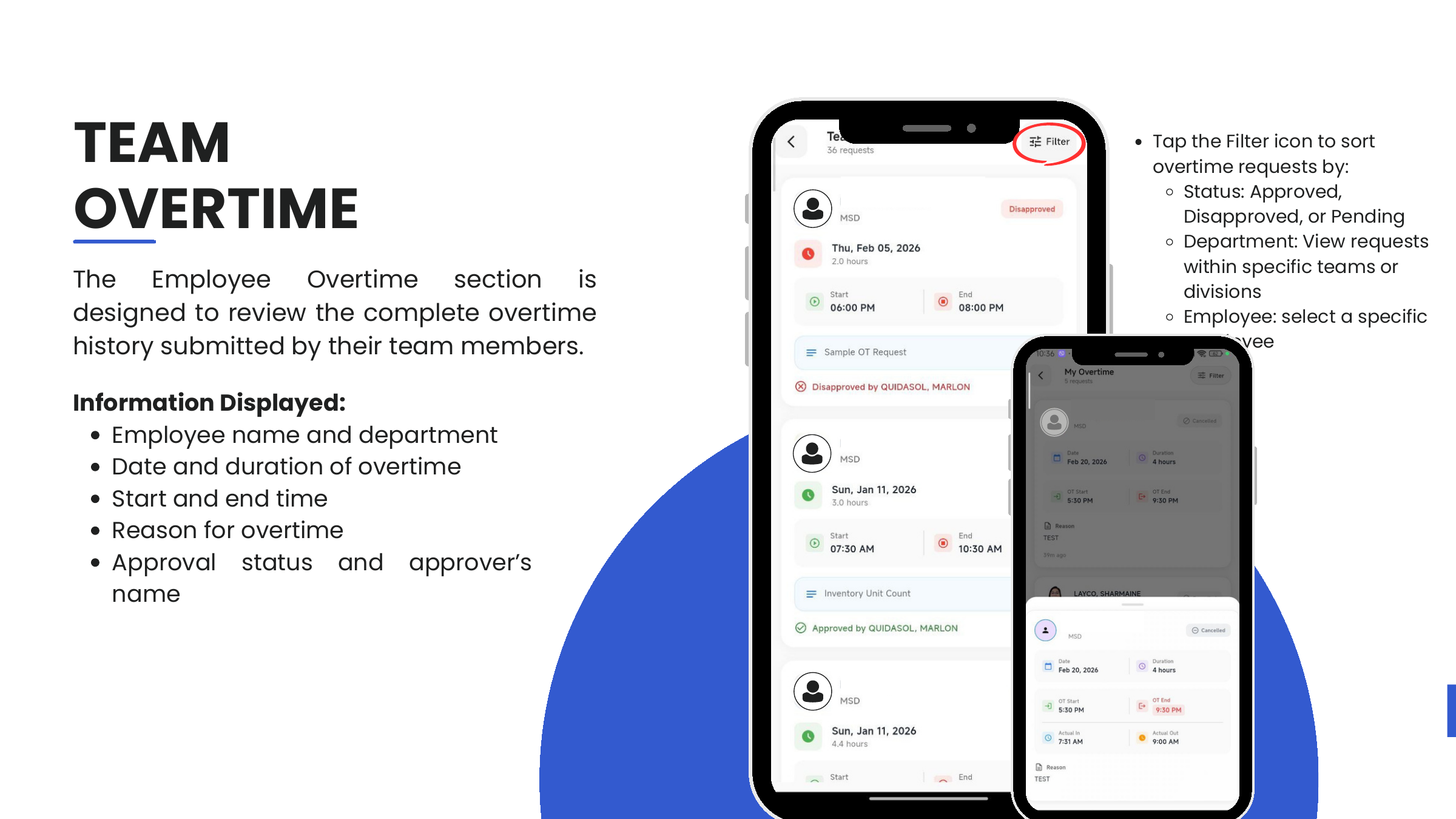
Overtime
The Overtime request lets employees file hours worked beyond their regular schedule for management approval. The card lives on the top of the Requests dashboard and exposes four actions: New, My, Pending, All.
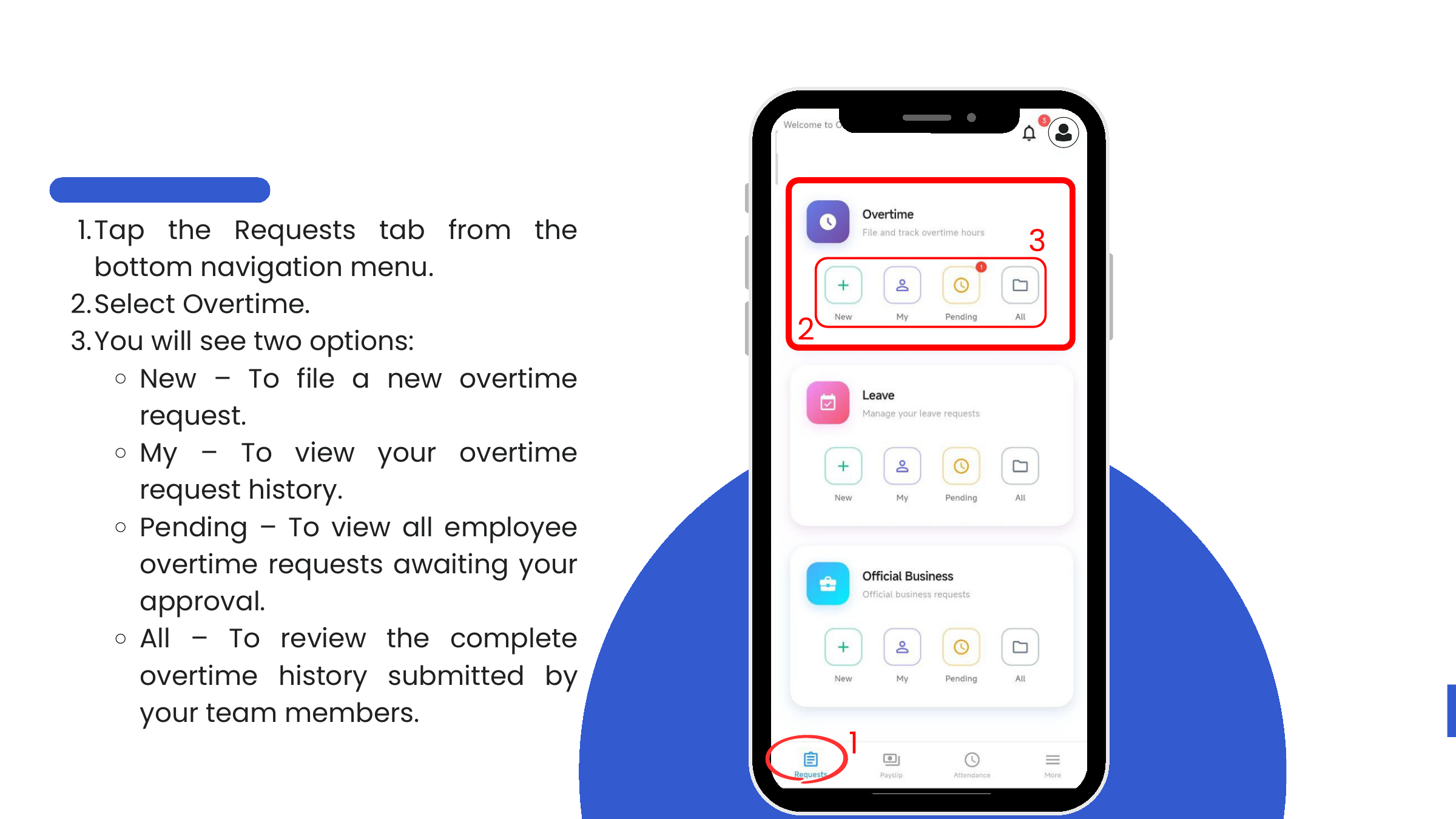
File a new overtime request
- Open Requests → Overtime → New.
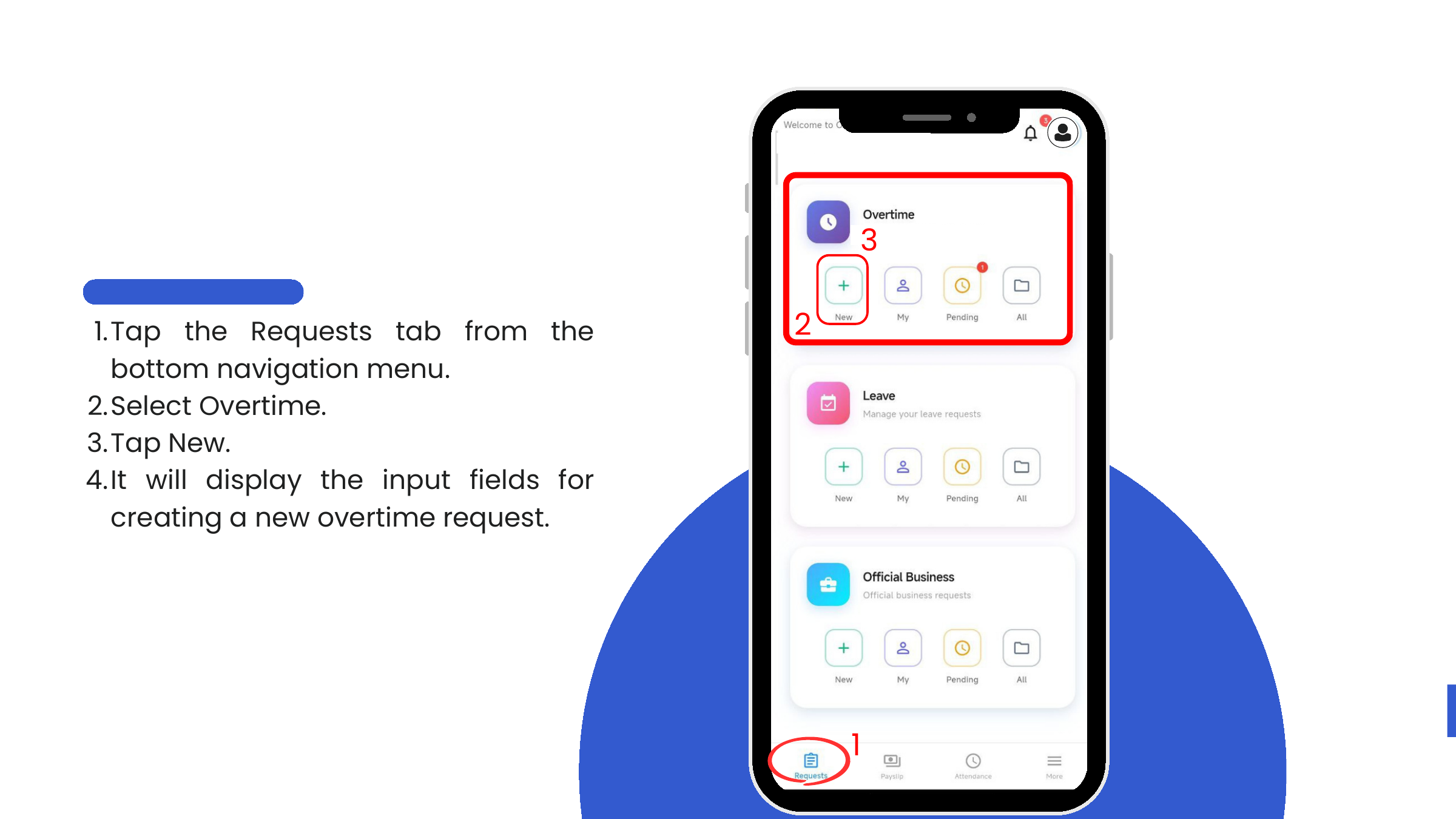
- Fill in the form:
| Field | Notes |
|---|---|
| Date | The calendar day the overtime was rendered. Tap the field to open the date picker. |
| Overtime Period | Start Time and End Time. The app auto-computes Duration. |
| Reason | A clear explanation of why OT was rendered. |
- Tap Submit Request. The request enters Pending status and appears on the approver's Pending queue.
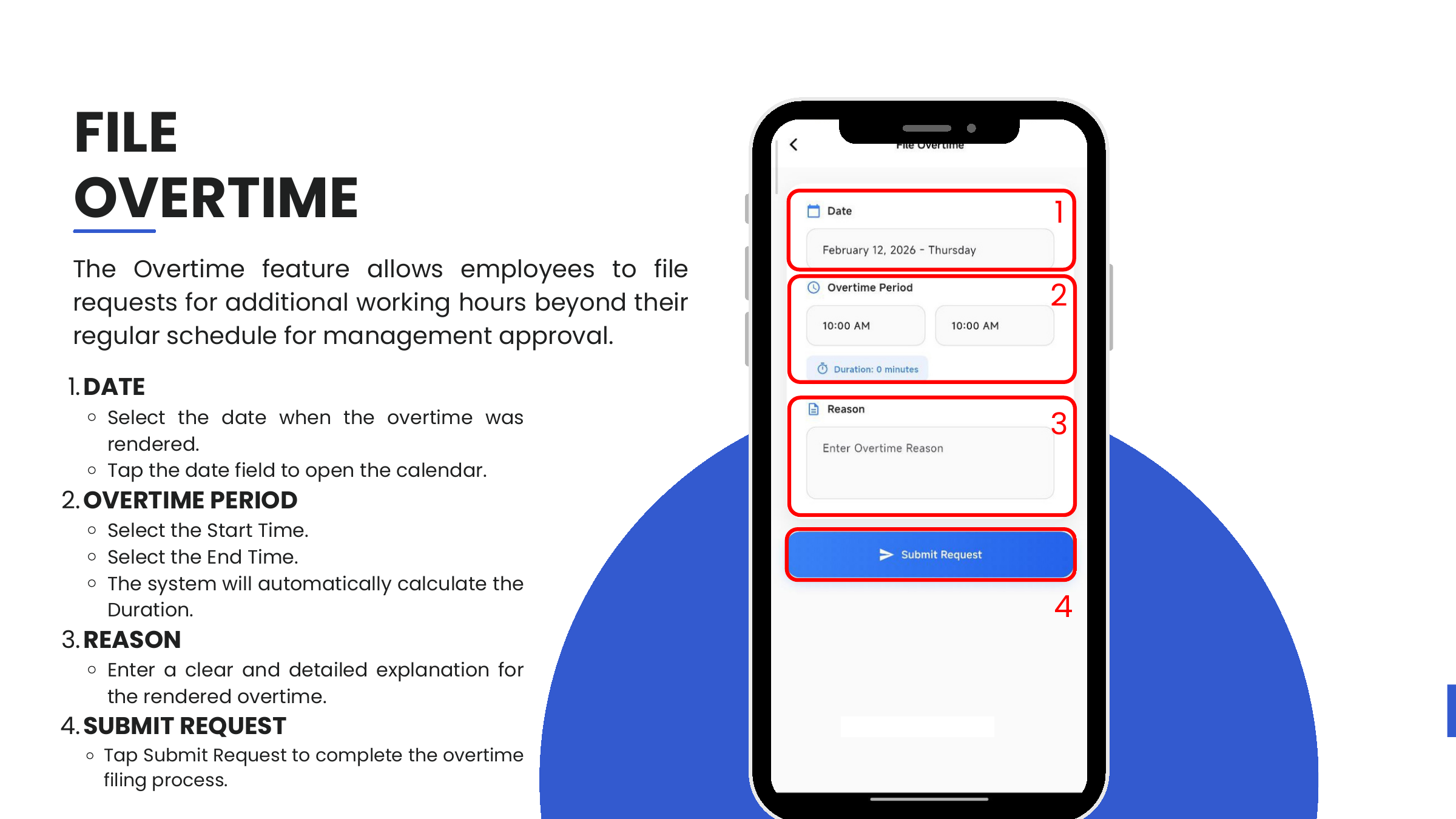
View your own history (My)
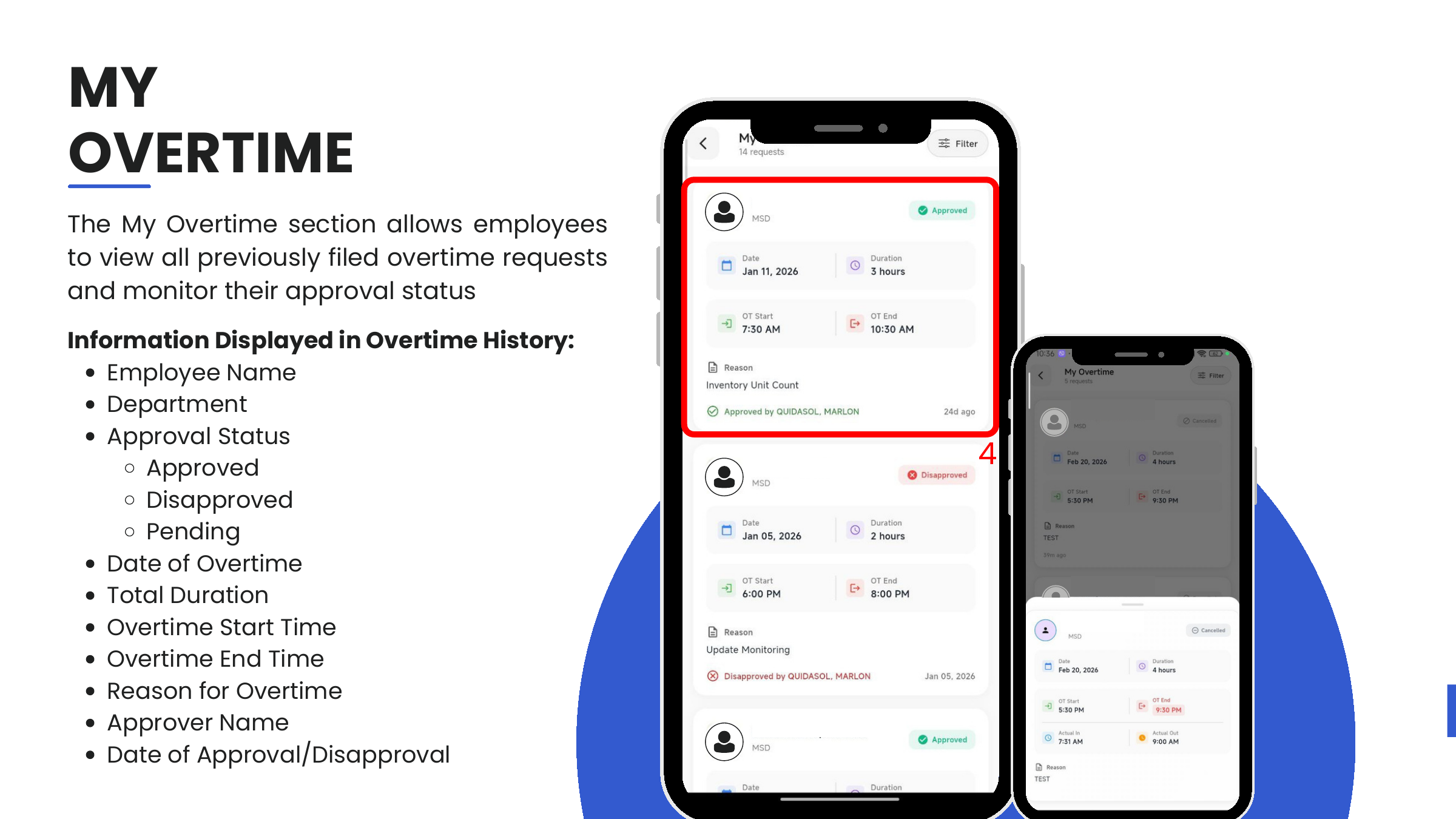
Requests → Overtime → My lists every OT request the user has filed, newest first, with status badges (Pending, Approved, Disapproved, Cancelled). Tap any row to view the full detail, including approver name and date of action.
Information shown per entry:
- Employee Name, Department
- Date of Overtime, Duration
- OT Start / OT End
- Reason
- Approval status, approver name, date of approval / disapproval
Edit a pending request
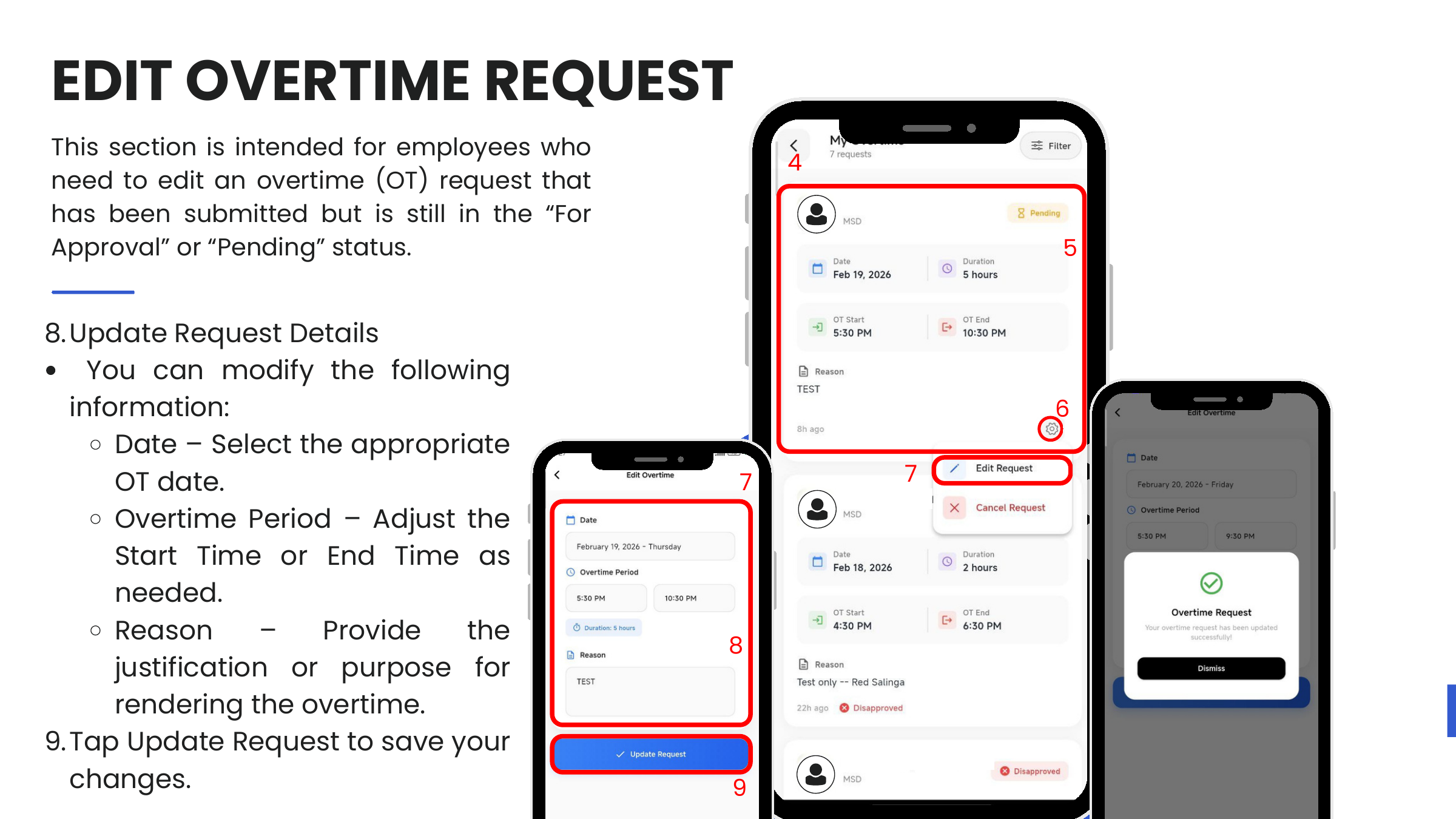
Only requests in Pending status can be edited — once an approver acts, the record is locked.
- Requests → Overtime → My
- Tap the pending request, then the gear icon (⚙).
- Select Edit Request.
- Modify Date, Overtime Period, or Reason.
- Tap Update Request.
Cancel a pending request
- Requests → Overtime → My
- Tap the pending request, then the gear icon (⚙).
- Select Cancel Request and confirm on the overlay.
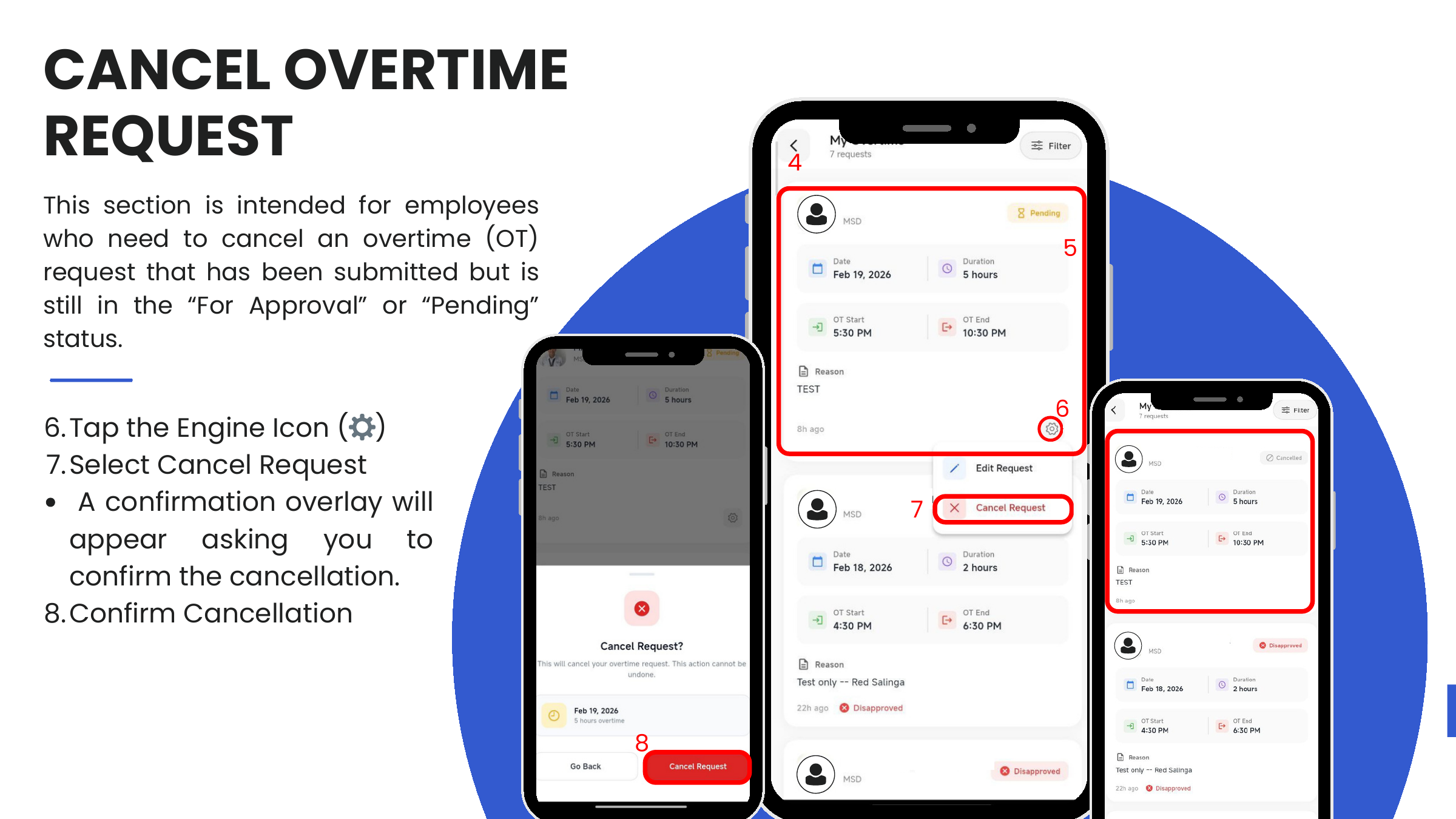
Cancellation is final — a cancelled request cannot be restored; the employee must file a new one if needed.
Approver actions
Approvers see two extra queues on the Overtime card: Pending and All.
Approve or disapprove
-
Requests → Overtime → Pending — lists every team OT request awaiting action.
-
Review each entry:
- Employee name and department
- Date, Duration, OT Start / End
- Actual In / Actual Out (from attendance system)
- Reason
-
Tap Approve (green) or Disapprove (red).
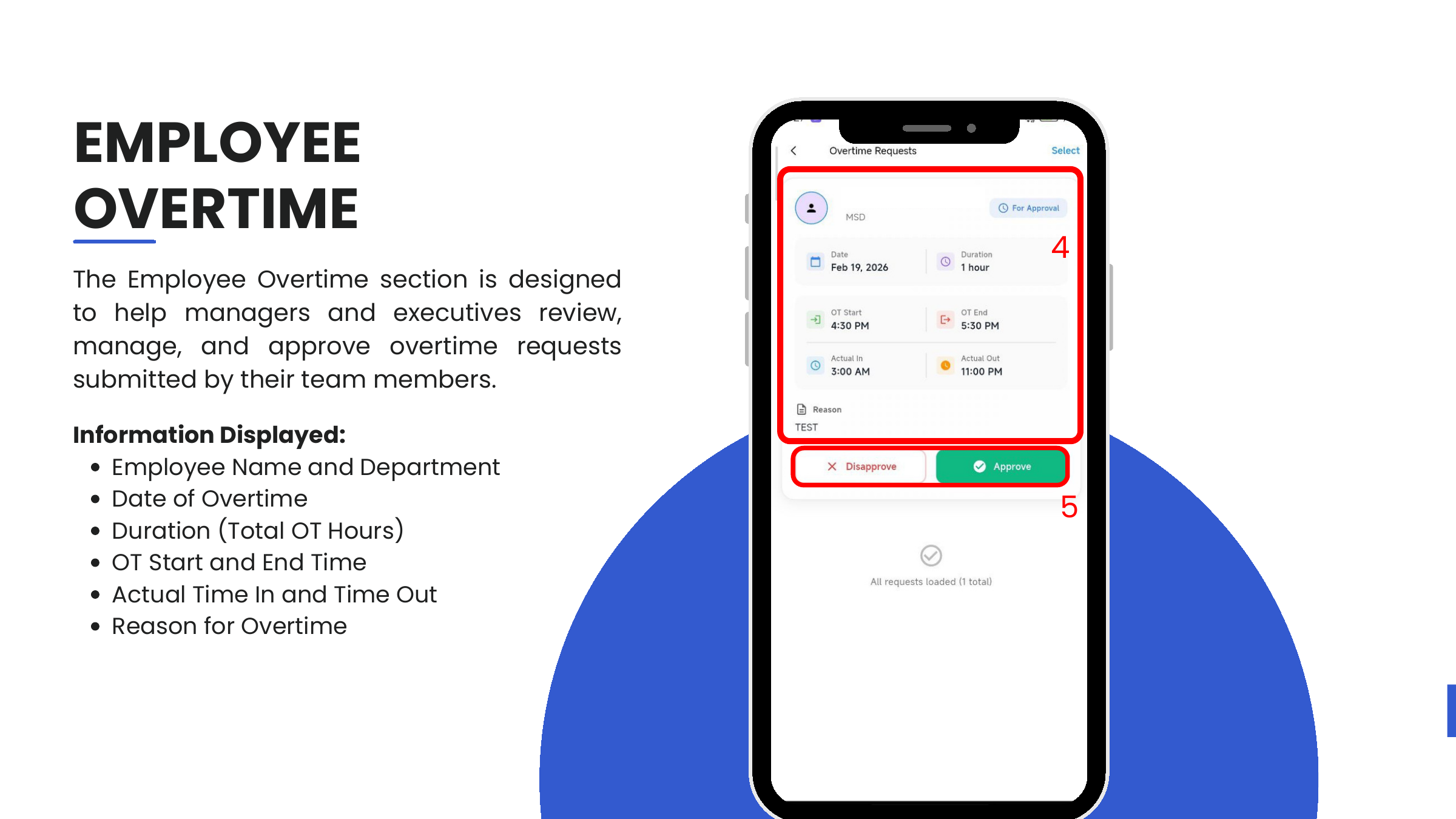
Actual In / Actual Out come from the attendance module and help the approver sanity-check whether the claimed OT hours match the employee's actual clock-in.
Team Overtime (All)
Requests → Overtime → All shows the complete OT history submitted by the approver's team — approved, disapproved, pending, and cancelled.
Tap the Filter icon to narrow by:
- Status — Approved, Disapproved, Pending
- Department — specific teams or divisions
- Employee — a specific team member